Clean Up Resources
Delete KMS Resources
Access AWS Management Console
- Find KMS
- Select KMS
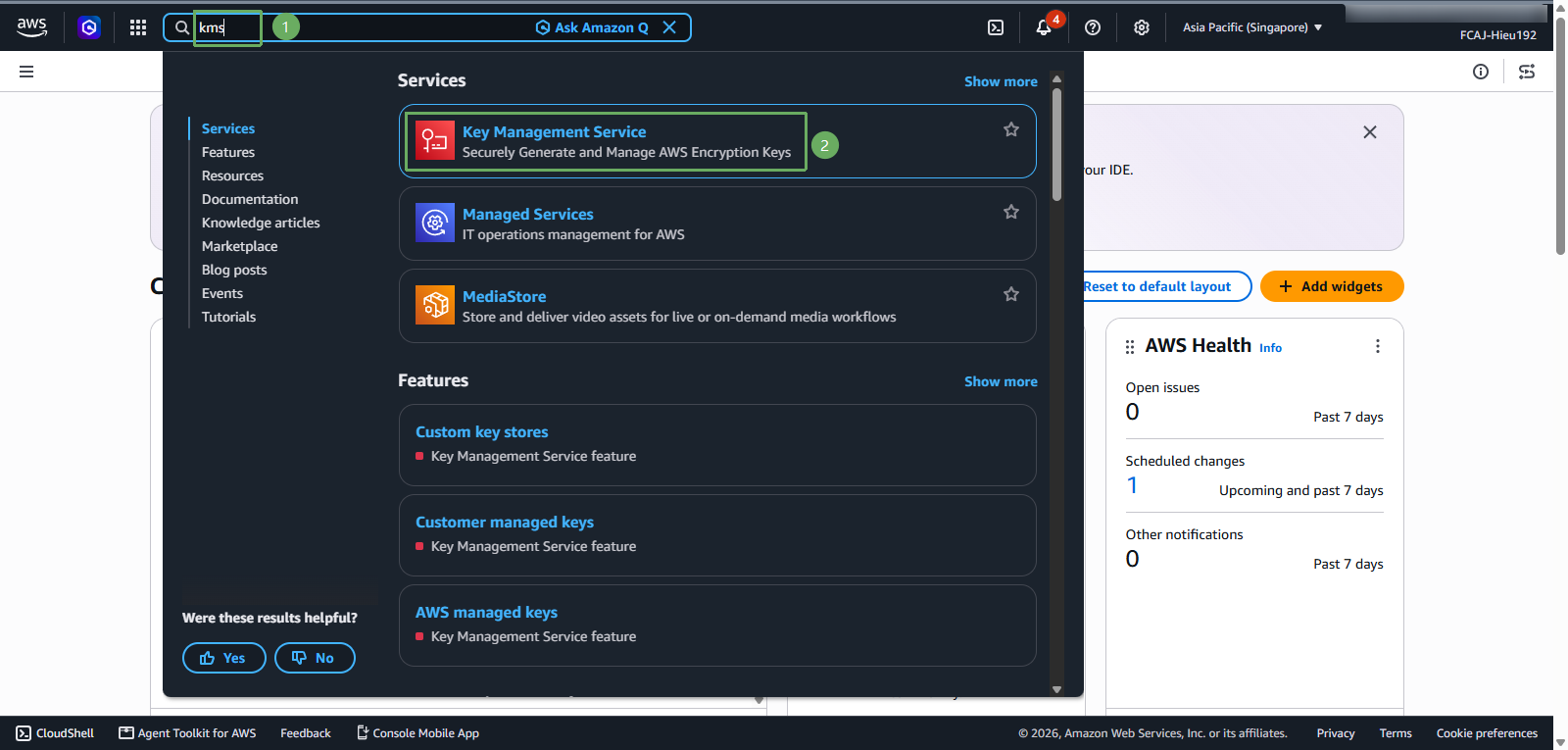
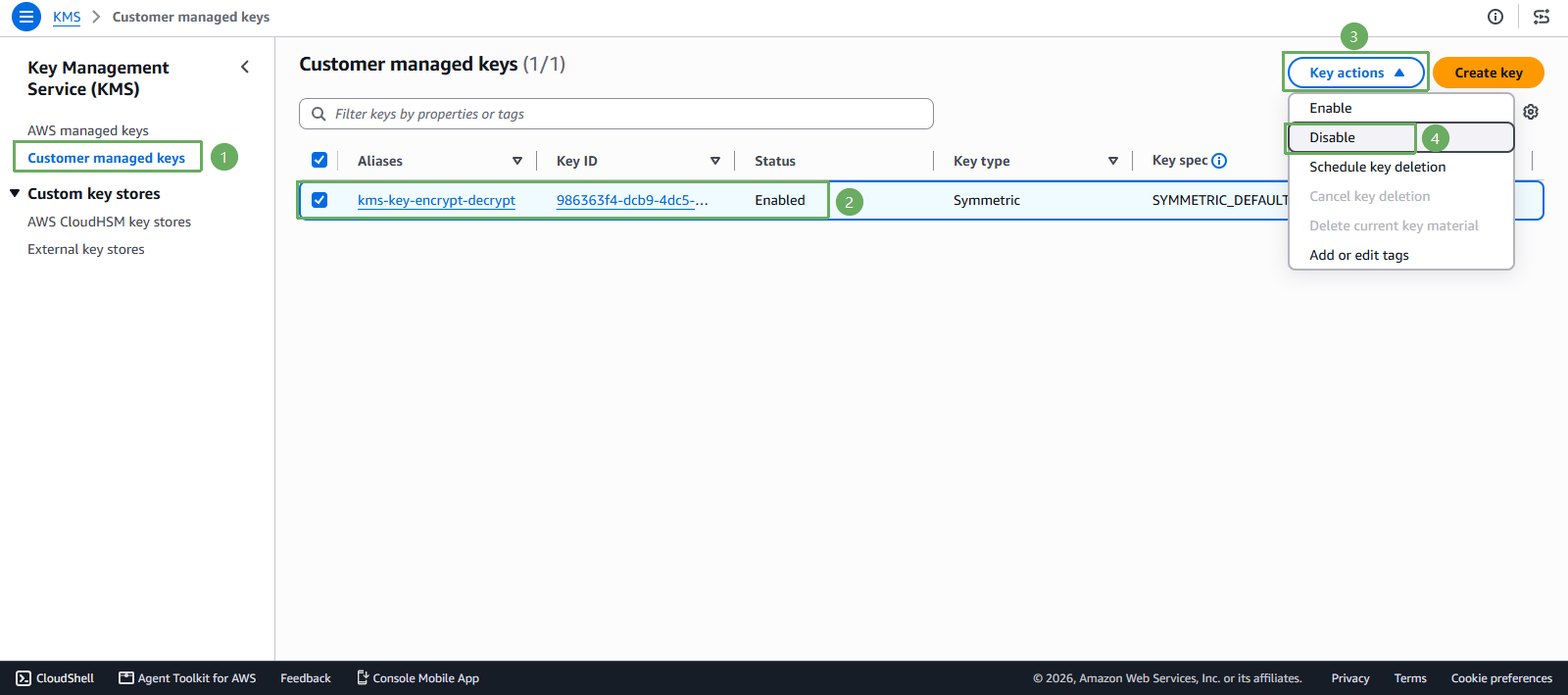
In the KMS interface
- Select kms-key-encrypt-decrypt
- Select Key actions
- Select Disable
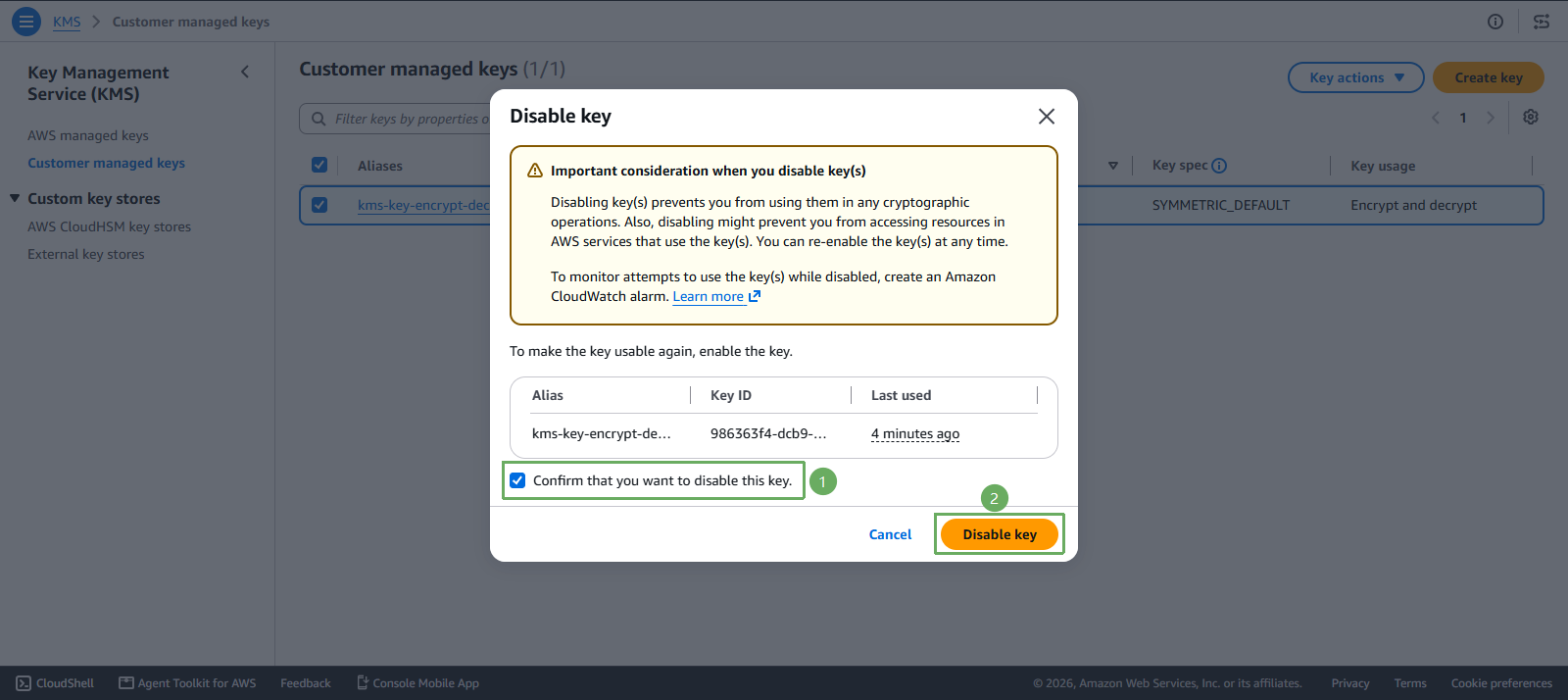
Next step
- Select Confirm that you want to disable this key
- Press Disable key
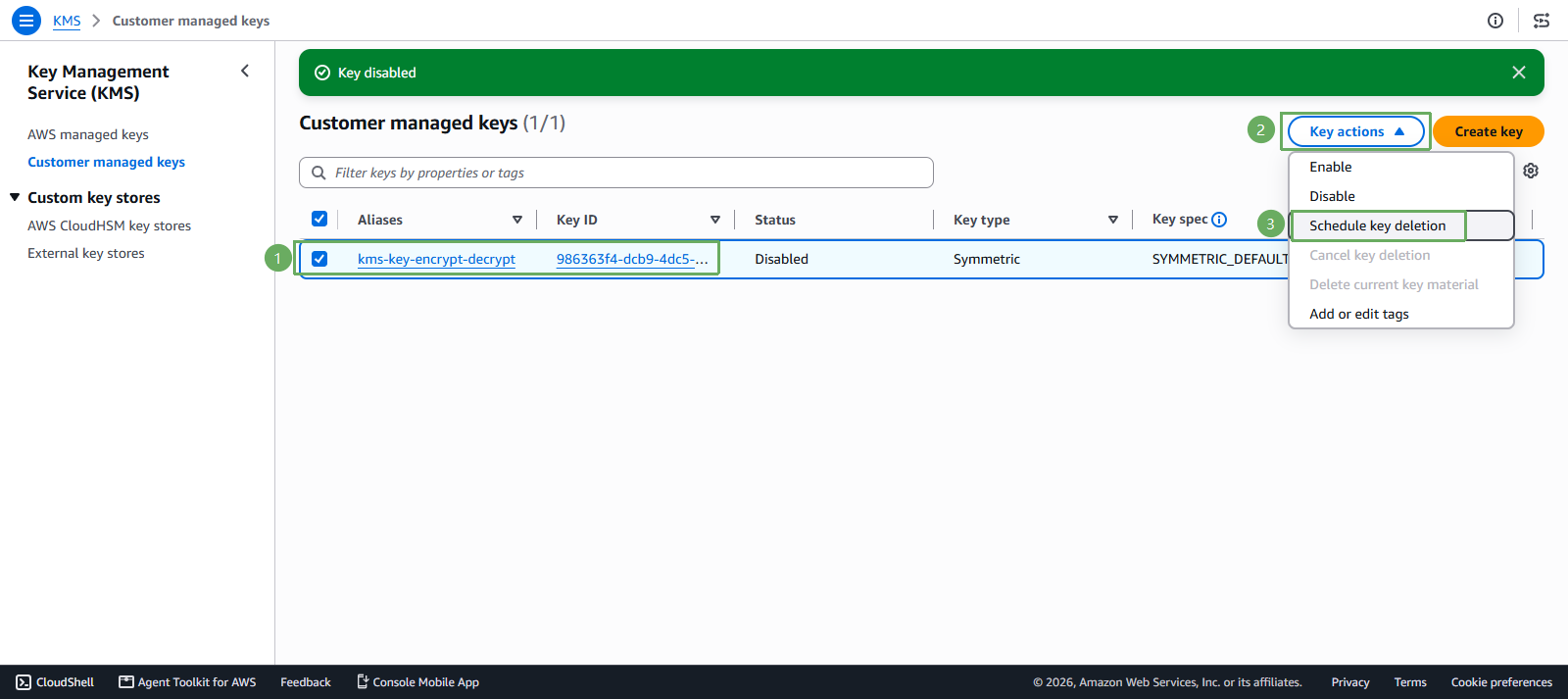
- Return to the KMS interface
- Select kms-key-encrypt-decrypt
- Select Key actions
- Select Schedule key deletion
Next
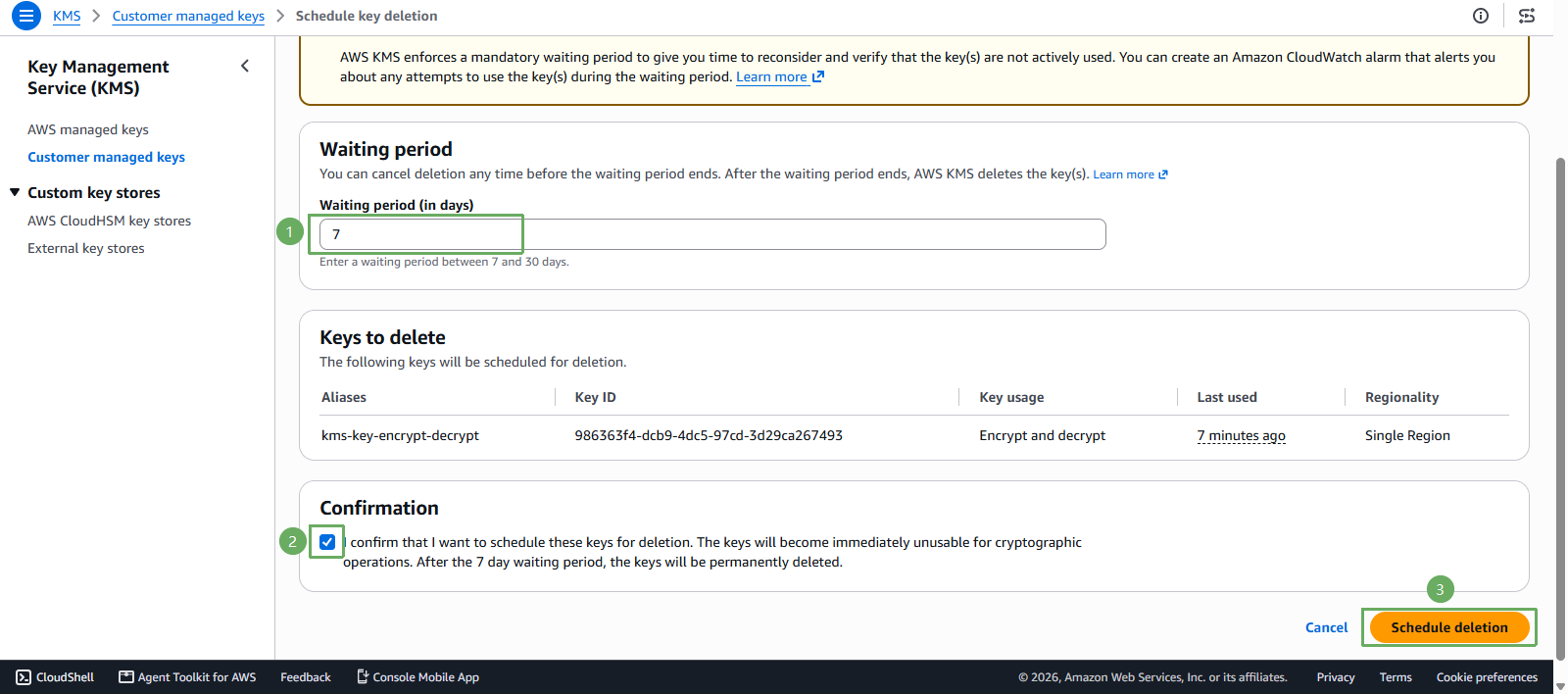
- In Waiting period (in days), enter 7
- Select Confirm that you want to schedule these keys for deletion after a 7 day waiting period
- Press Schedule deletion
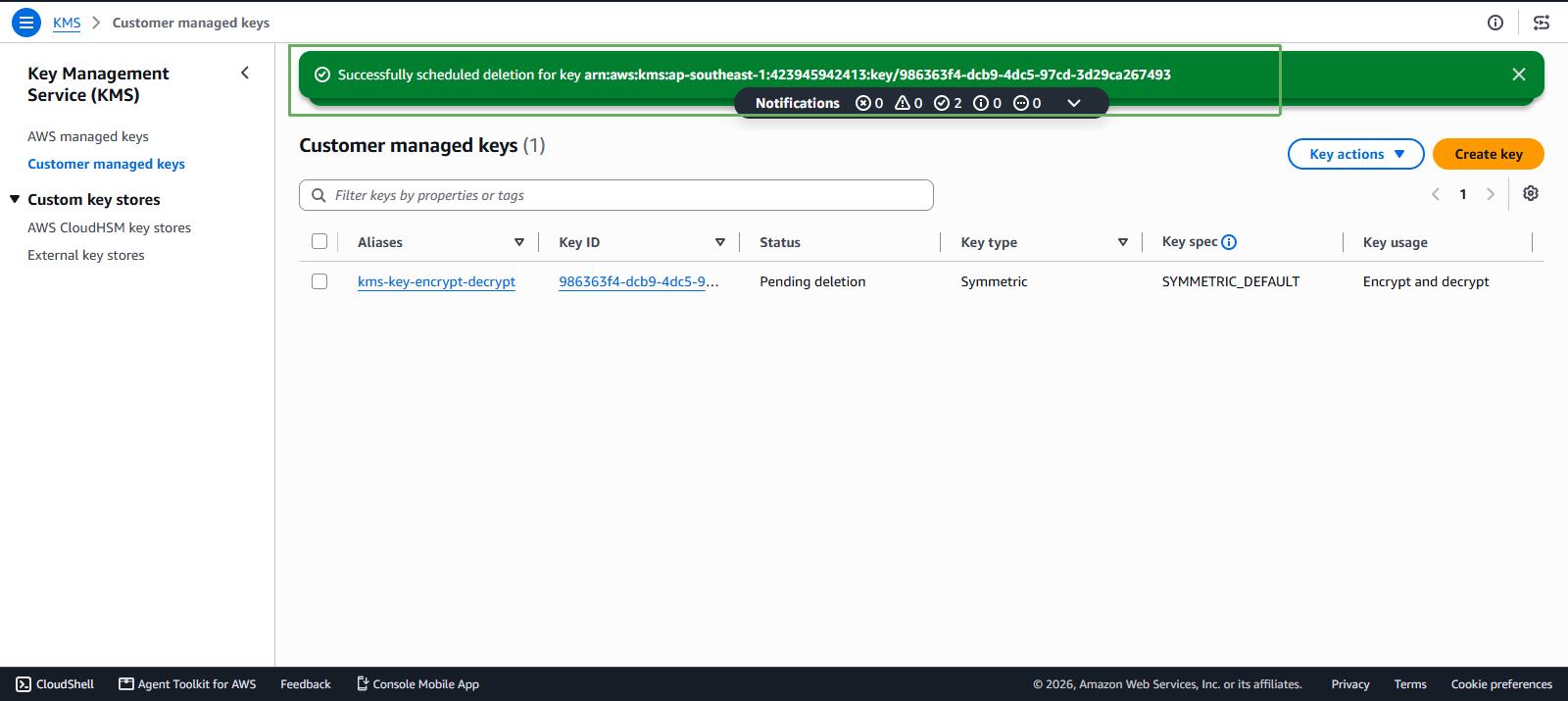
- Notification of successful deletion
Delete CloudTrail Resources
Access AWS Management Console
- Find CloudTrail
- Select CloudTrail
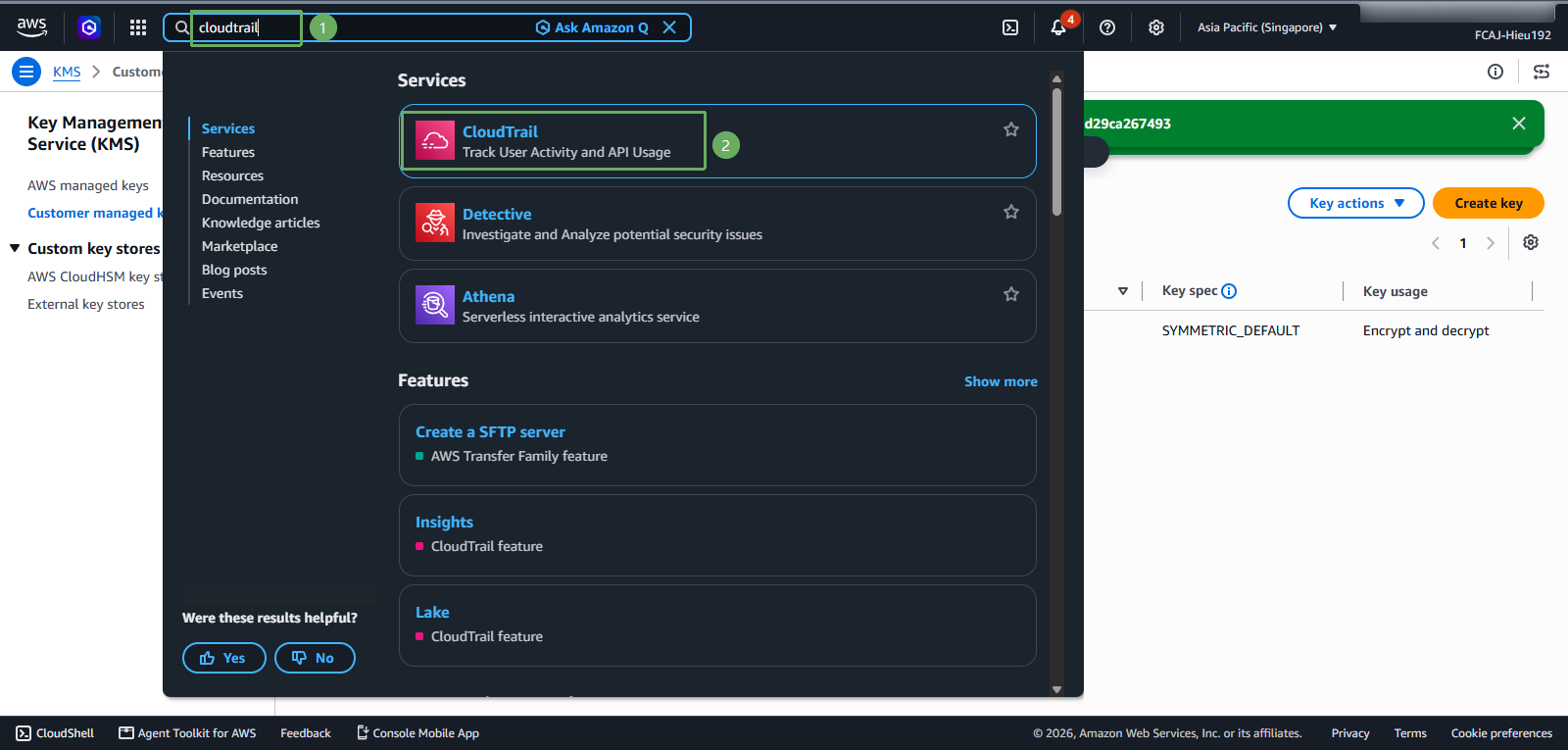
In the CloudTrail interface
- Select Trail
- Select kms-key-cloudtrail
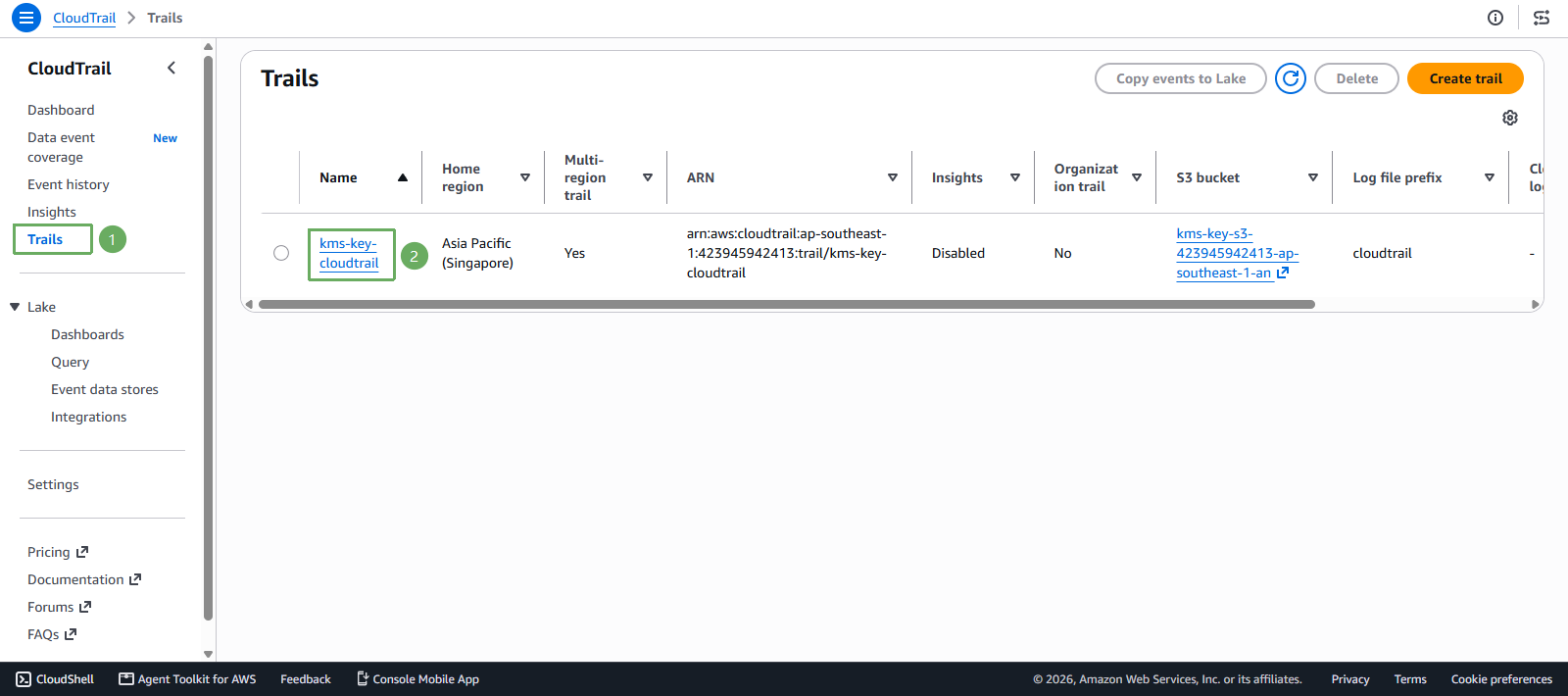
Next step
- Press Stop logging
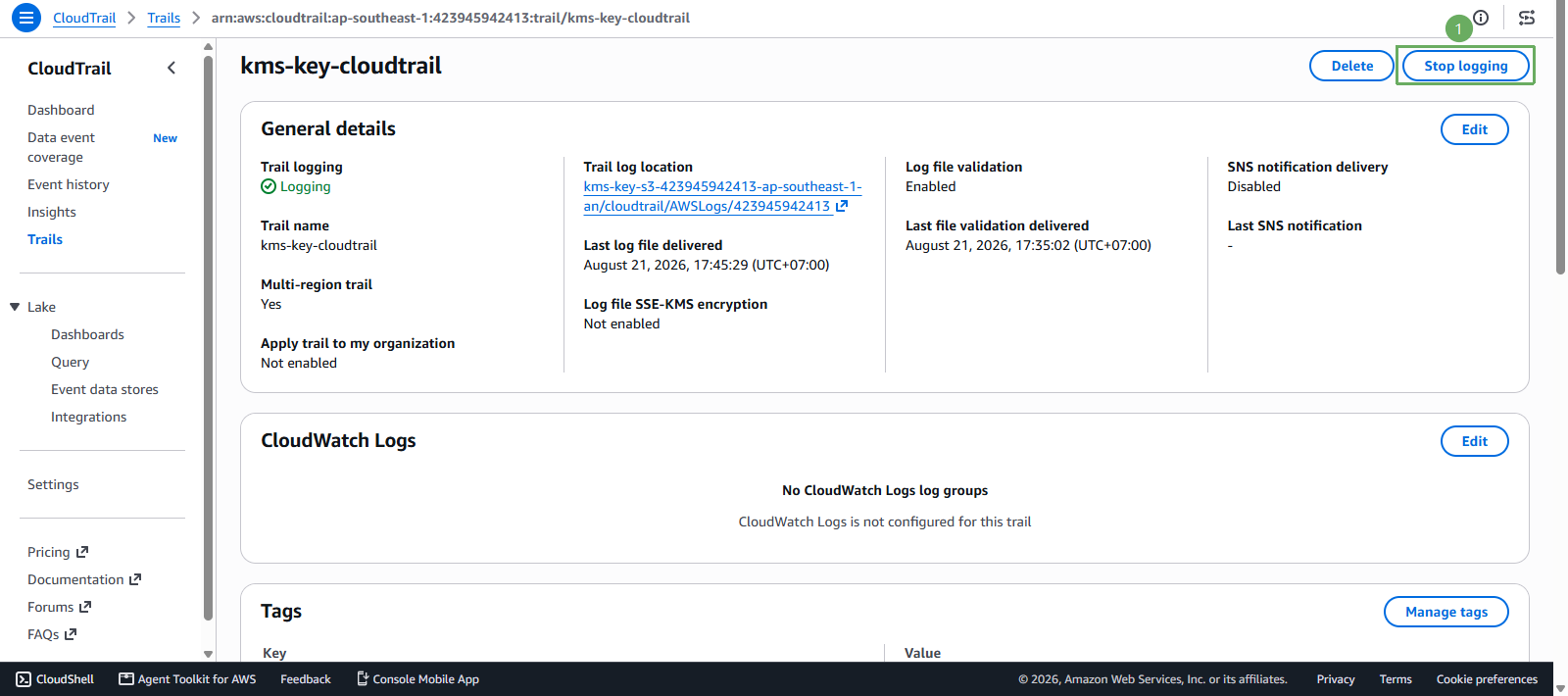
Next
- Select Stop logging
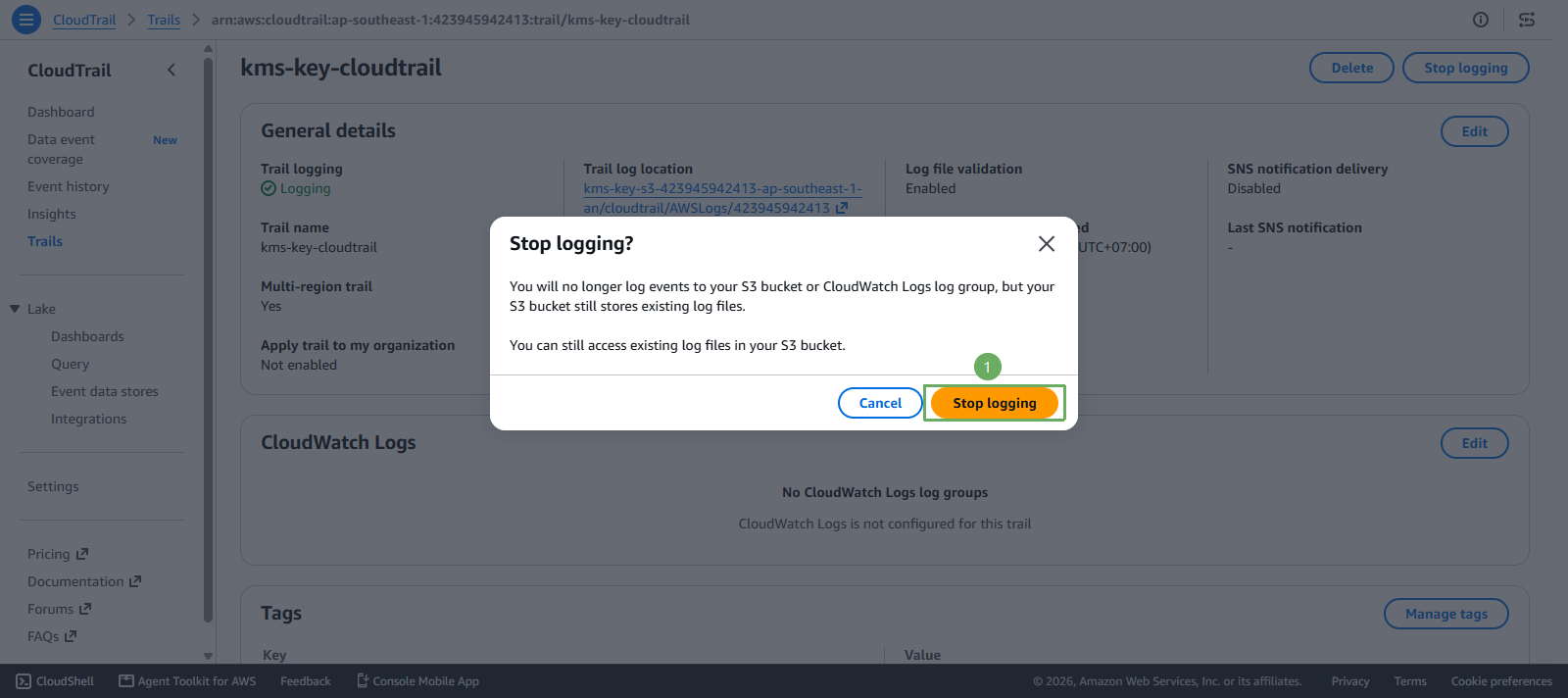
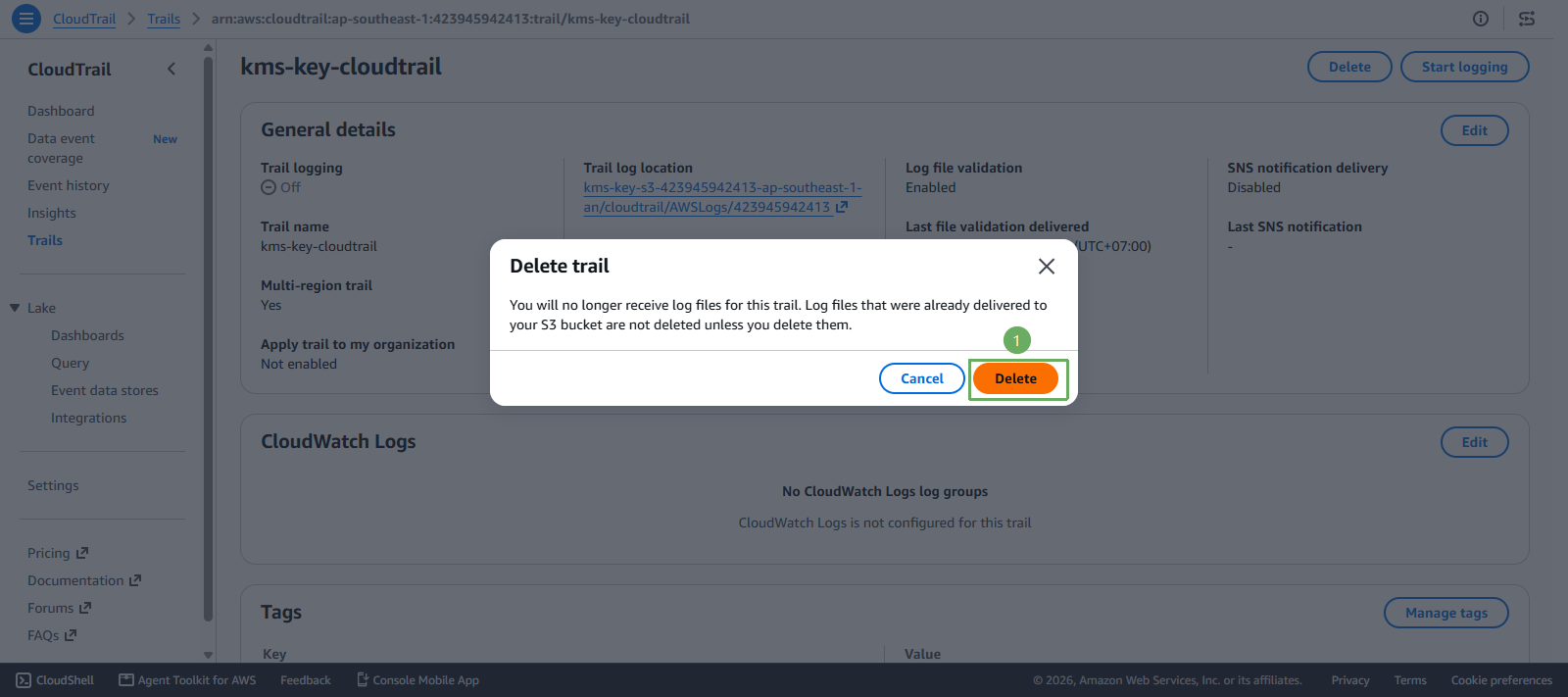
- After Stop logging, go back and press Delete
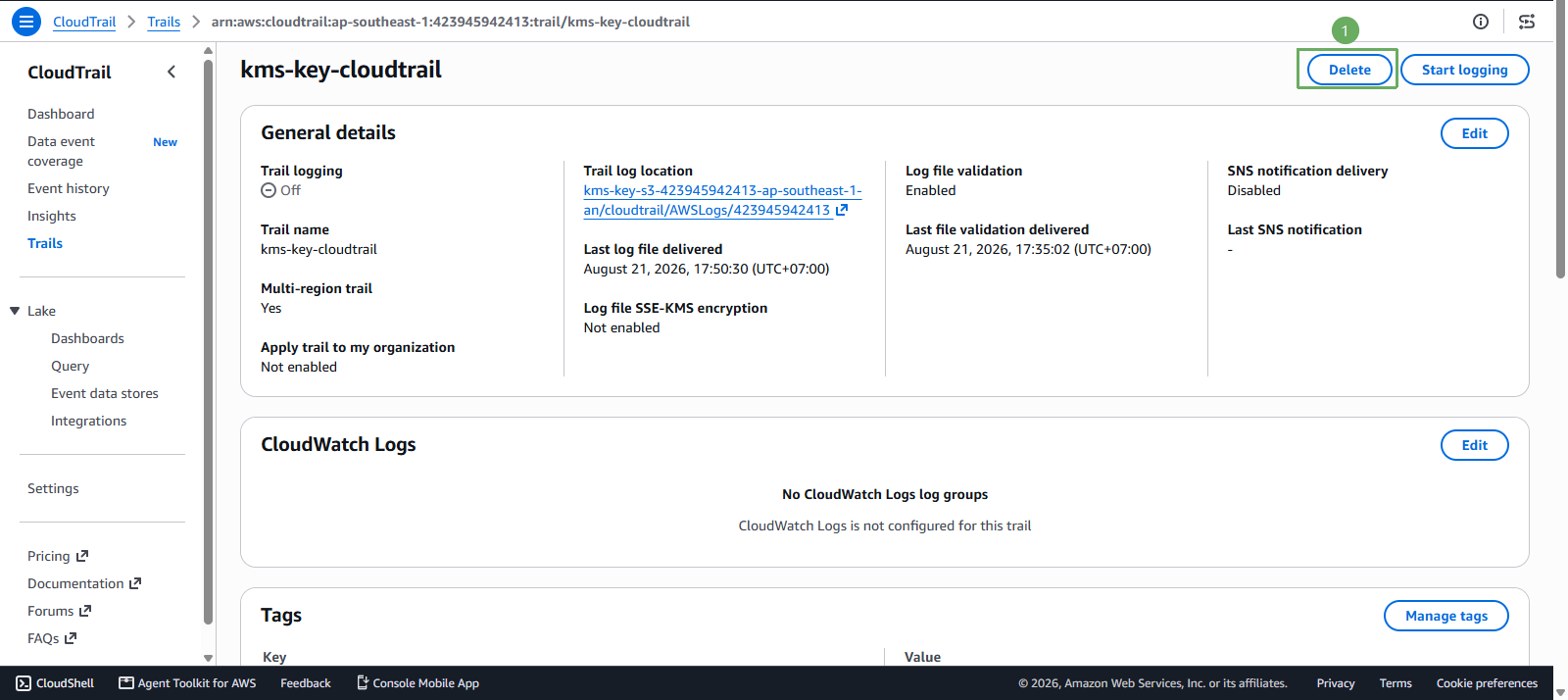
Next
- Press Delete
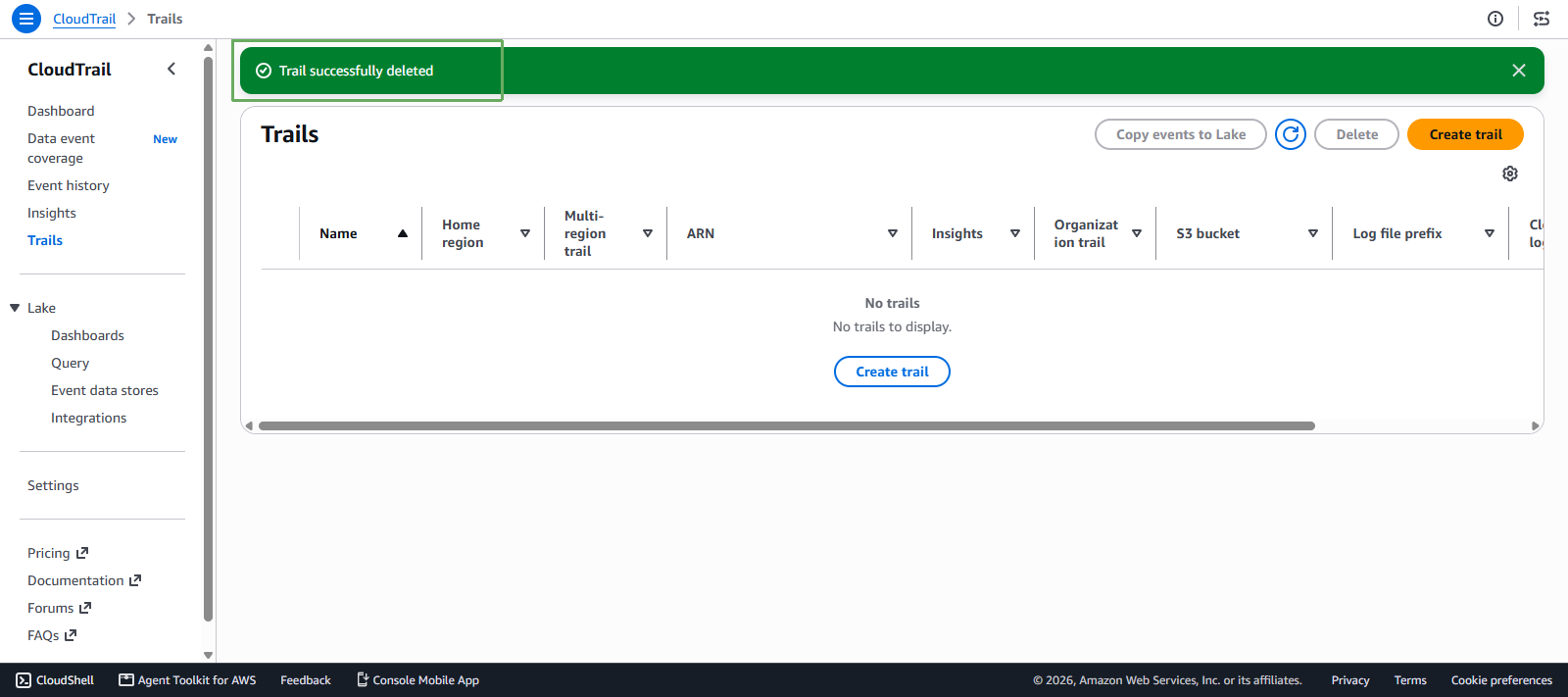
- Notification of successful deletion
Delete S3 Resources
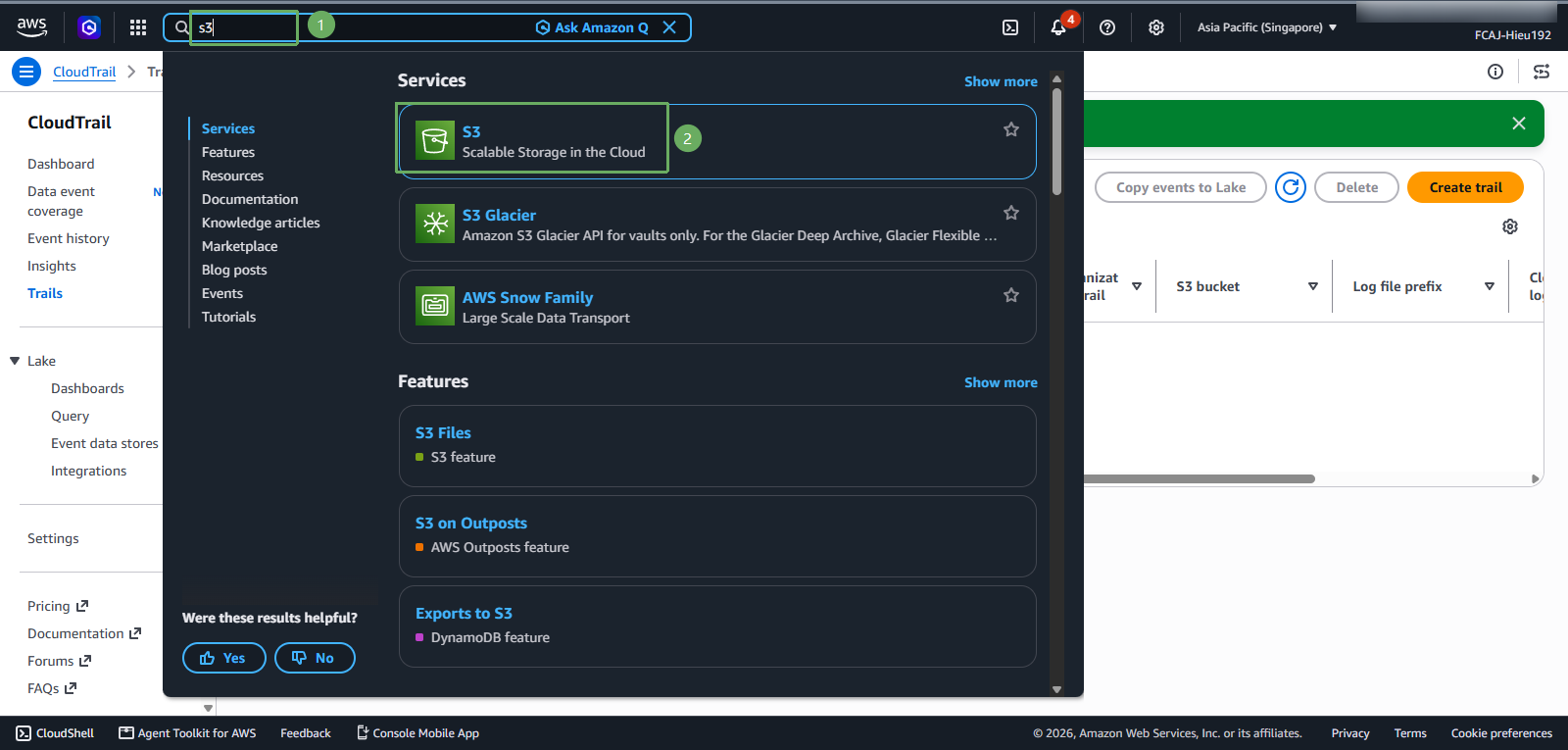
Access AWS Management Console
- Find S3
- Select S3
In the S3 interface
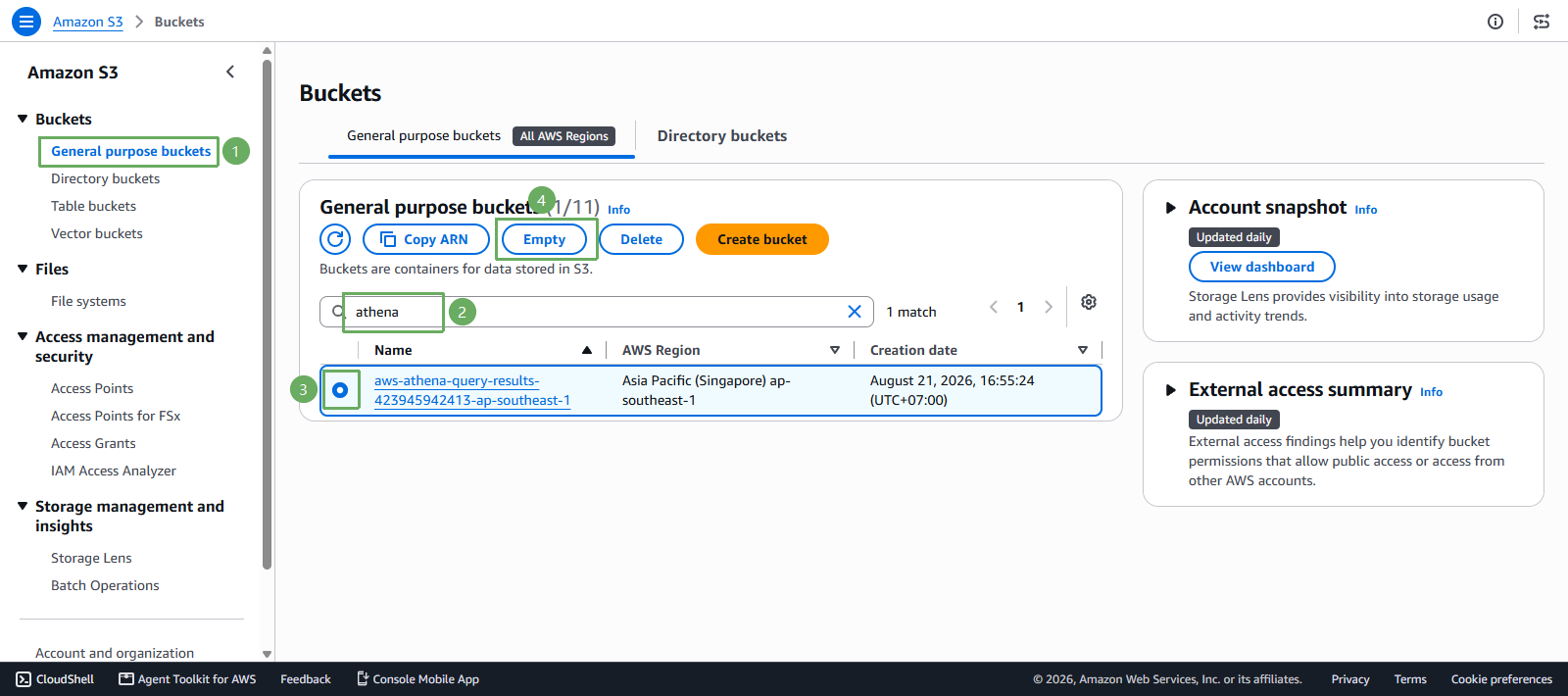
- Select Buckets
- Select General purpose buckets
- Select
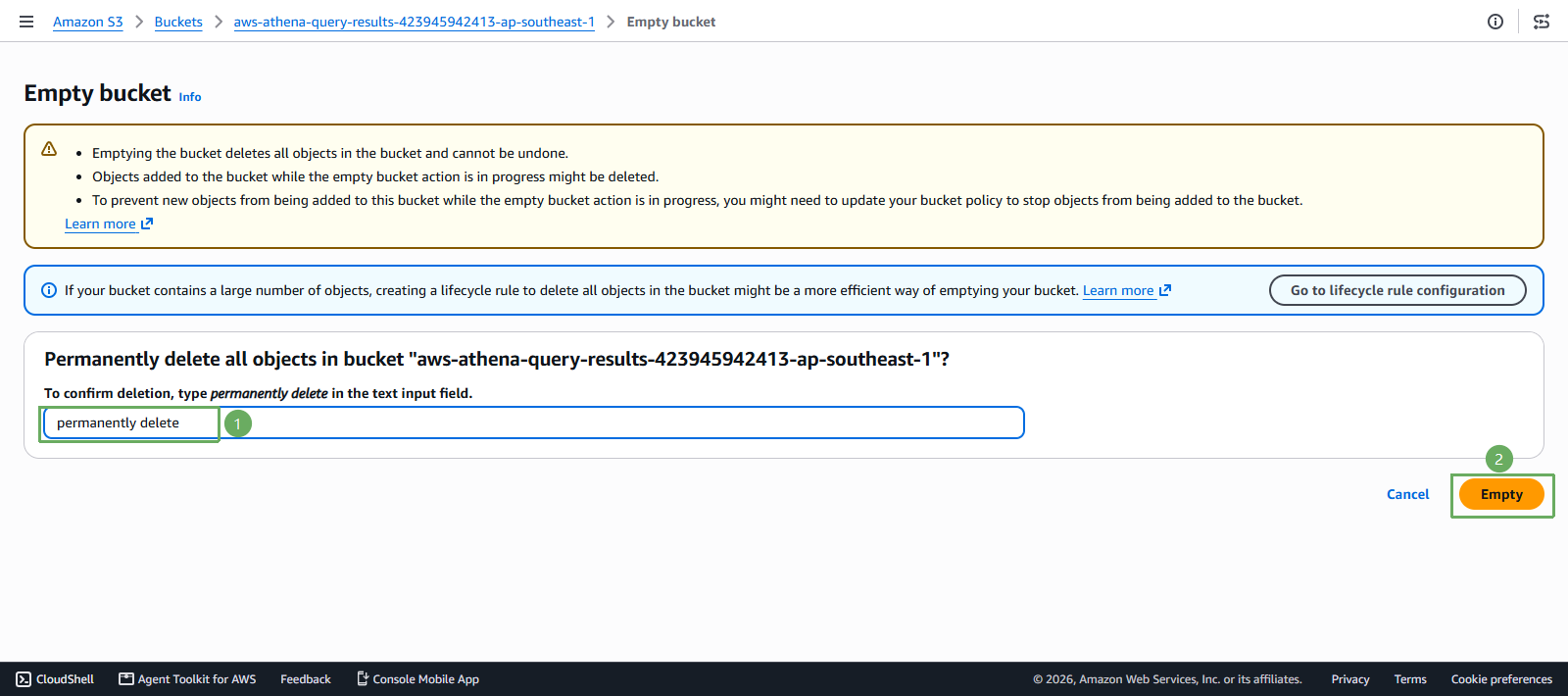
aws-athena-query-results-<account-id>-<region> - Select Empty
Next step
- Enter permanently delete
- Press Empty
- After the bucket is emptied successfully, press Exit
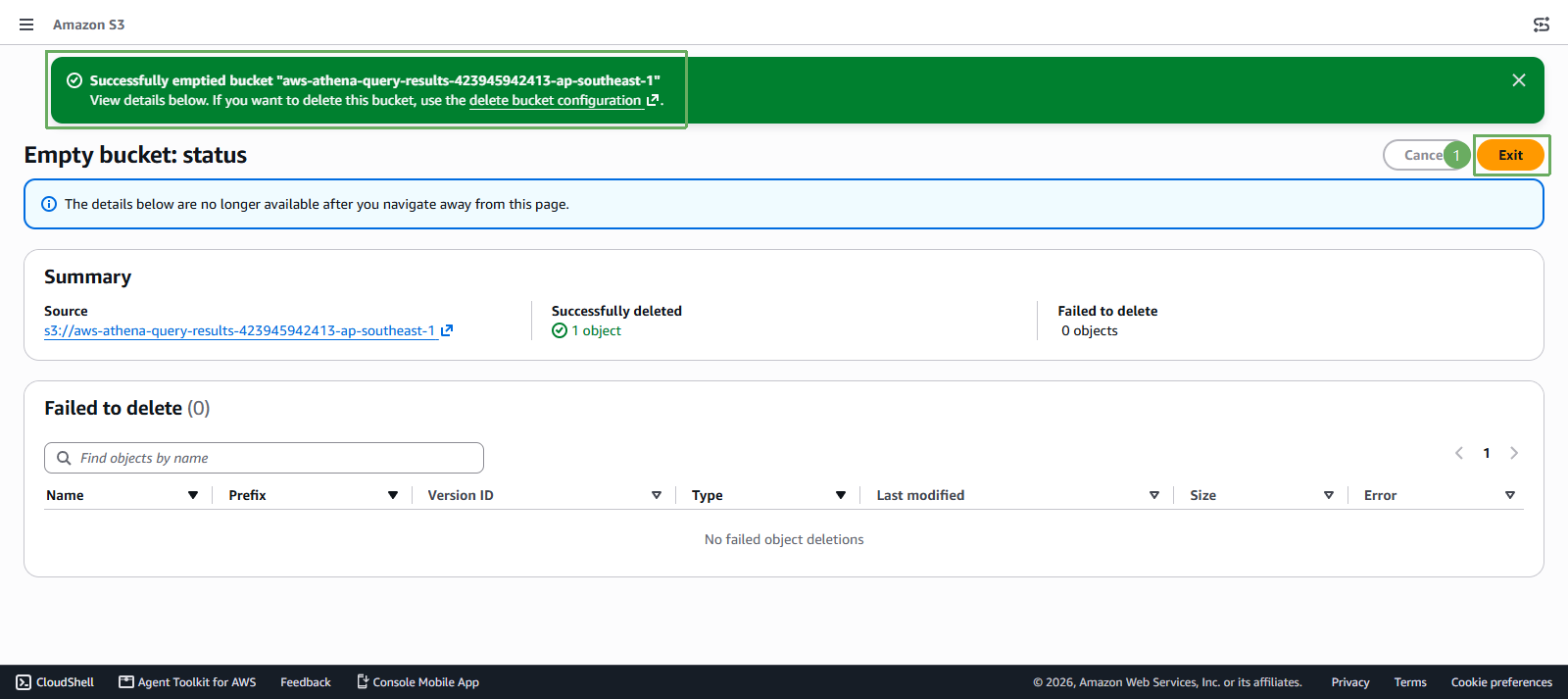
Continue by returning to the S3 interface
- Select General purpose buckets
- Select
aws-athena-query-results-<account-id>-<region> - Select Delete
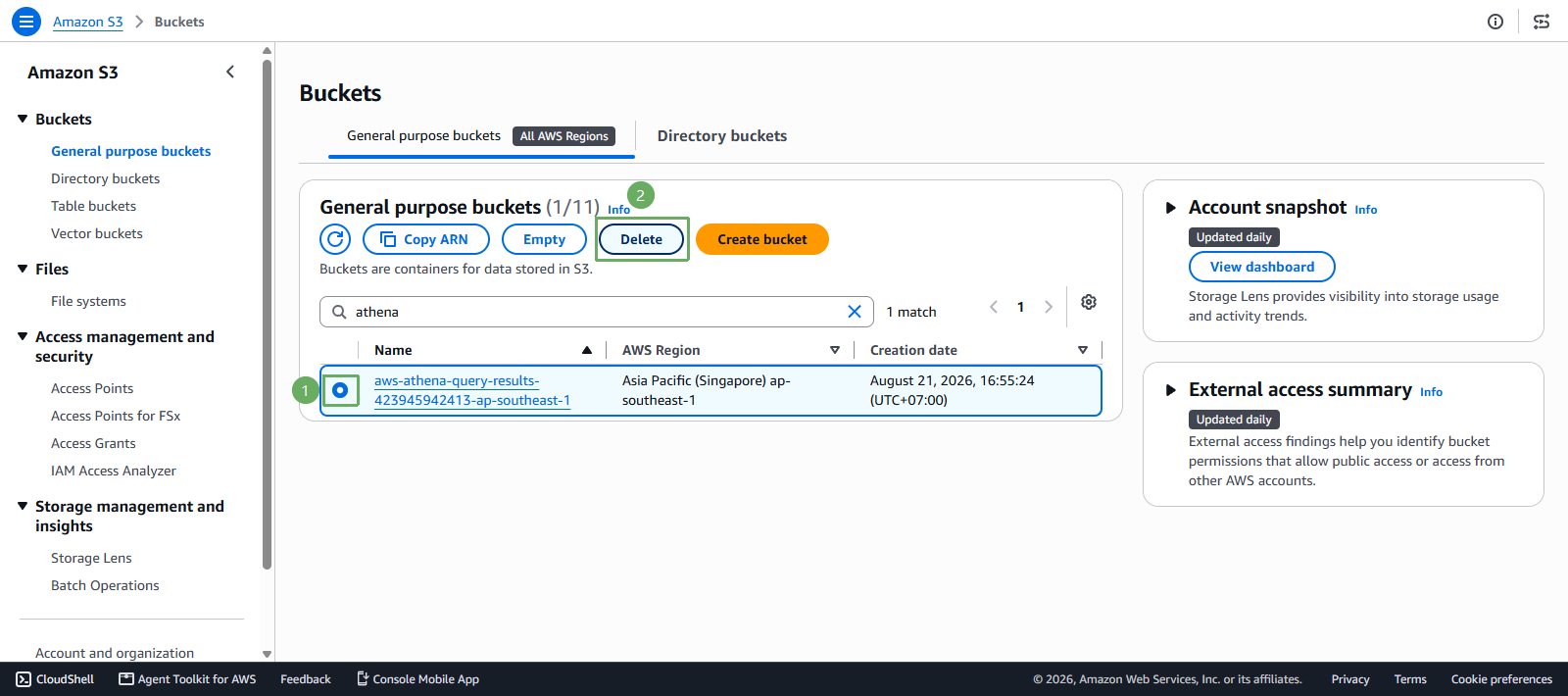
Next step
- Enter
aws-athena-query-results-<account-id>-<region> - Press Delete bucket
- Enter
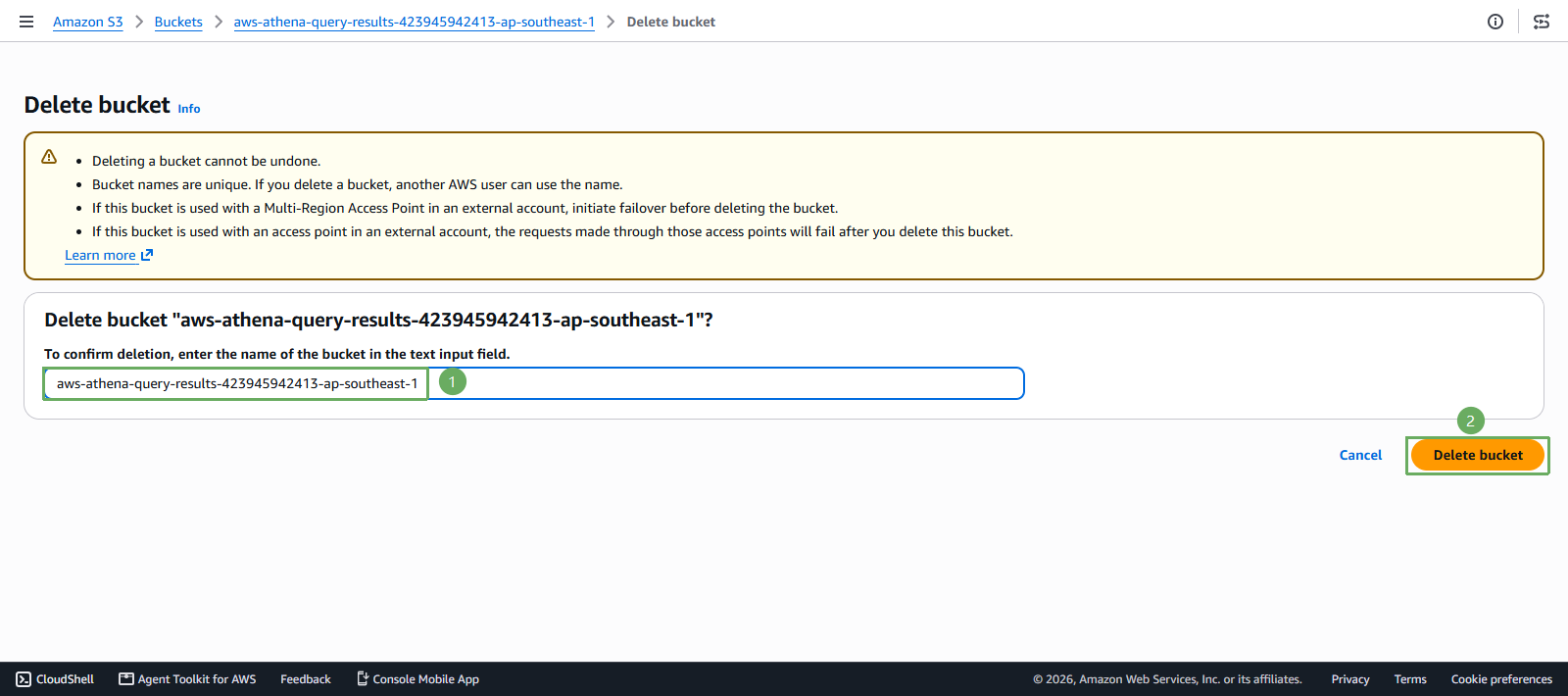
- Confirm the Athena query results bucket was deleted successfully
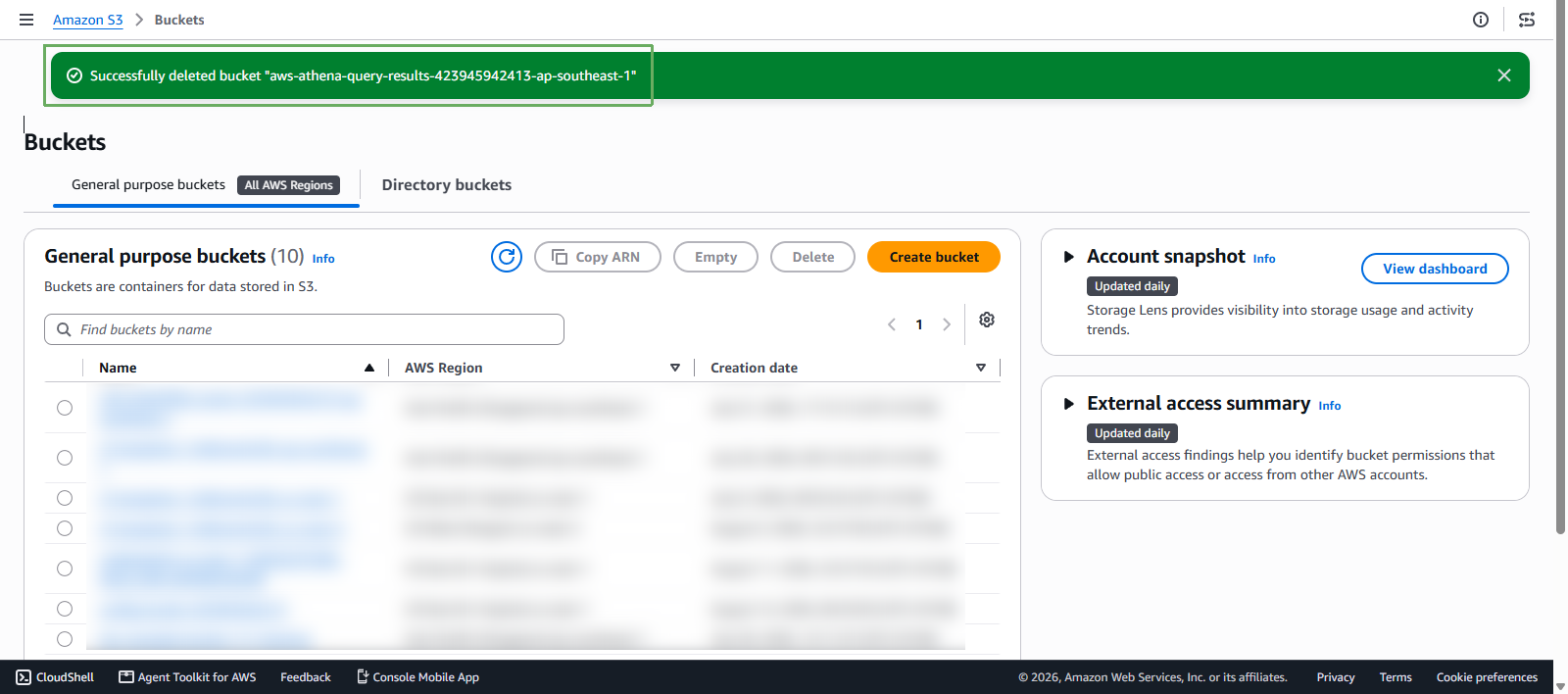
Continue by returning to the S3 interface
- Select General purpose buckets
- Select
kms-key-s3-<account-id>-<region>-an - Select Empty
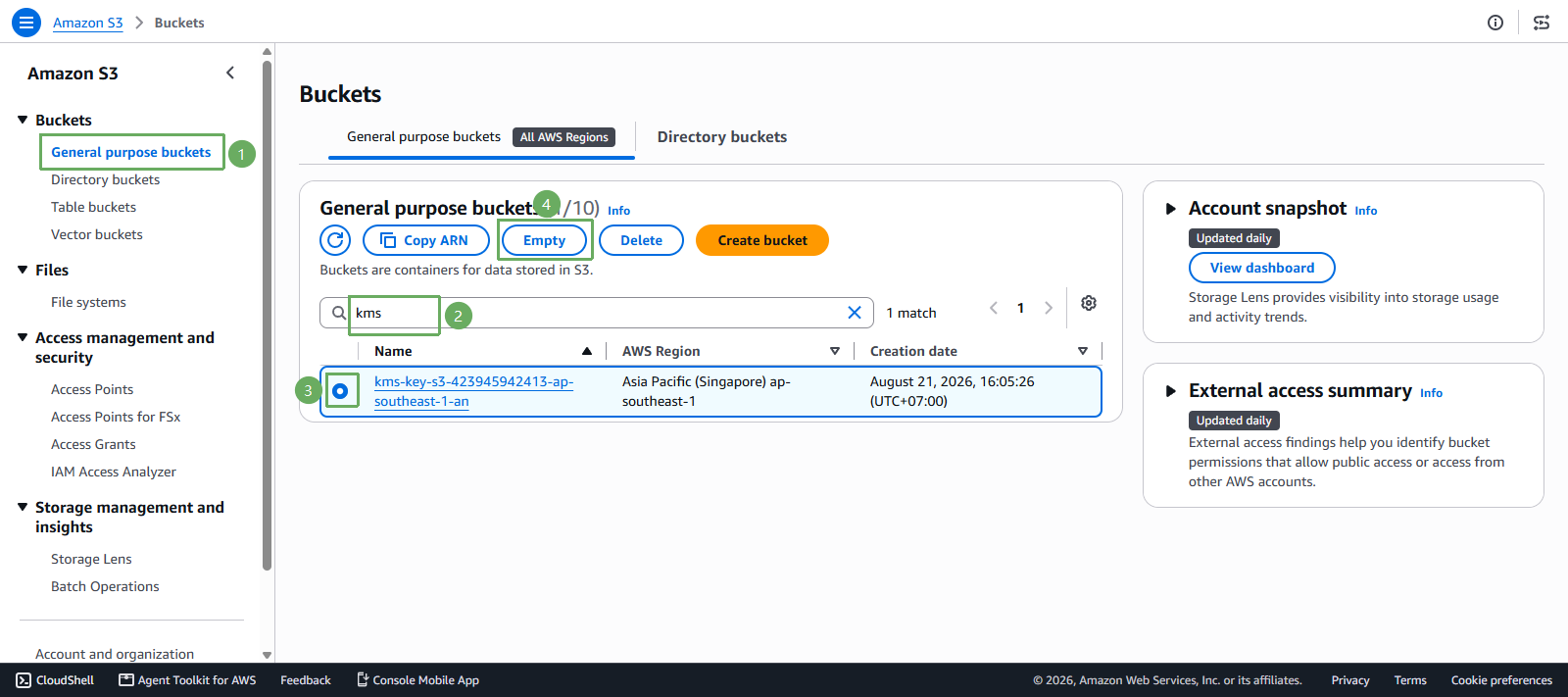
Next step
- Enter permanently delete
- Press Empty
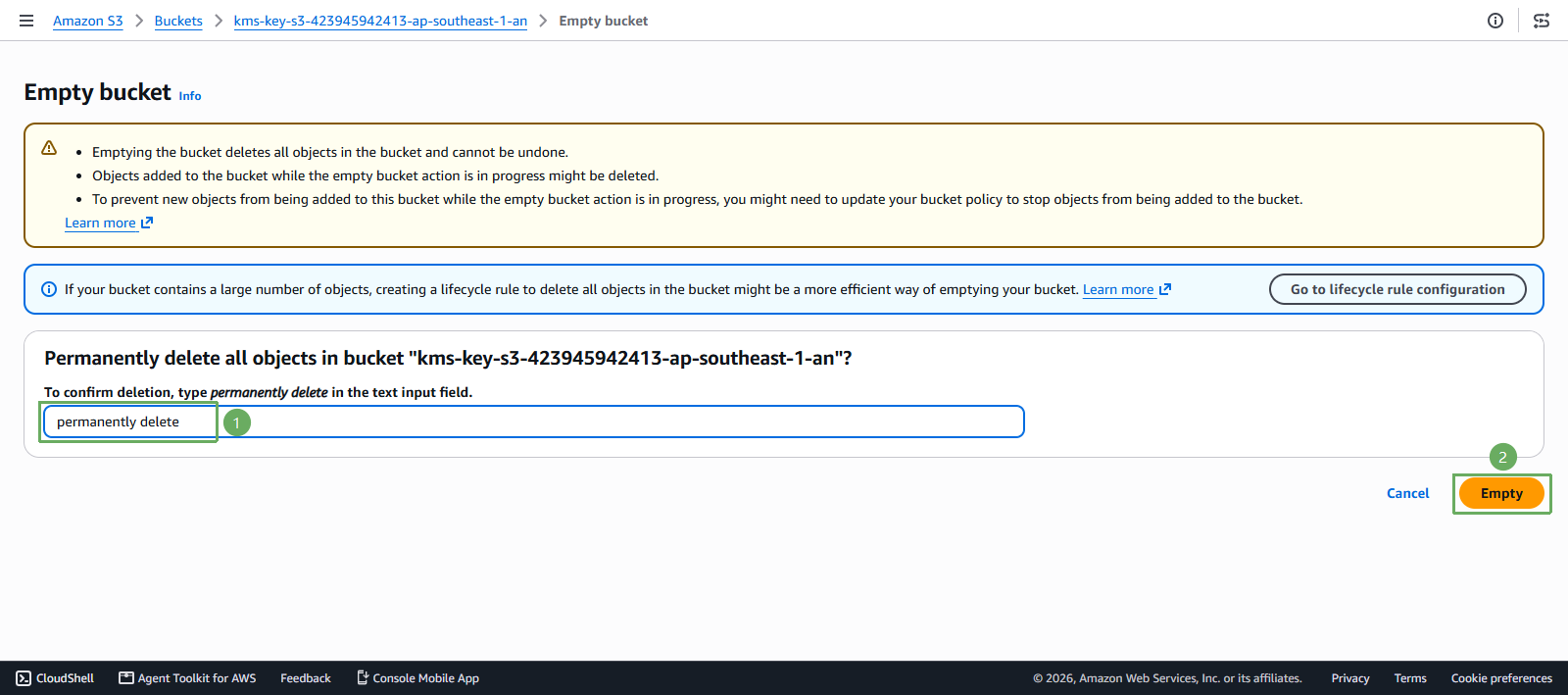
- After the bucket is emptied successfully, press Exit
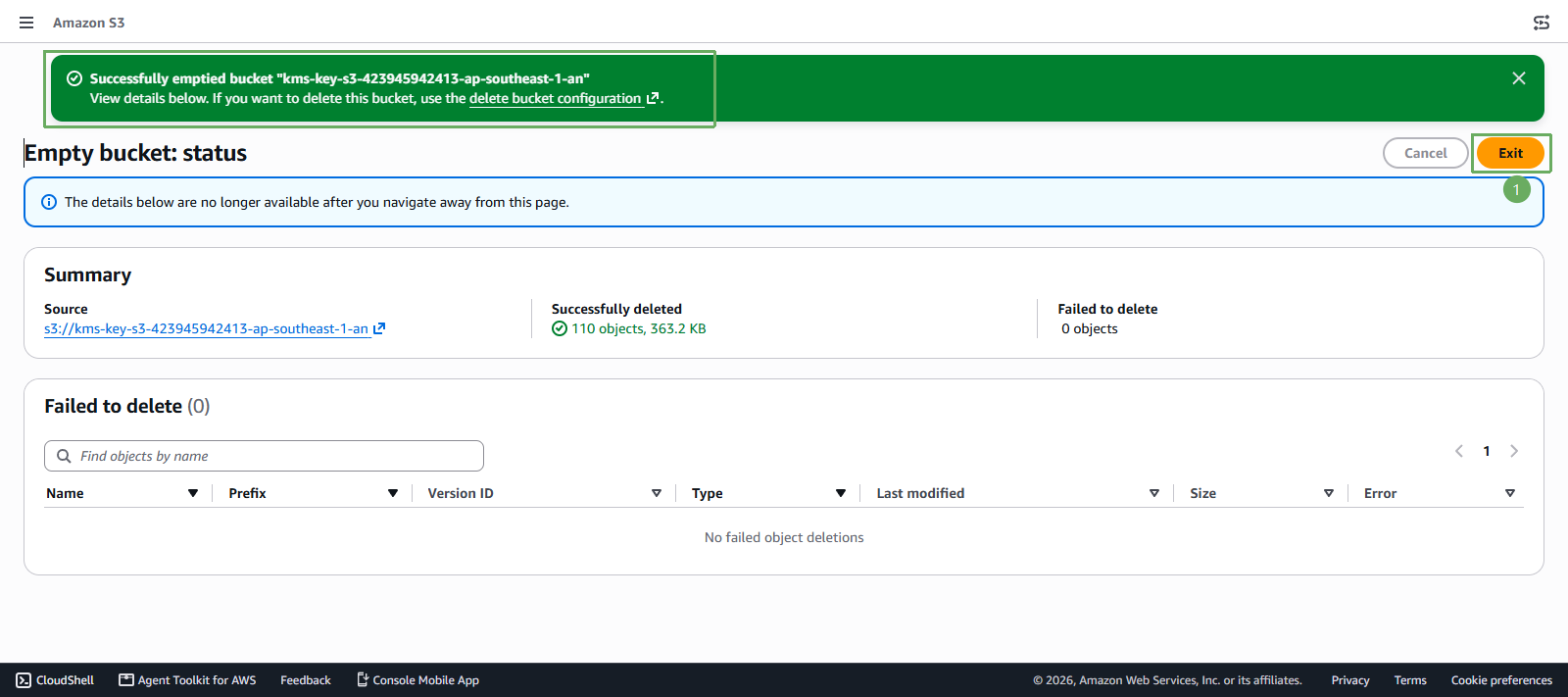
Continue by returning to the S3 interface
- Select General purpose buckets
- Select
kms-key-s3-<account-id>-<region>-an - Select Delete
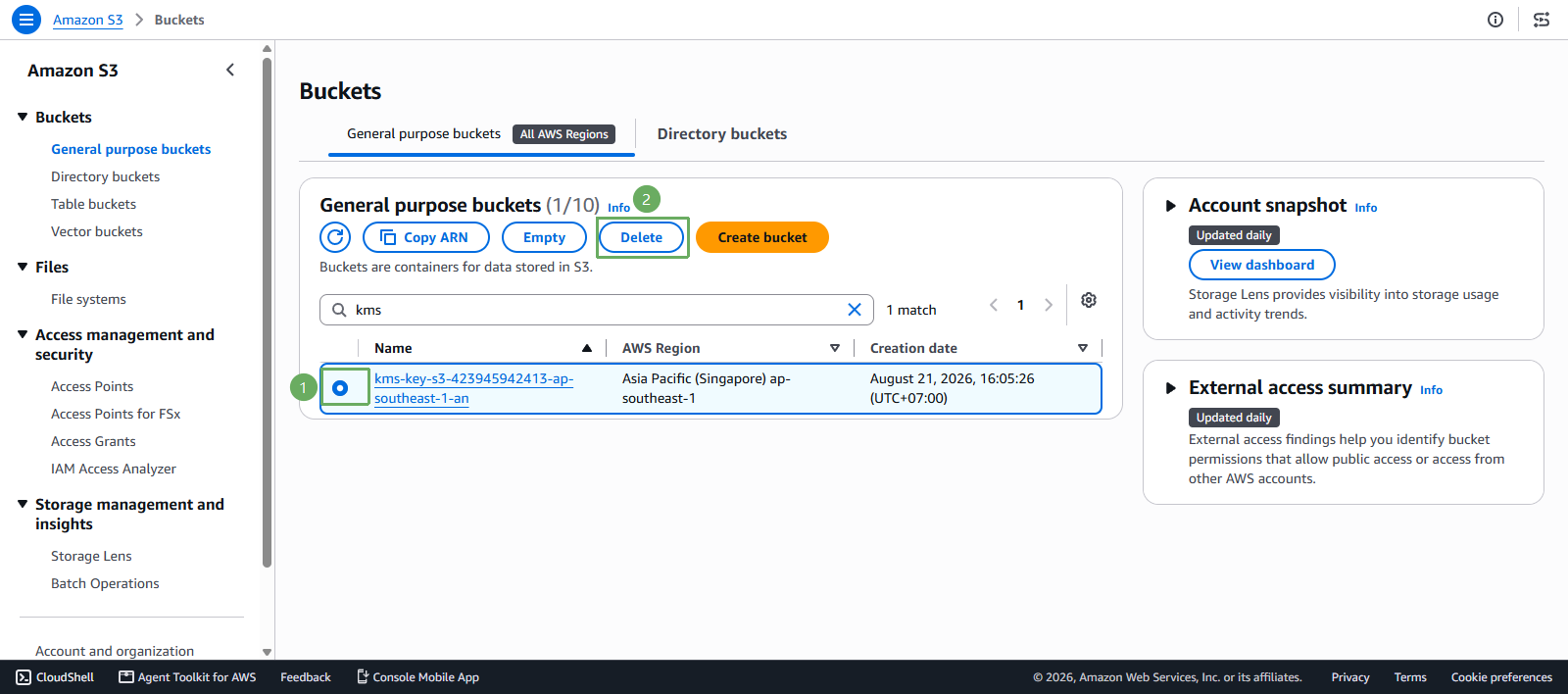
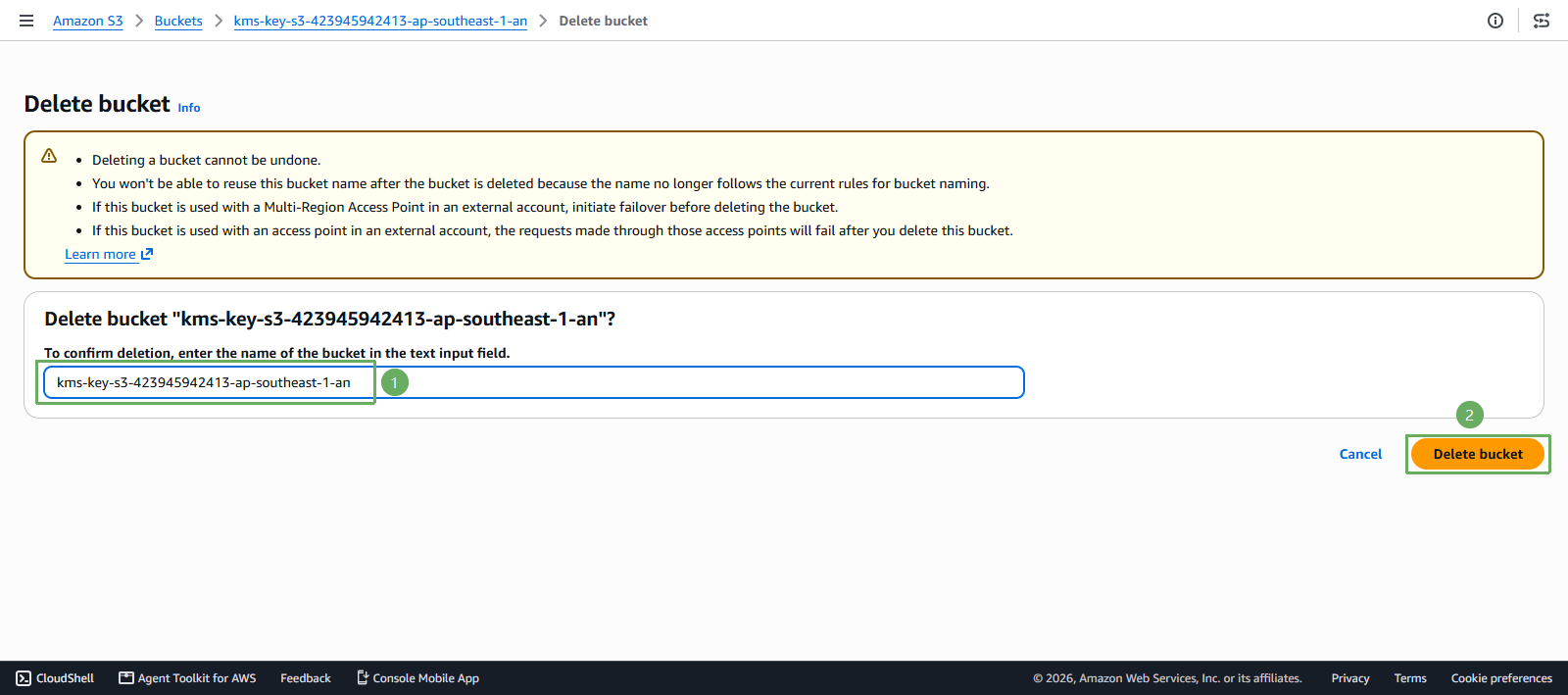
Next step
- Enter
kms-key-s3-<account-id>-<region>-an - Press Delete bucket
- Enter
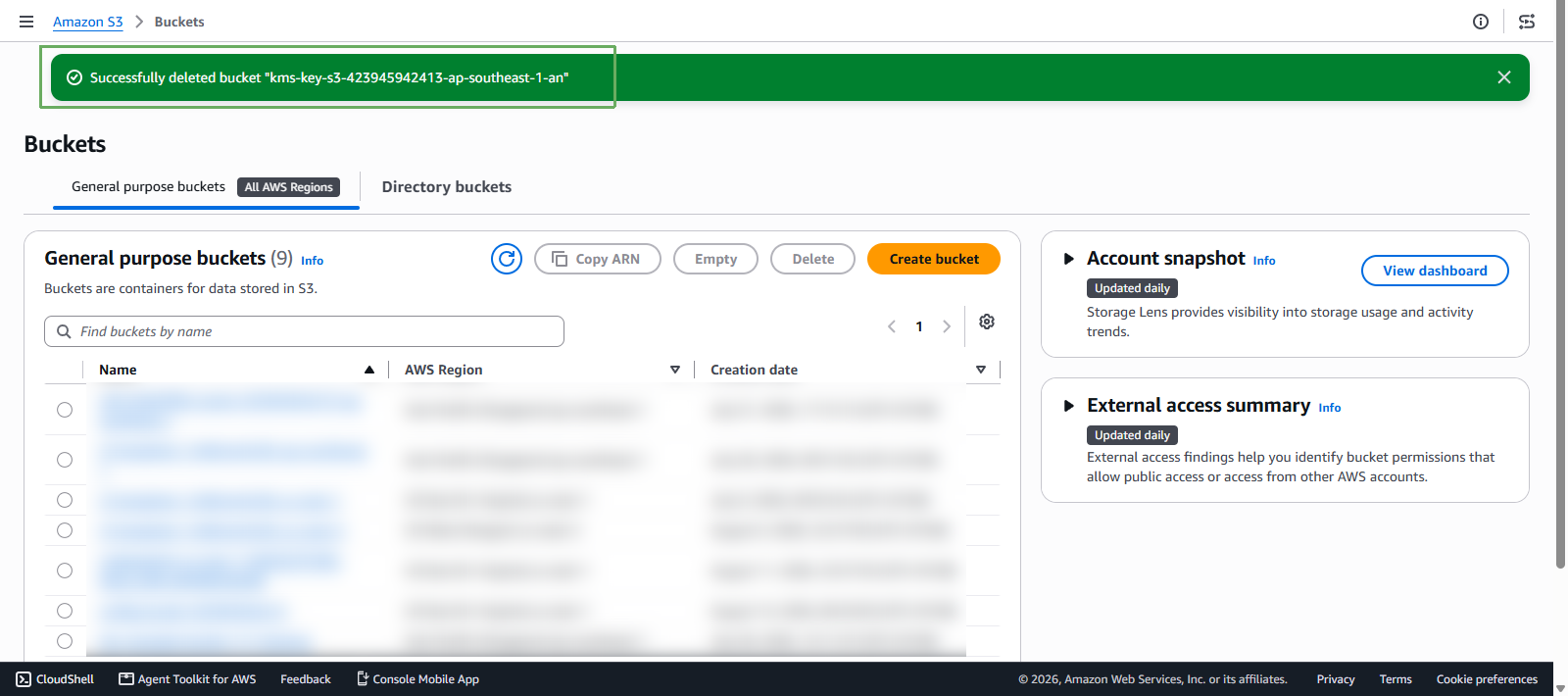
- Successfully deleted
Delete User and Group Resources
Access AWS Management Console
- Find IAM
- Select IAM
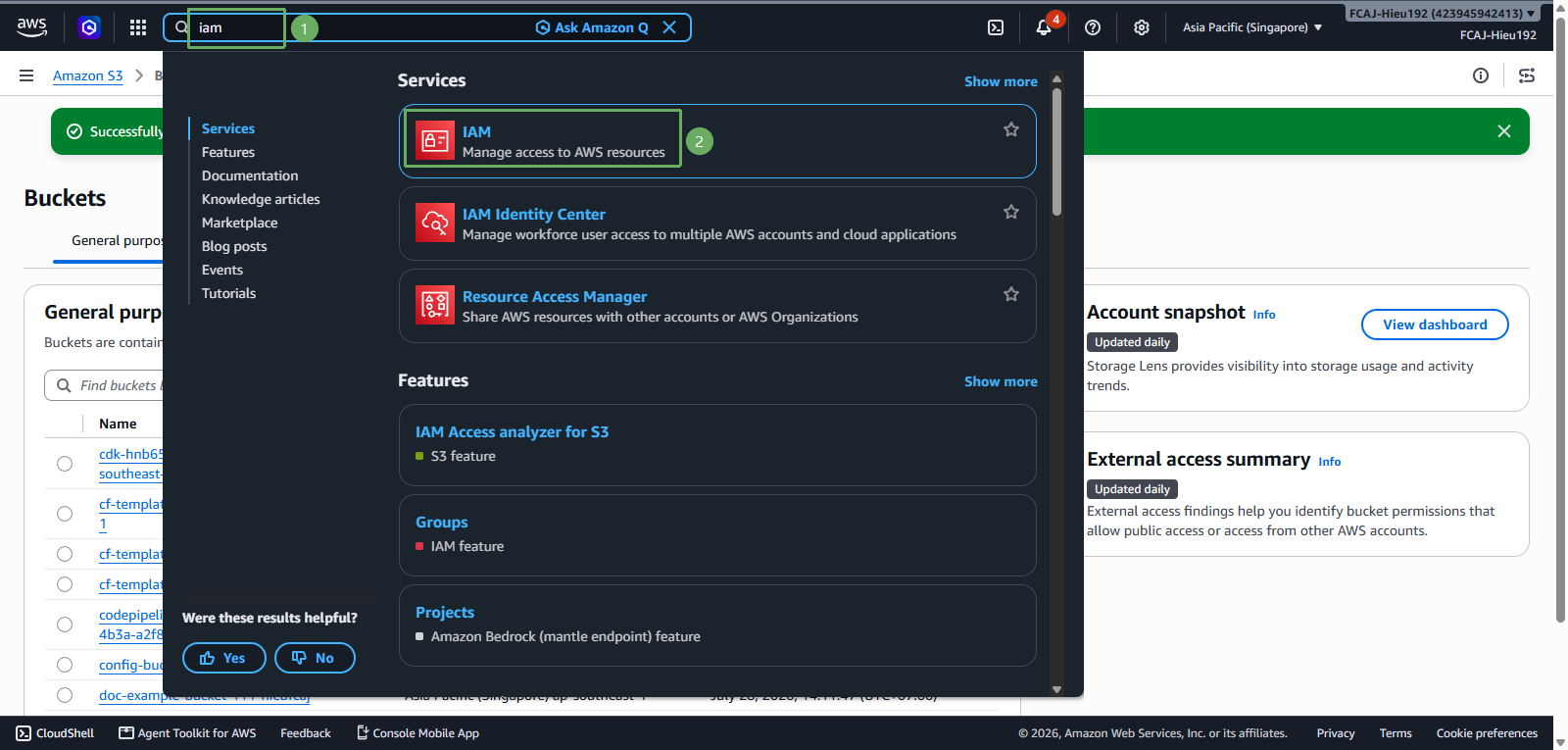
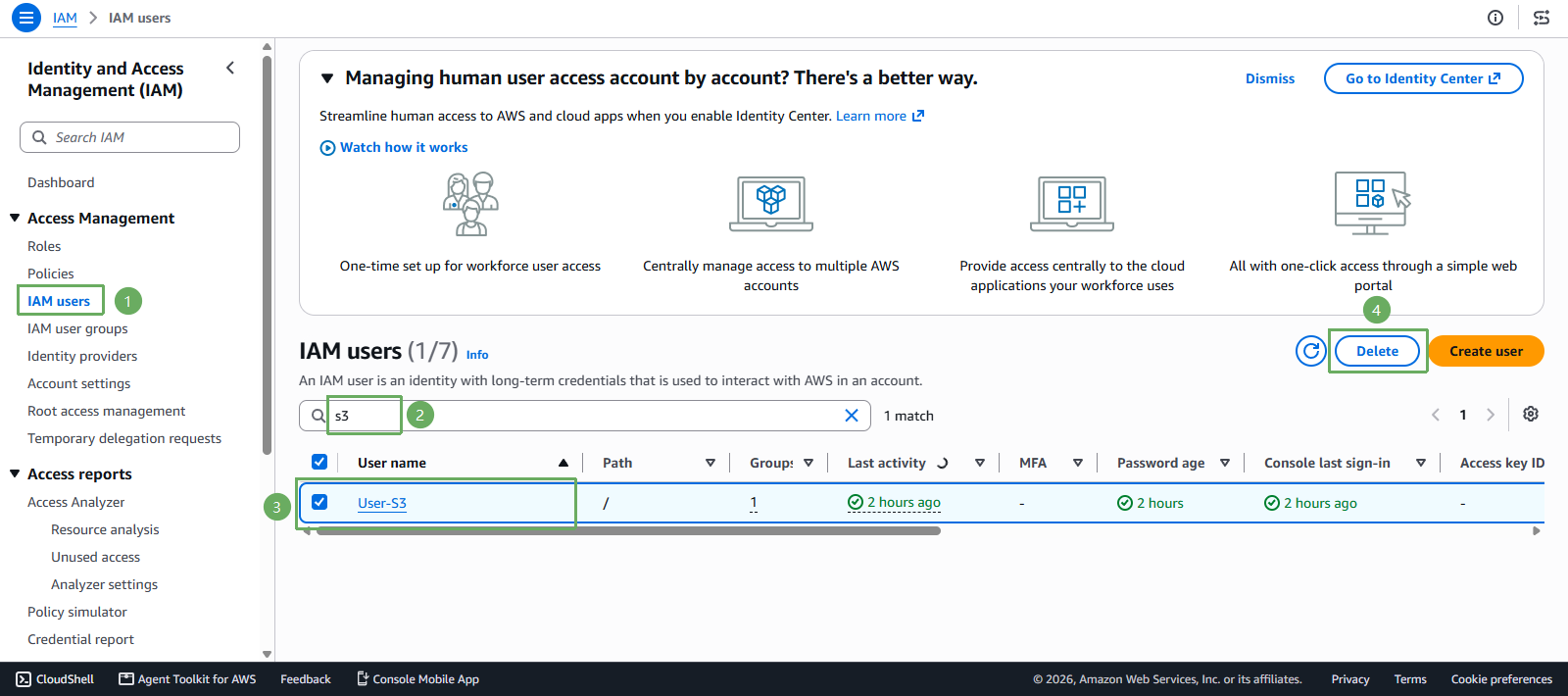
In the IAM interface
- Select User-S3
- Select Delete
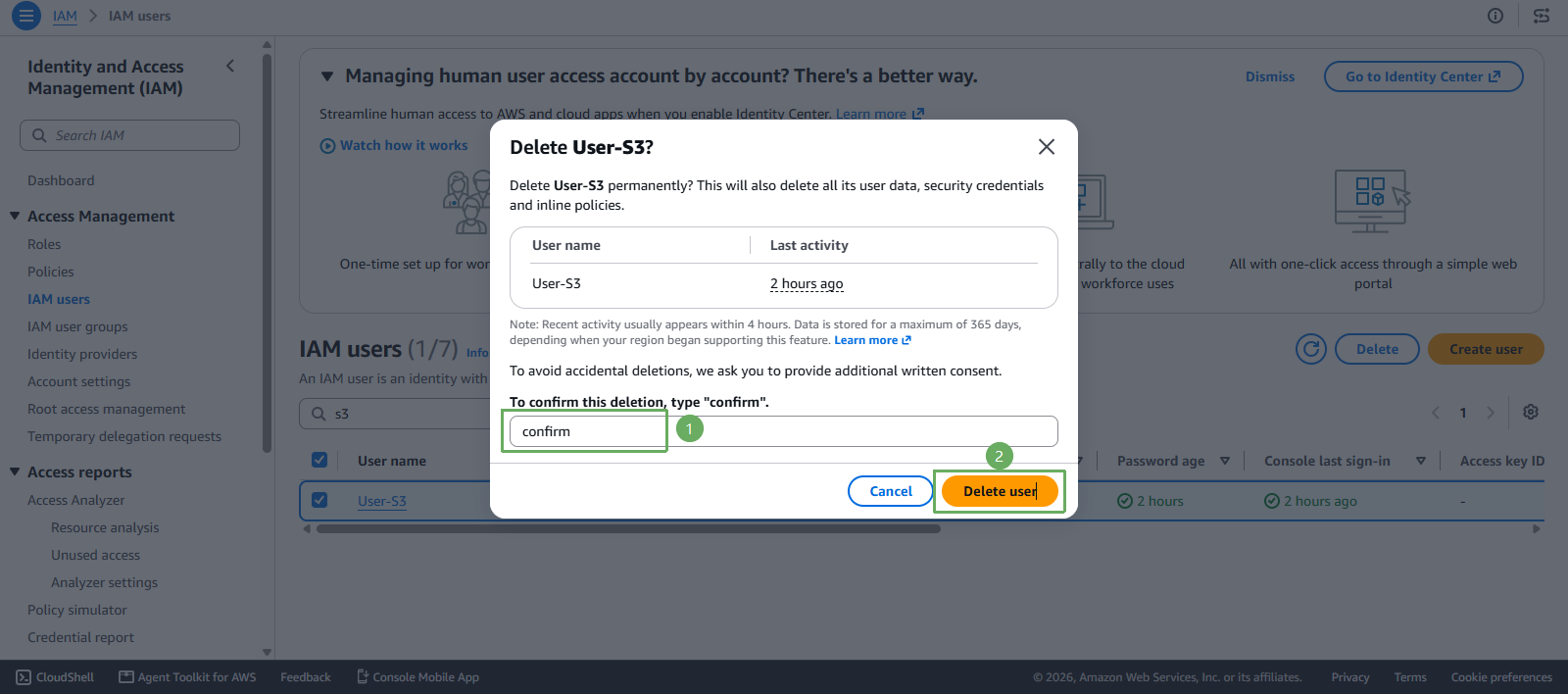
Next step
- Enter
Confirm - Press Delete user
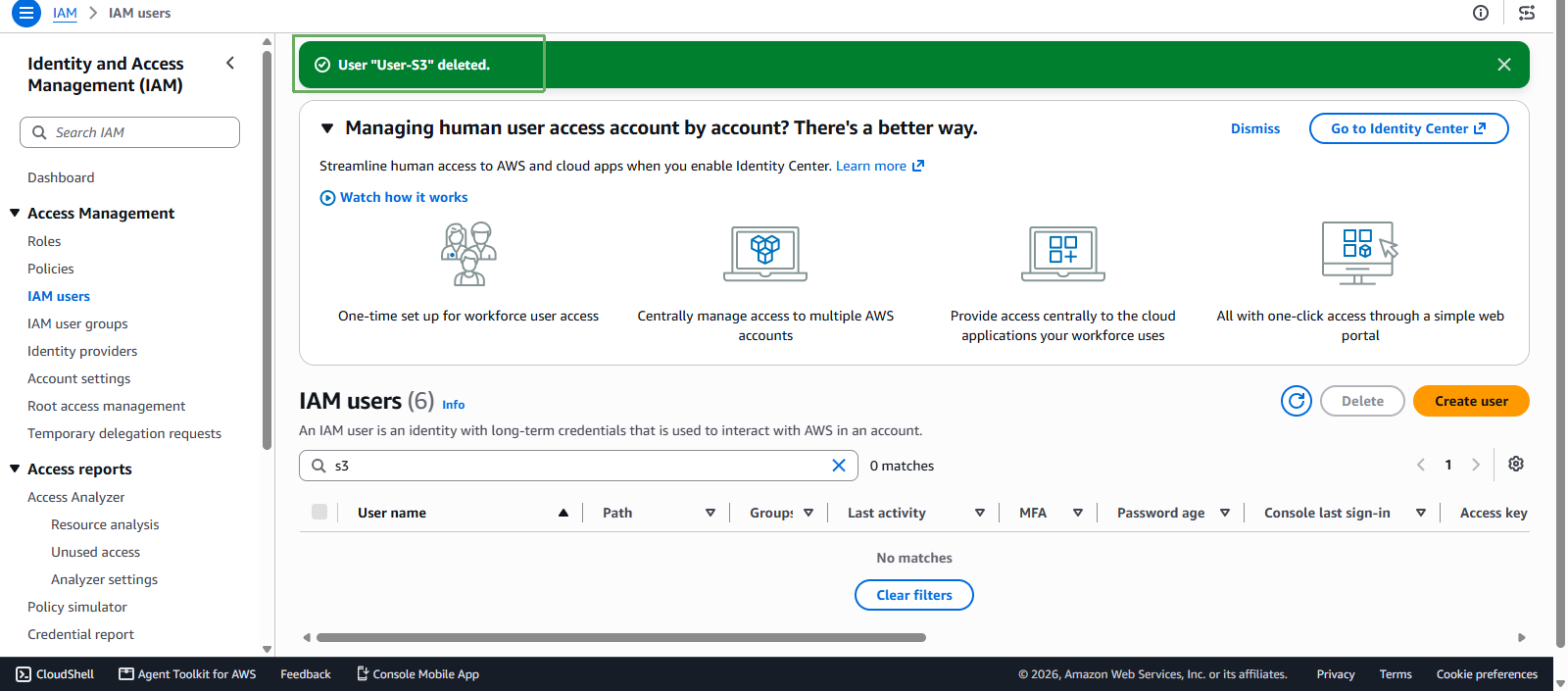
- Enter
- Notification of successful deletion
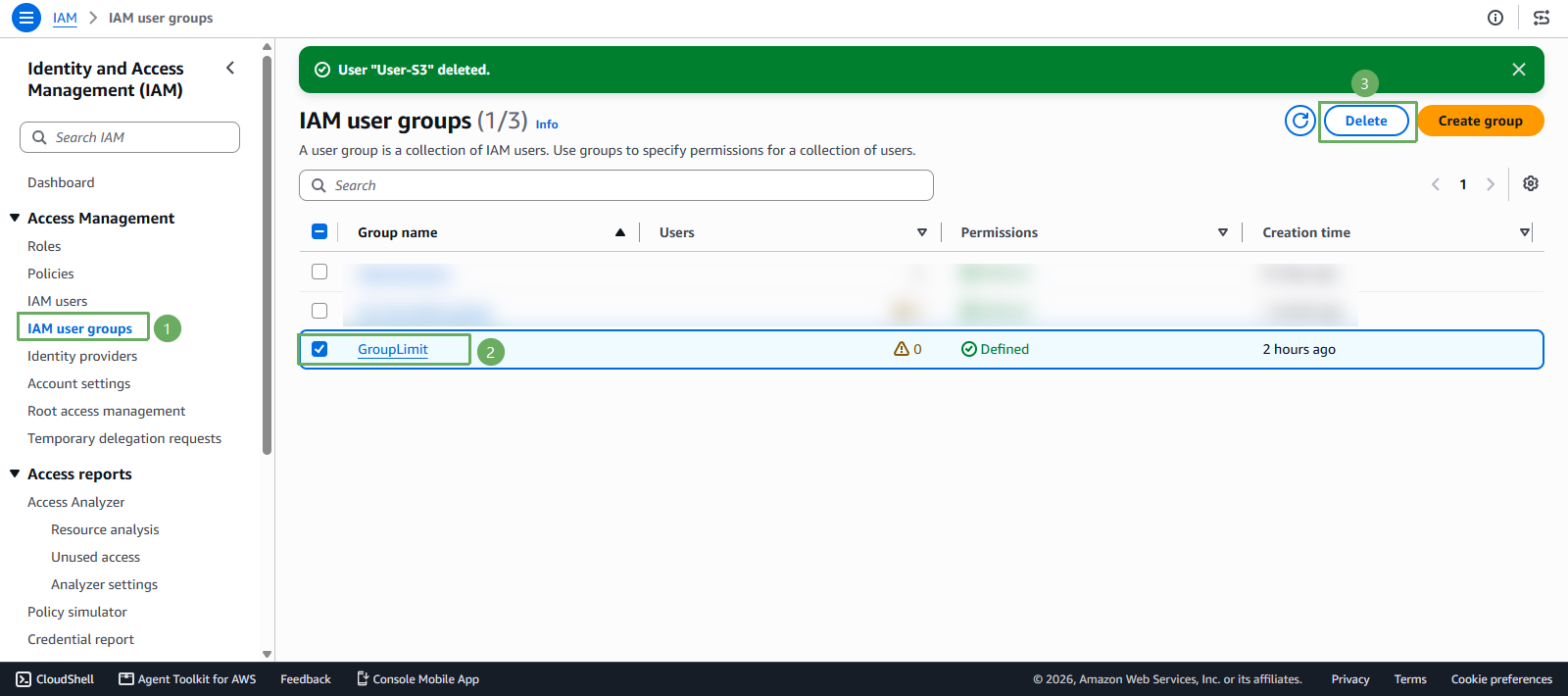
Return to the IAM interface
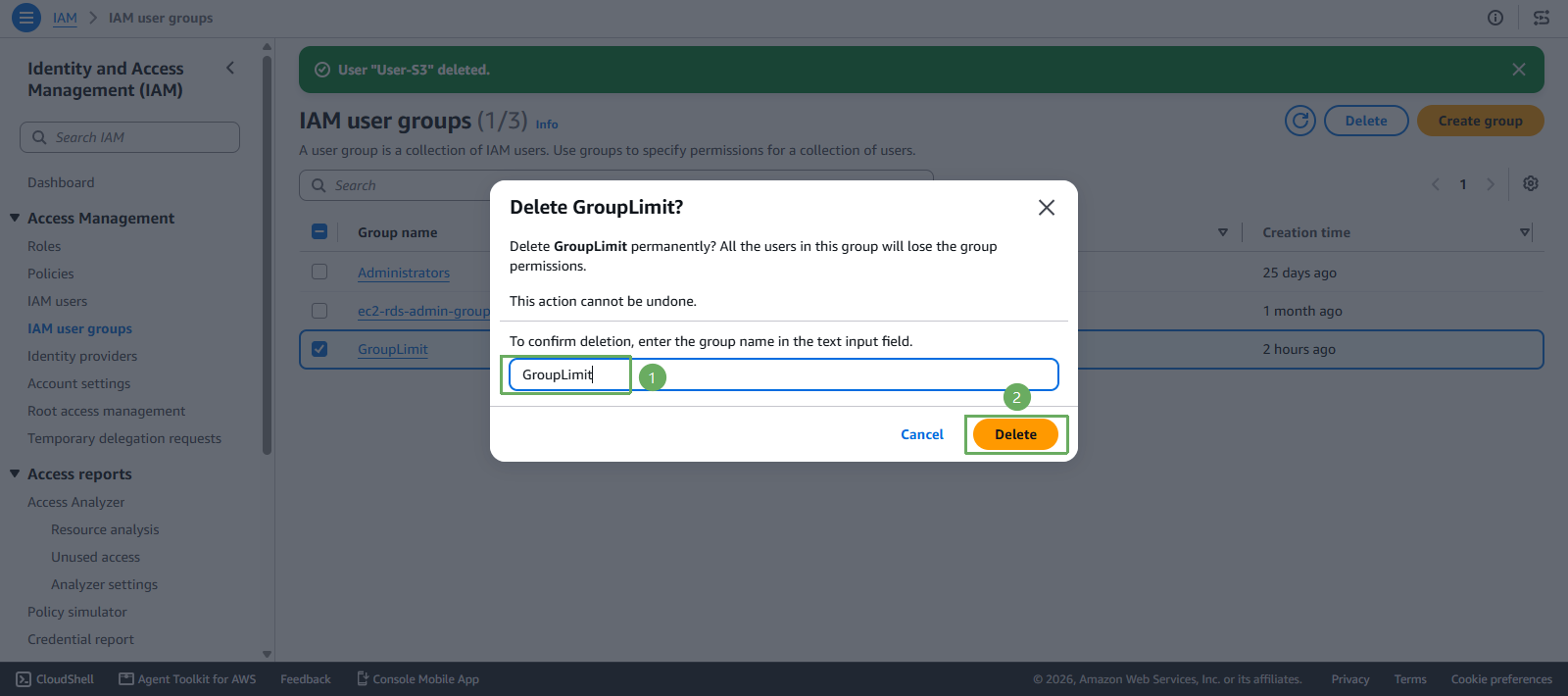
- Select GroupLimit
- Select Delete
- Next
- Enter
GroupLimit - Press Delete
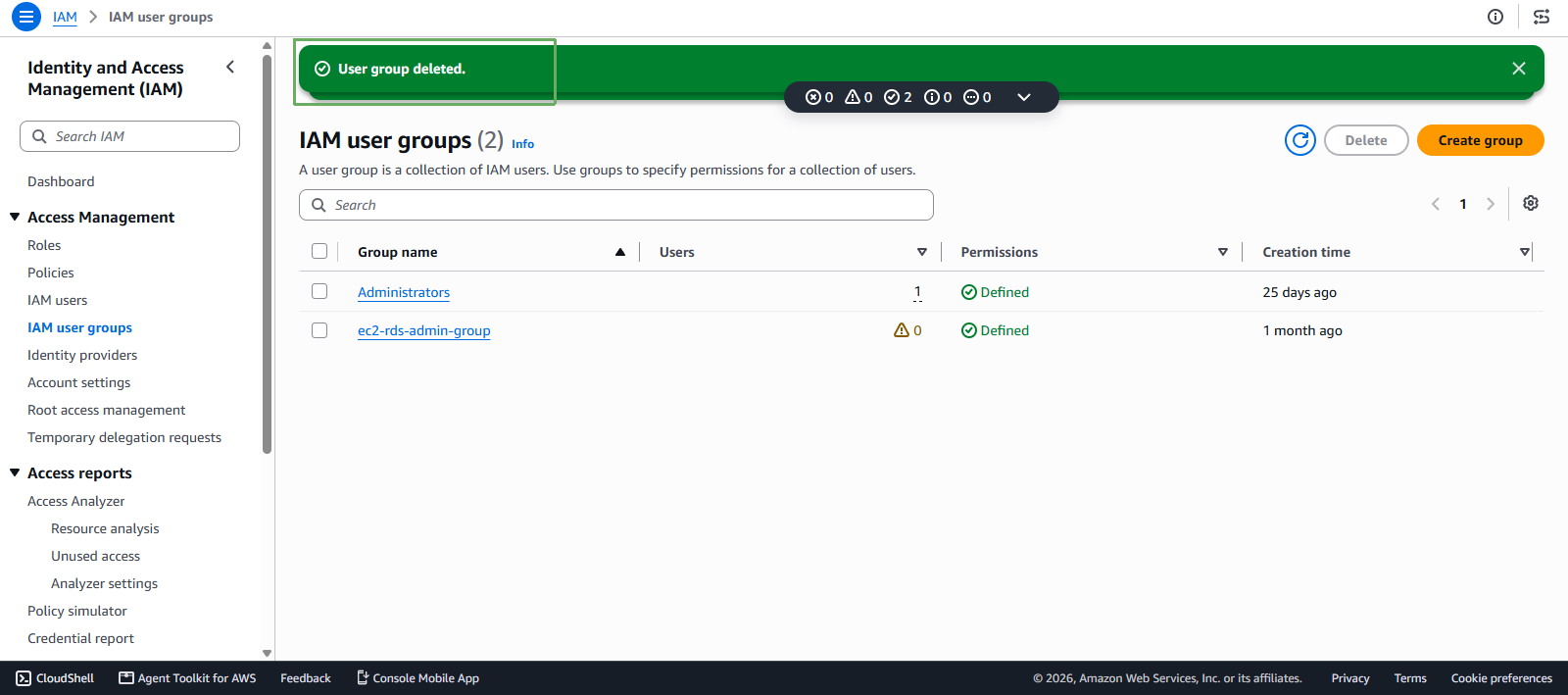
- Enter
- Notification of successful deletion
Delete Role and Policy Resources
Access AWS Management Console
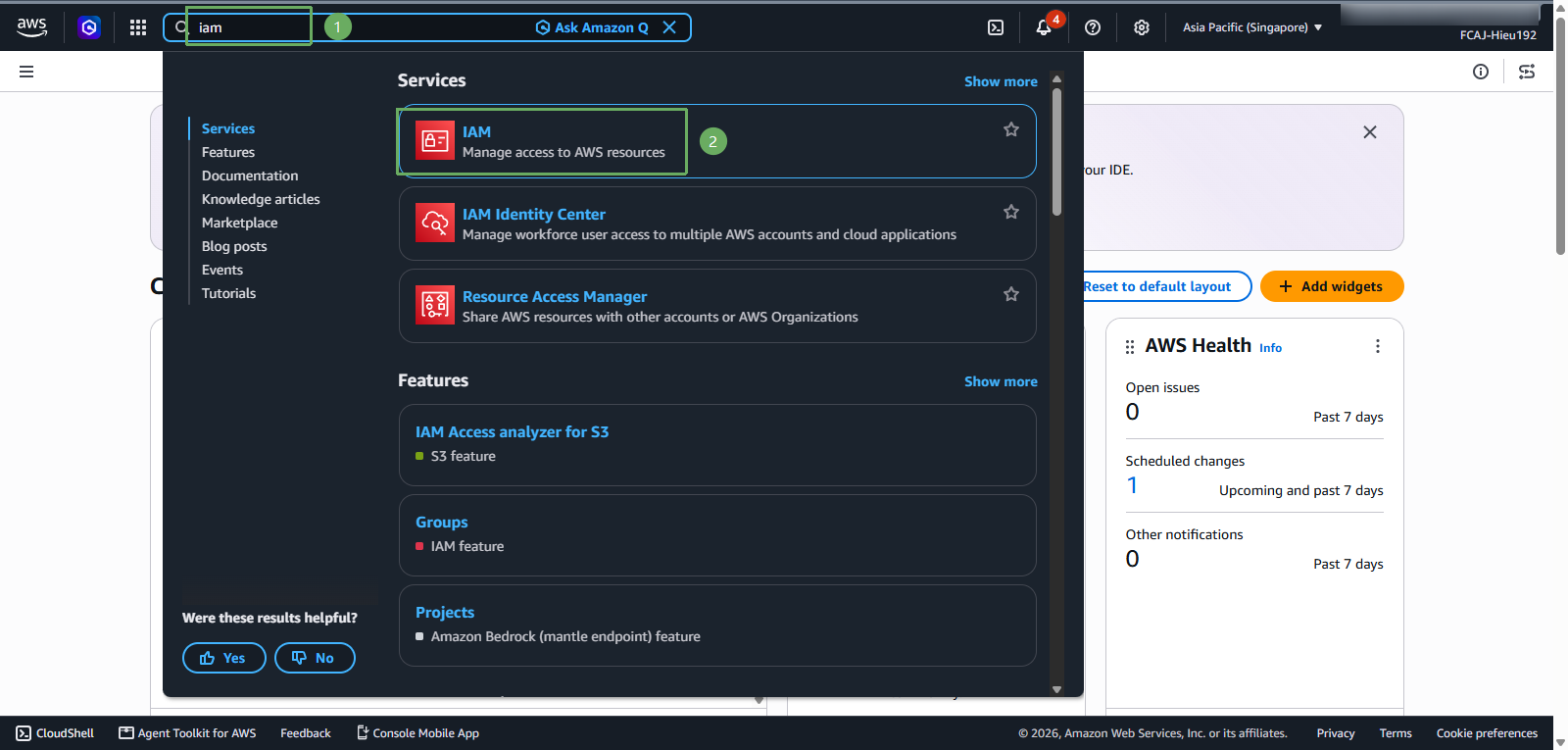
- Find IAM
- Select IAM
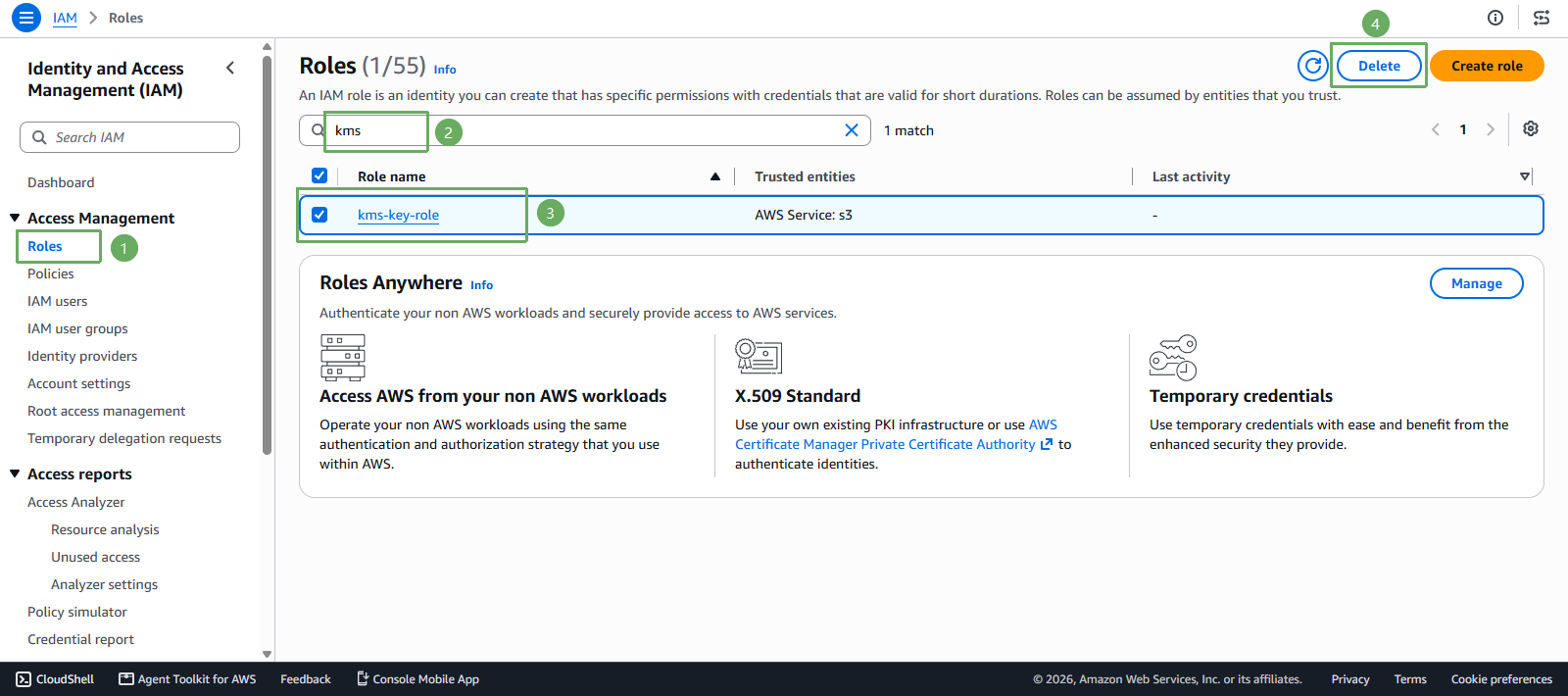
In the IAM interface
- Select Roles
- Search for kms
- Select kms-key-role
- Select Delete
Next step
- Enter
kms-key-role - Press Delete
- Enter
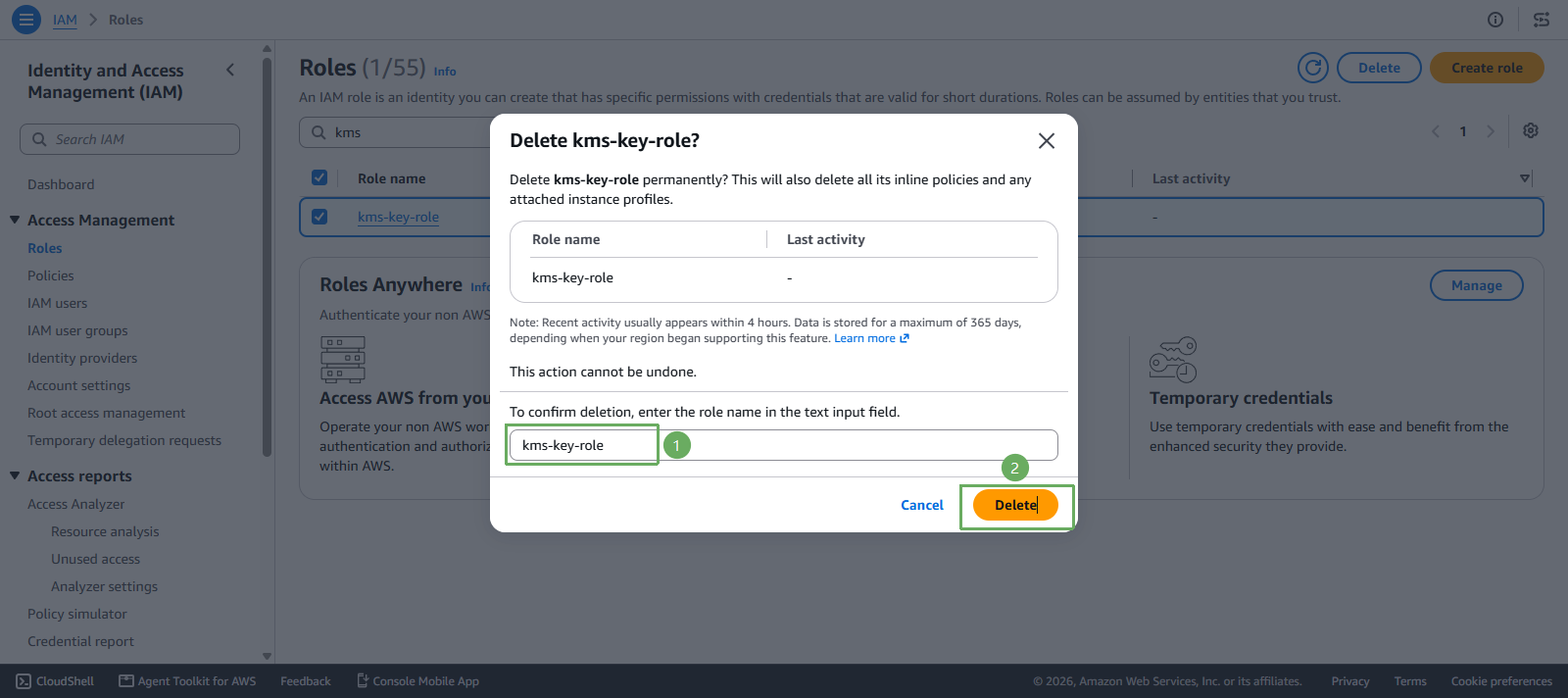
- Notification of successful deletion
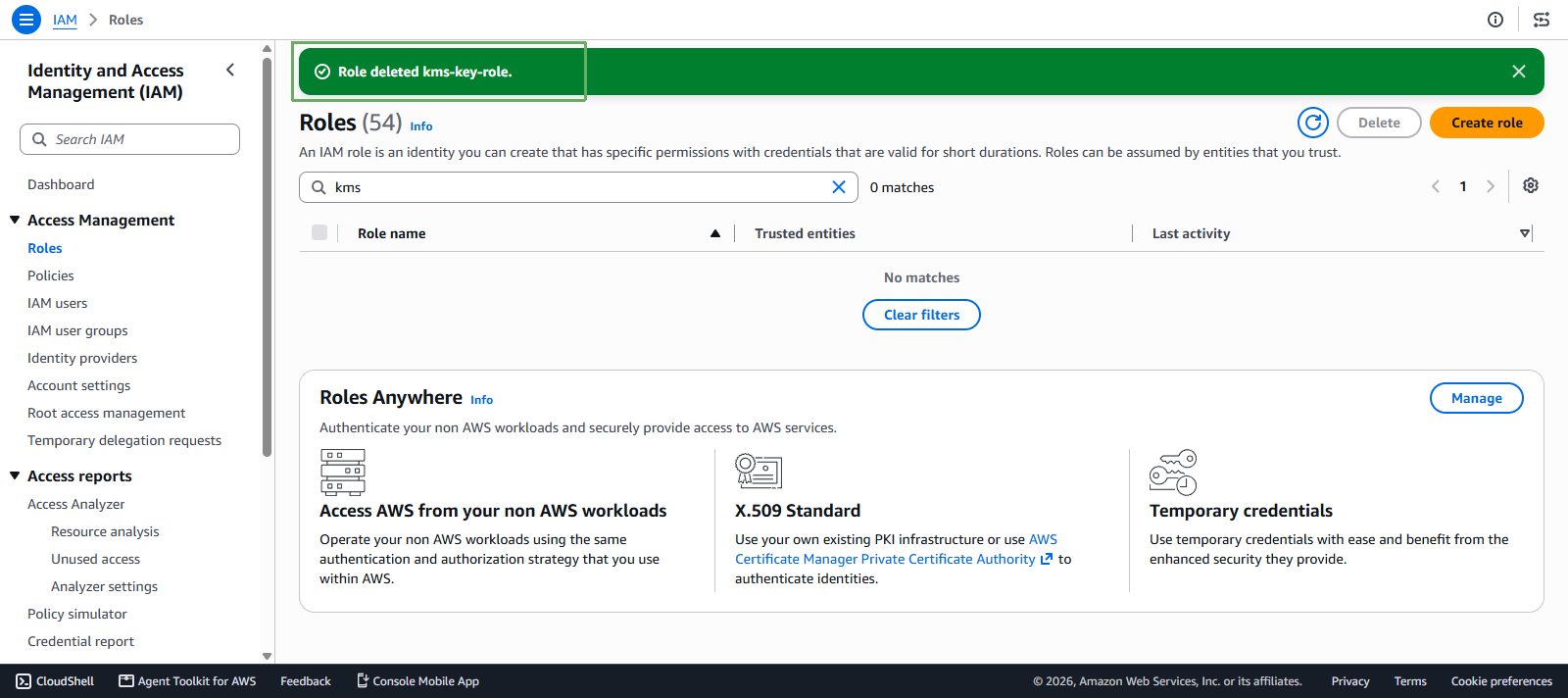
Return to the IAM interface
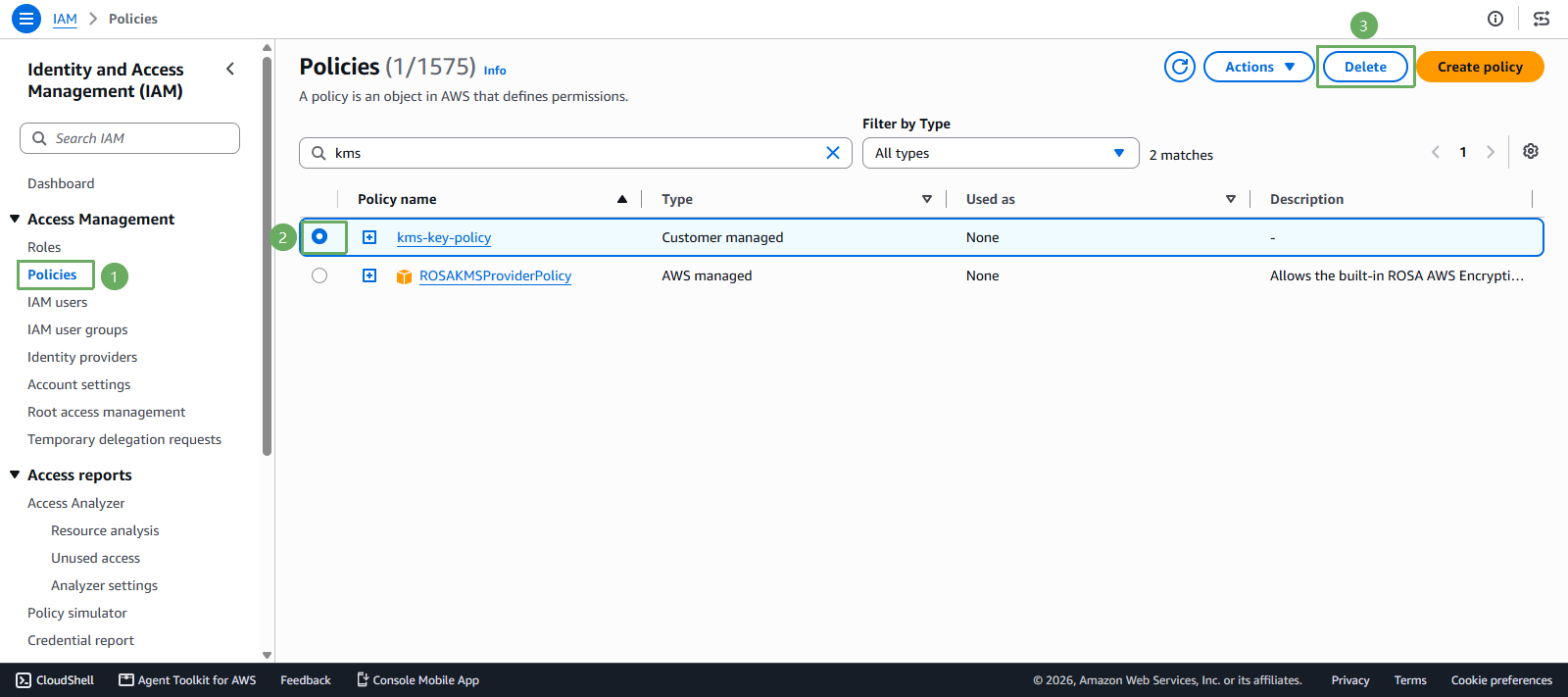
- Select Policies
- Search for kms
- Select kms-key-policy
- Select Delete
Next step
- Enter
kms-key-policy - Press Delete
- Enter
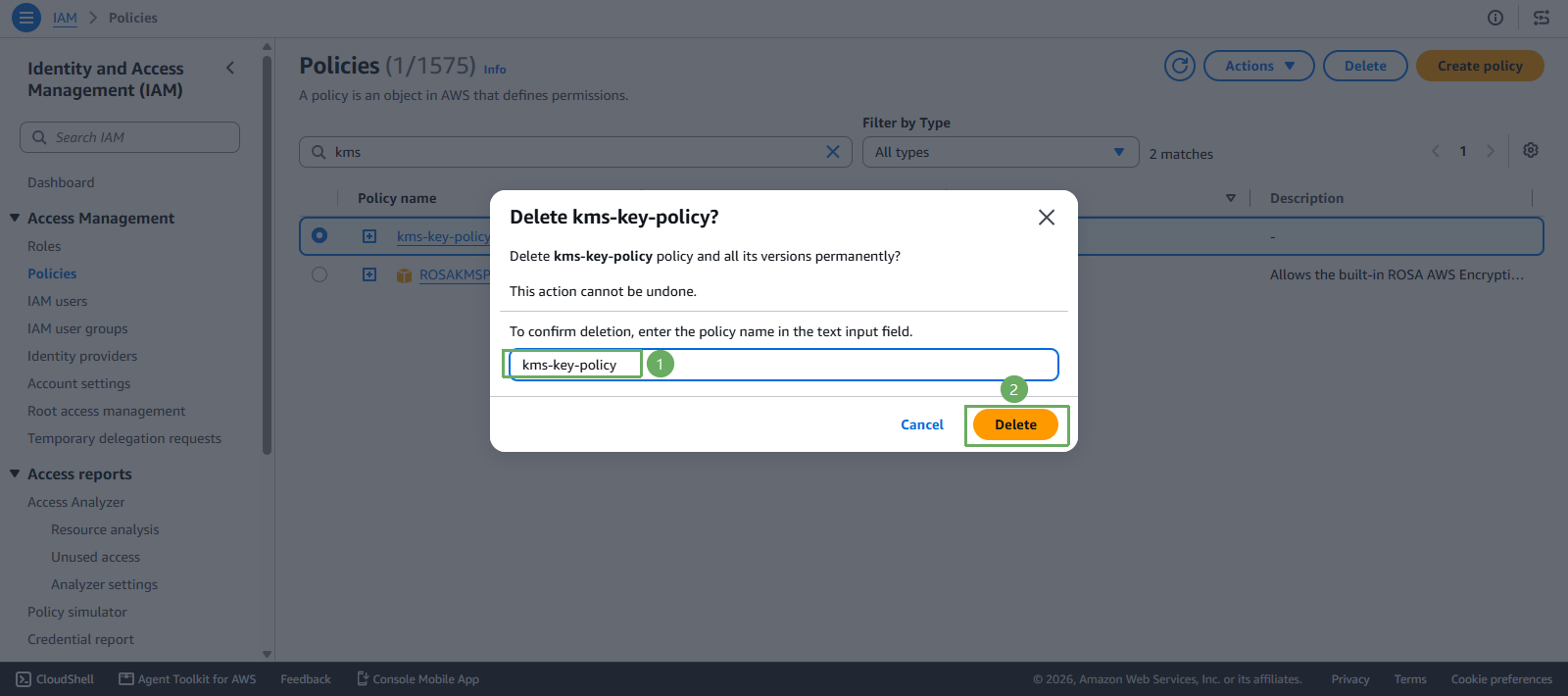
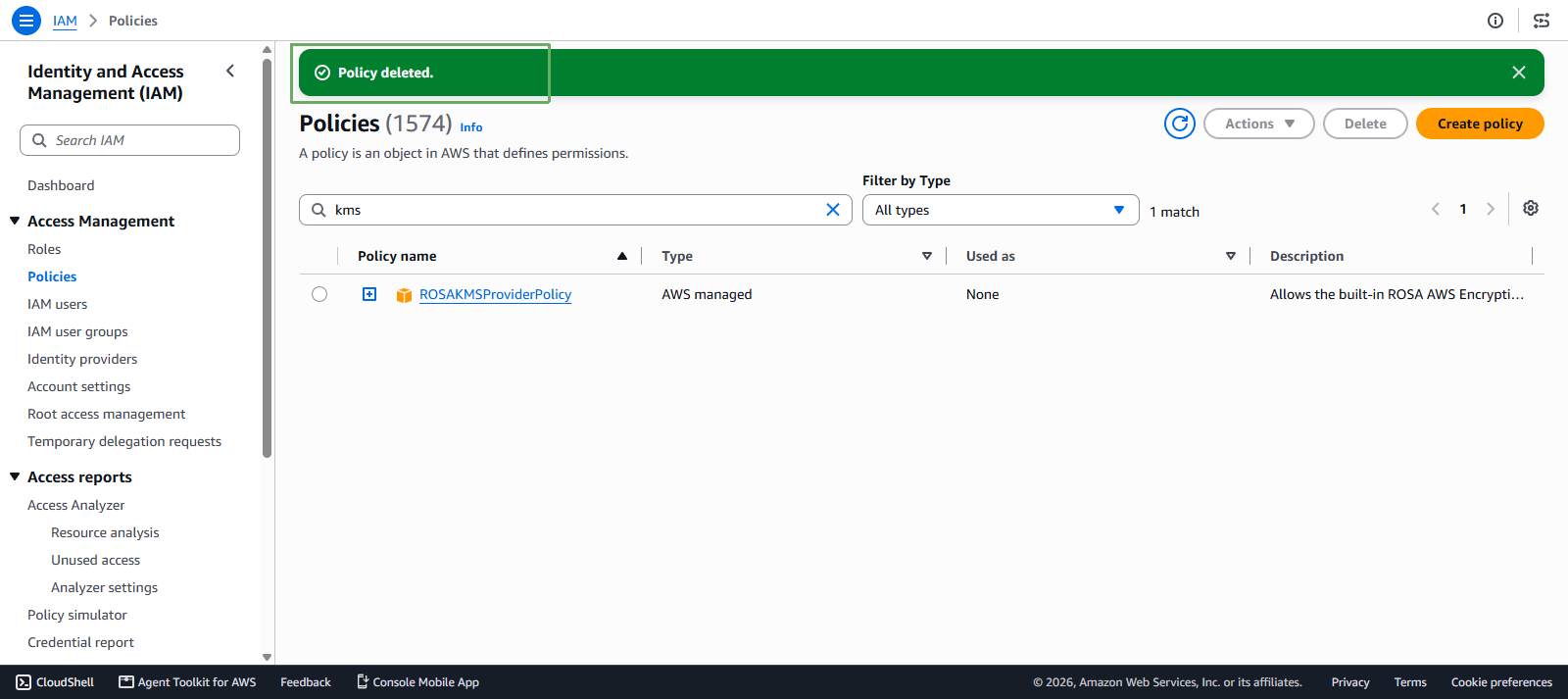
- Notification of successful deletion