Upload Data to S3
Upload Data to S3
Download the files below to complete the next steps:


Access AWS Management Console
- Find S3
- Select S3
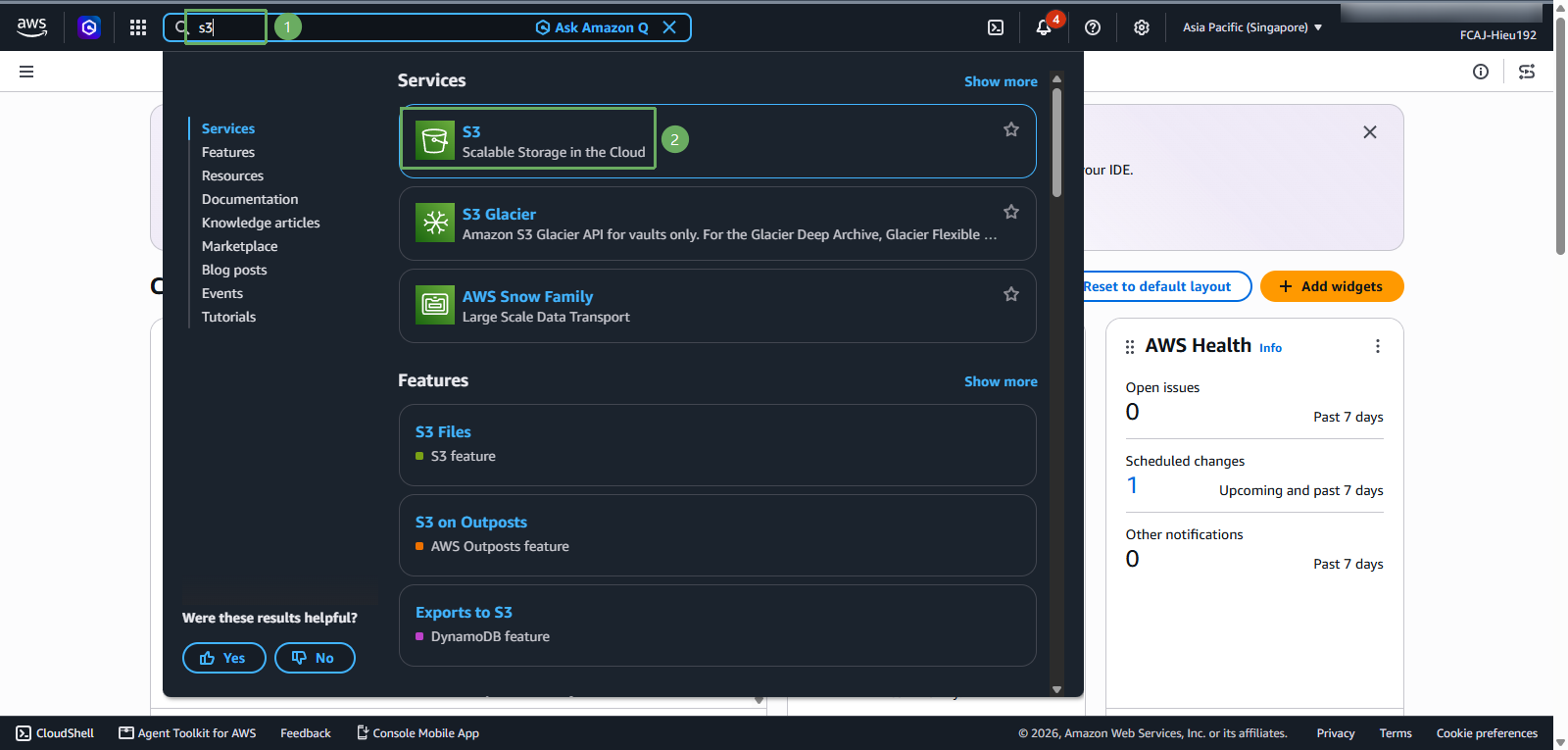
In the S3 interface
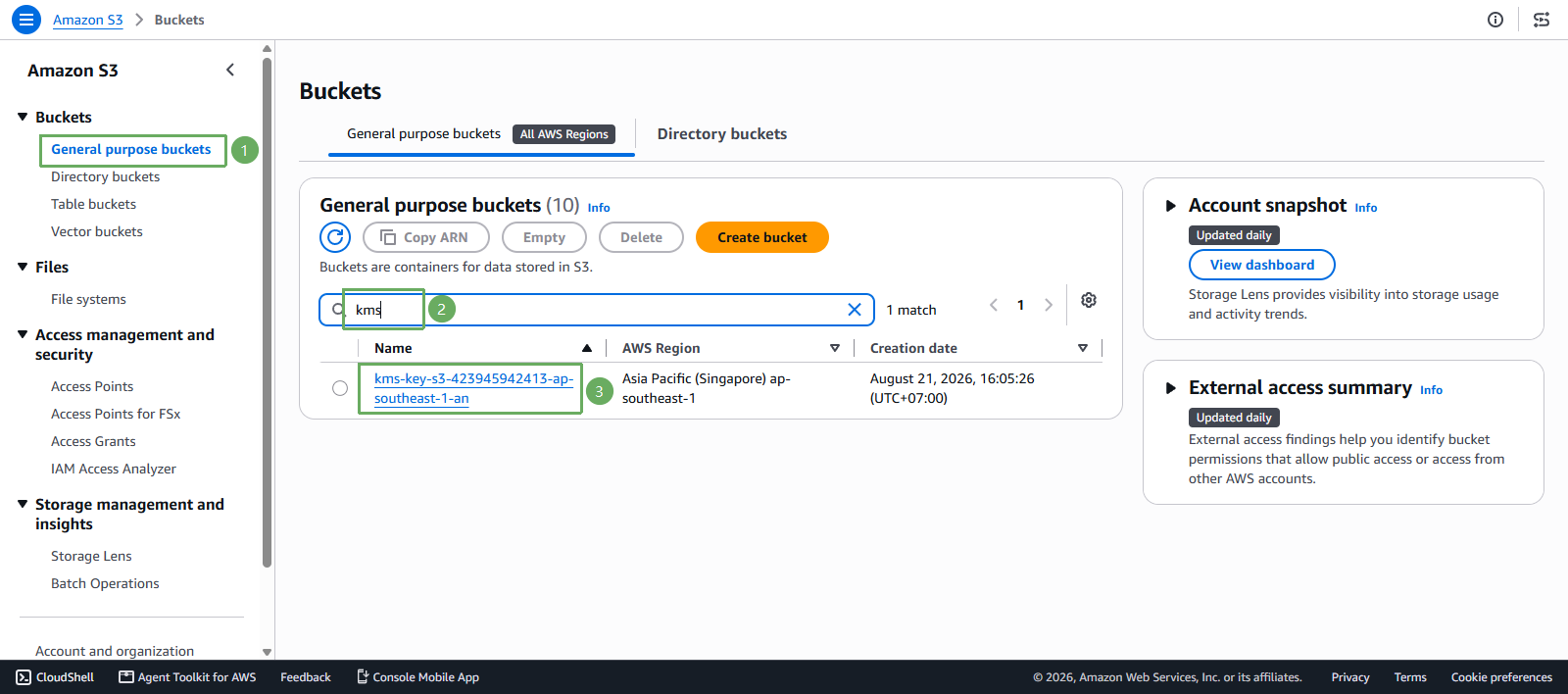
- Select Buckets
- Select General purpose buckets
- Select
kms-key-s3-<account-id>-<region>-an
- Next, select Upload
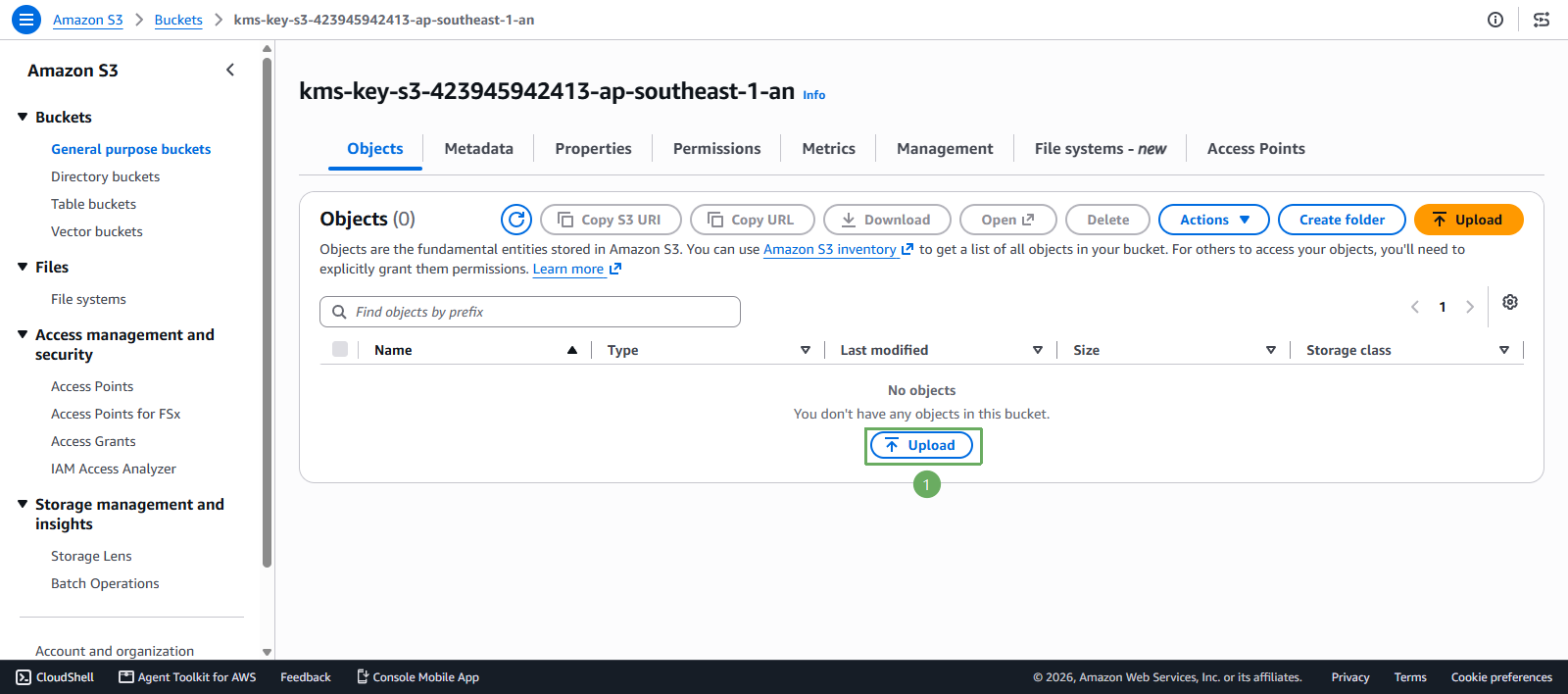
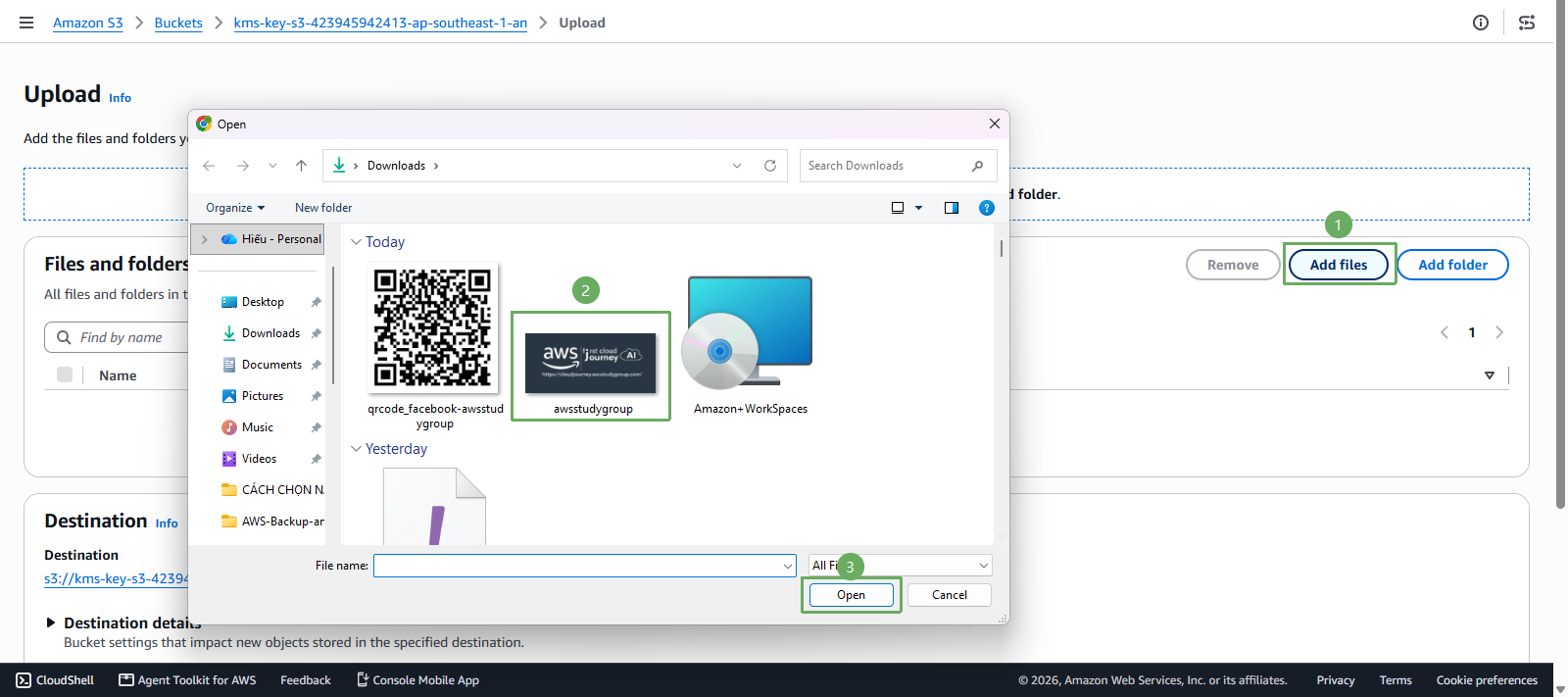
Next, in the Upload section
- Select Add files
- Select the file you just downloaded and select Open
Next
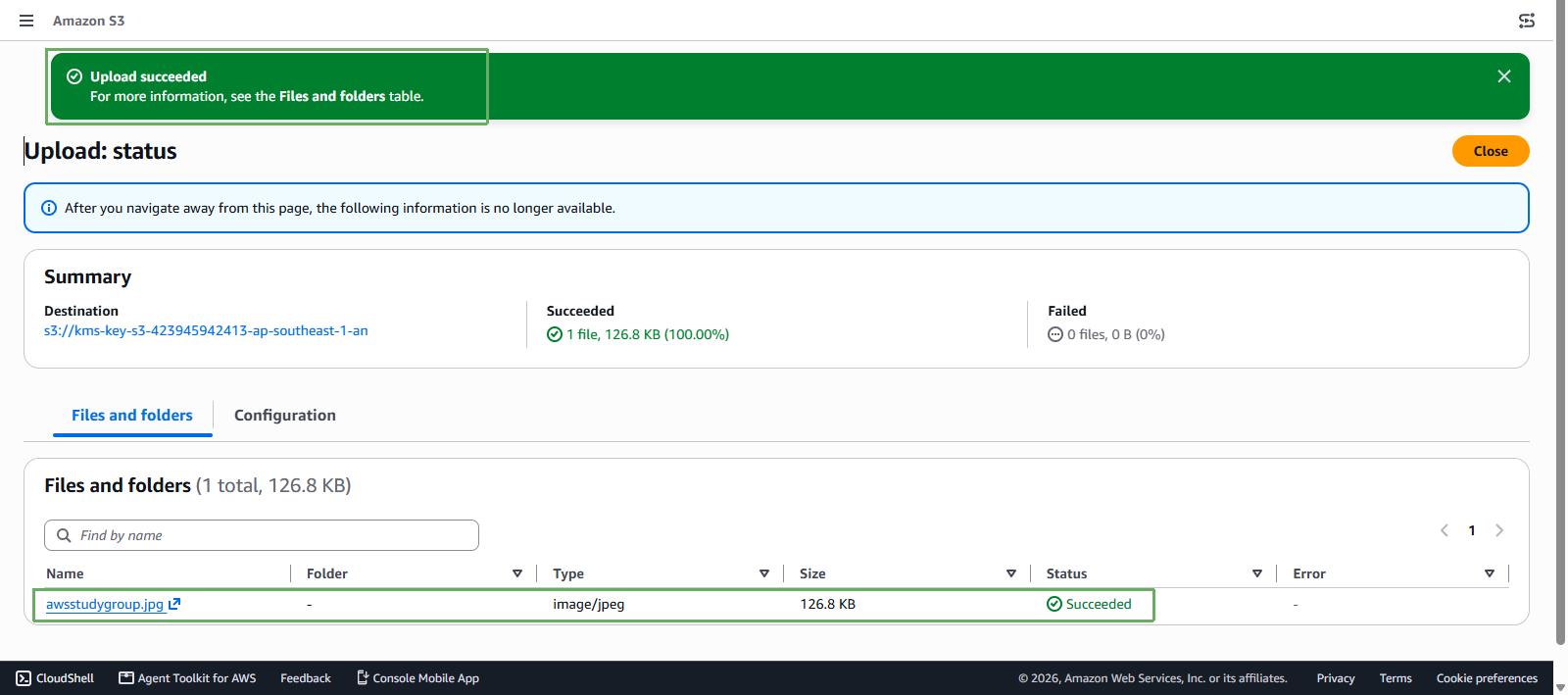
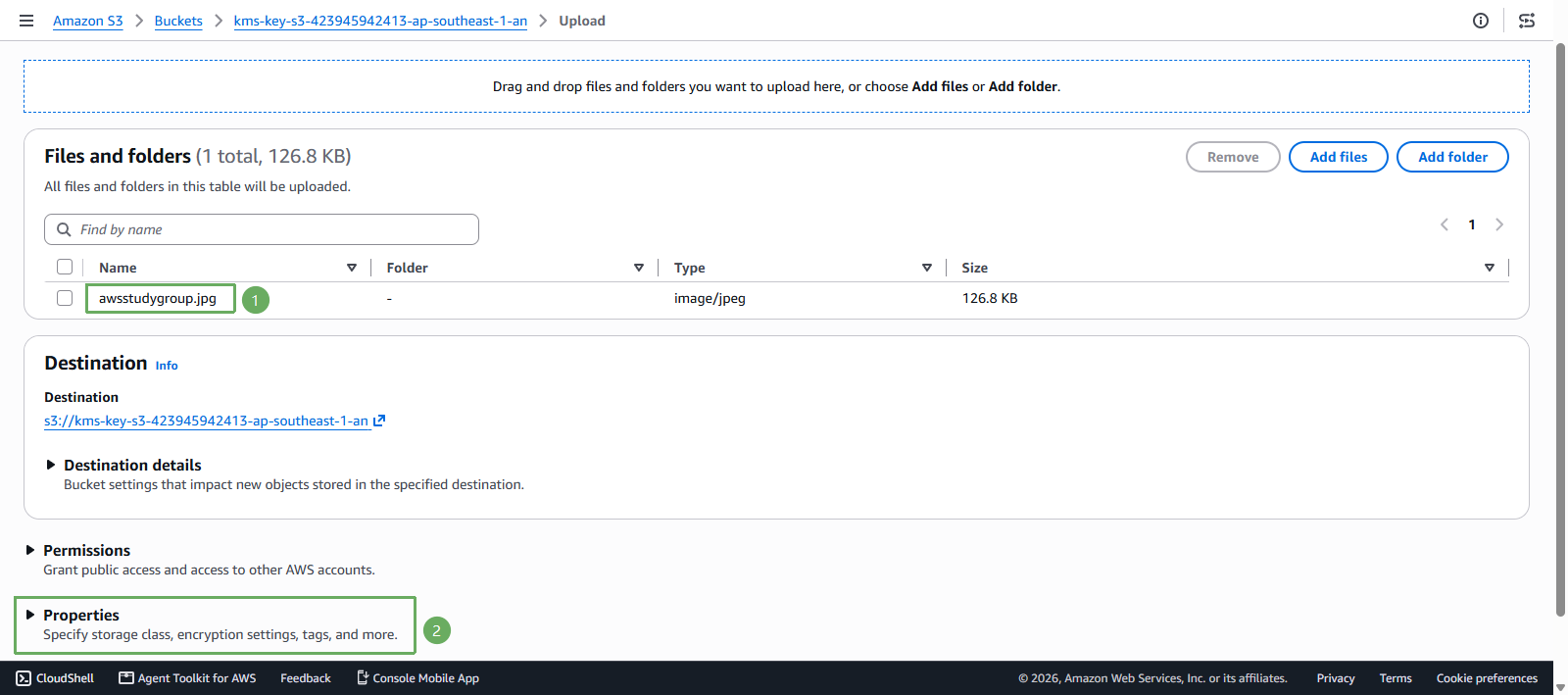
- You will see that the awsstudygroup.jpg has been Uploaded
- Next, select the Properties section
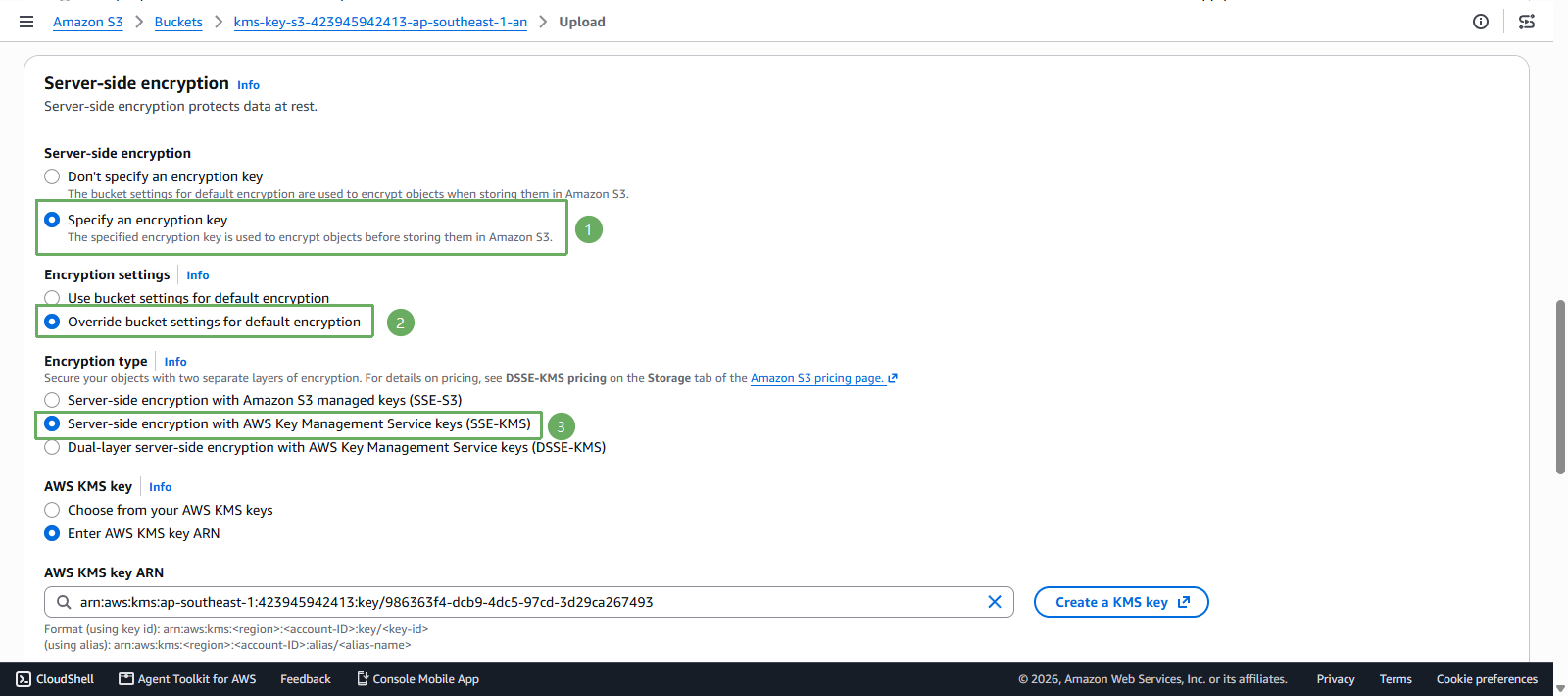
Scroll down to the Server-side encryption section
- Server-side encryption select Specify an encryption key
- Encryption settings select Override bucket settings for default encryption
- Encryption type select Server-side encryption with AWS Key Management Service keys (SSE-KMS)
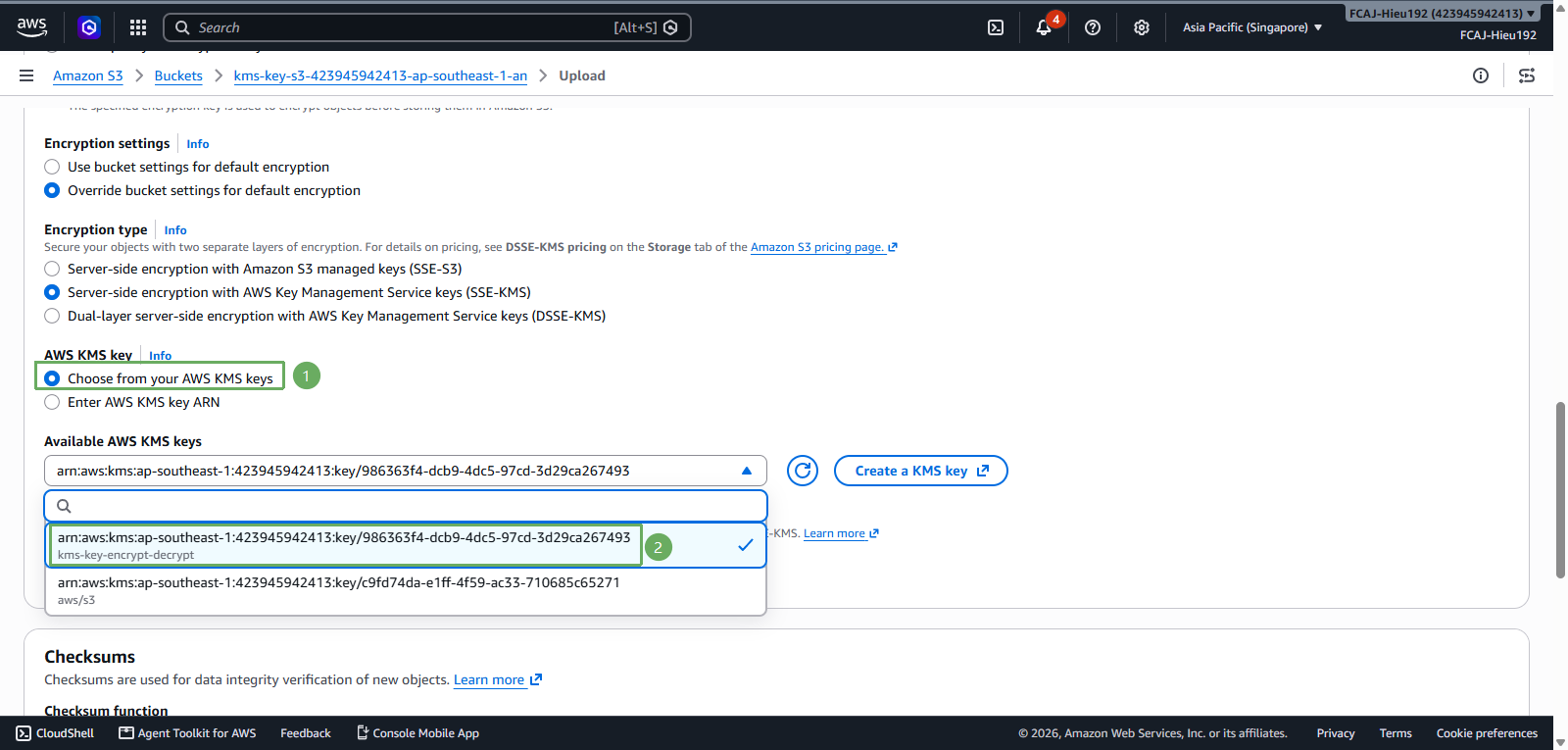
Scroll down to the AWS KMS key section
- Select Choose from your AWS KMS keys
- Available AWS KMS keys select kms-key-encrypt-decrypt
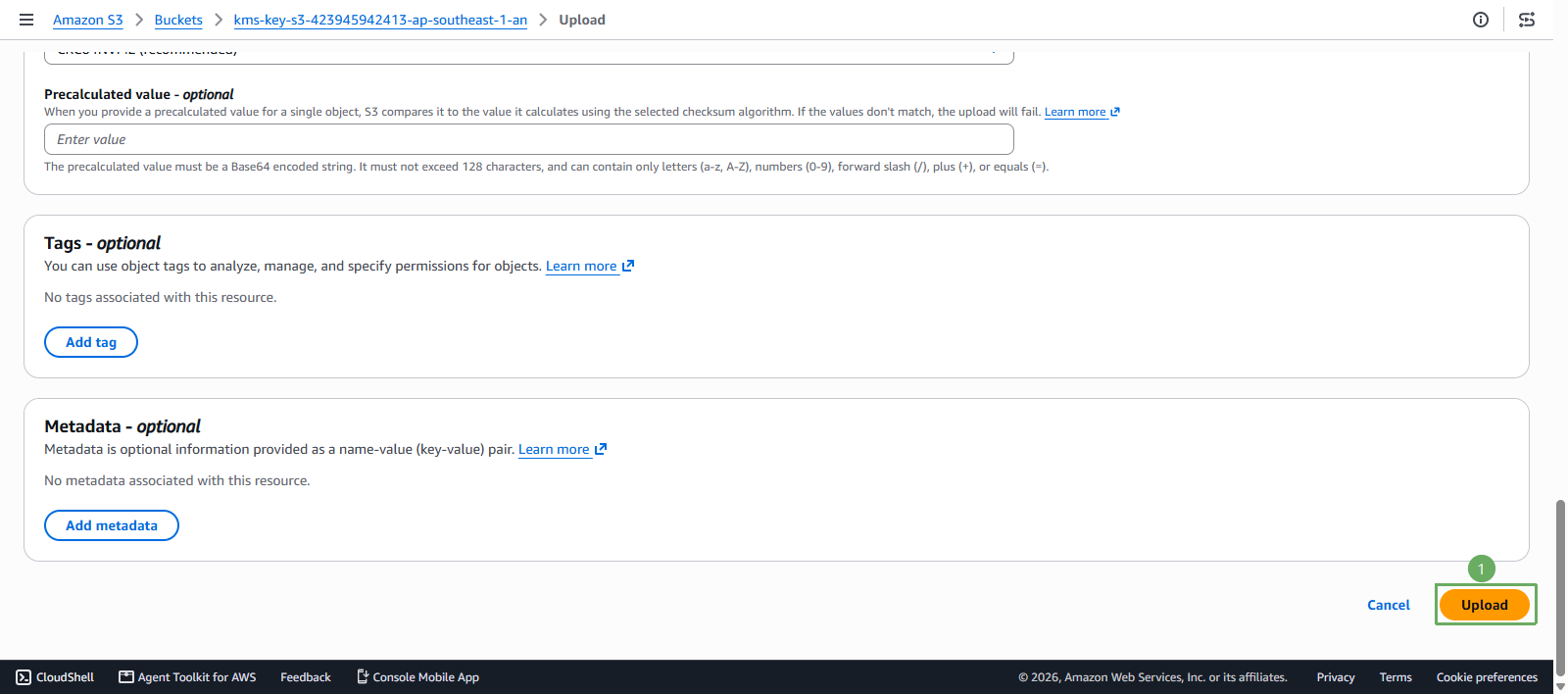
- Next, scroll down and select Upload
- Notification of successful data upload