Create Bucket
Create Bucket
Access AWS Management Console
- Find S3
- Select S3
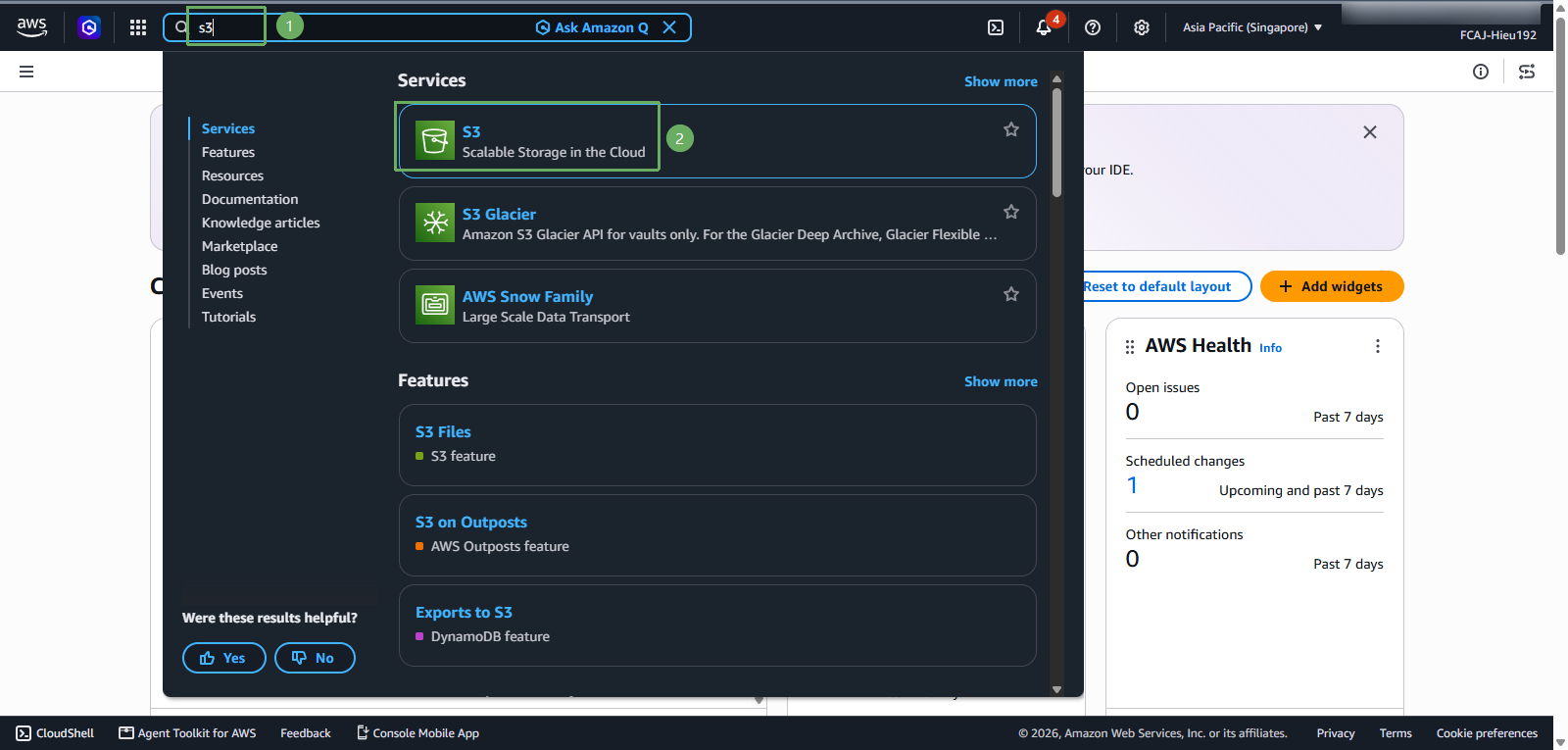
In the S3 interface
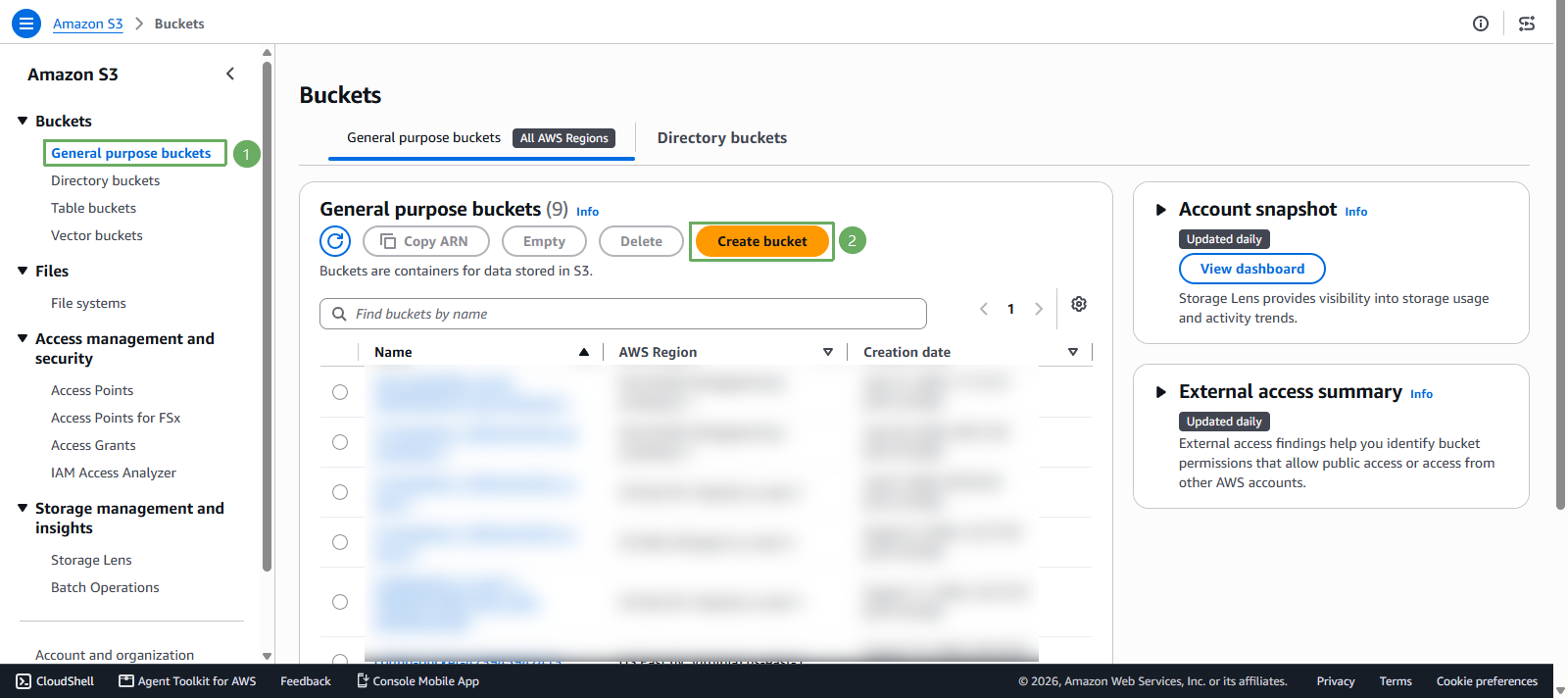
- Select Buckets
- Select General purpose buckets
- Select Create bucket
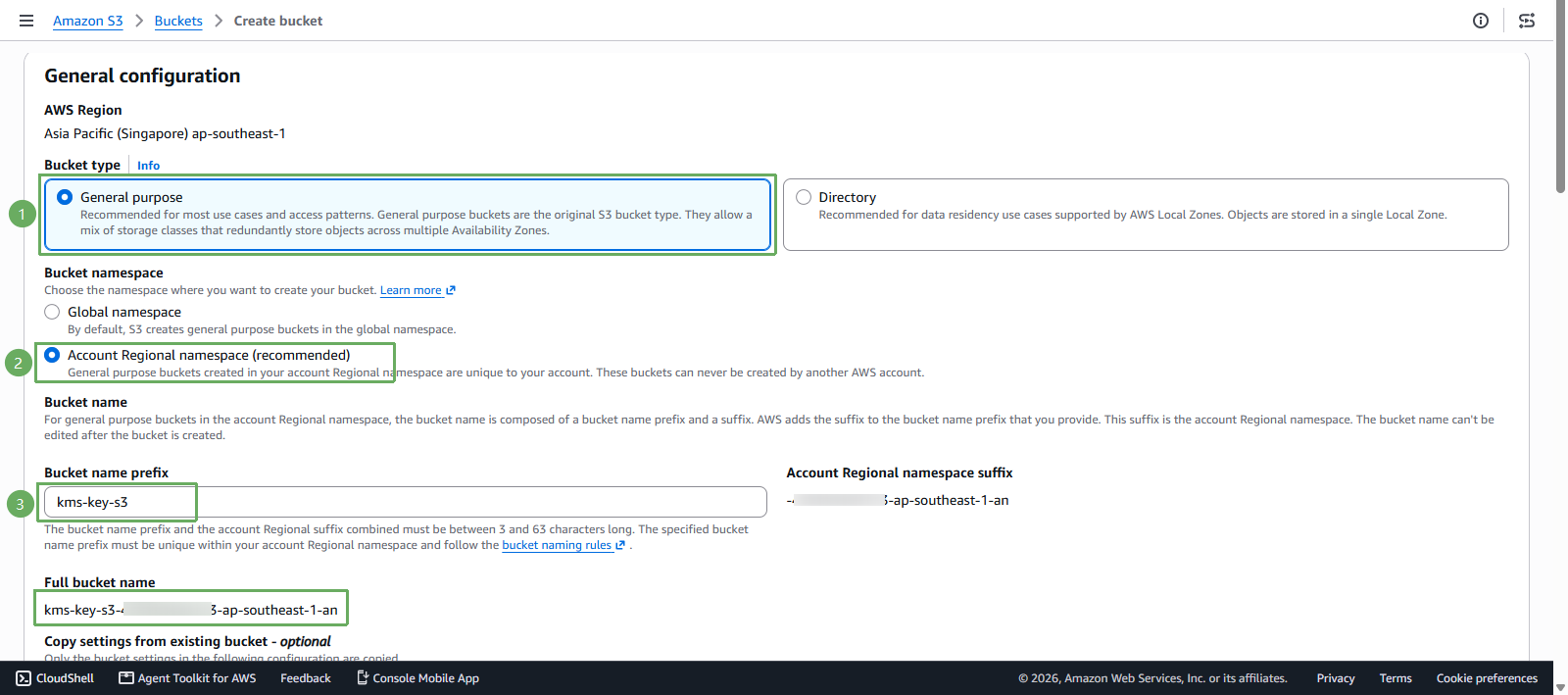
- In the Create bucket interface
You can choose a different name if you like!
- Bucket namespace select Account Regional namespace
- Bucket name prefix enter
kms-key-s3 - AWS will add the account regional namespace suffix automatically. The full bucket name will be
kms-key-s3-<account-id>-<region>-an
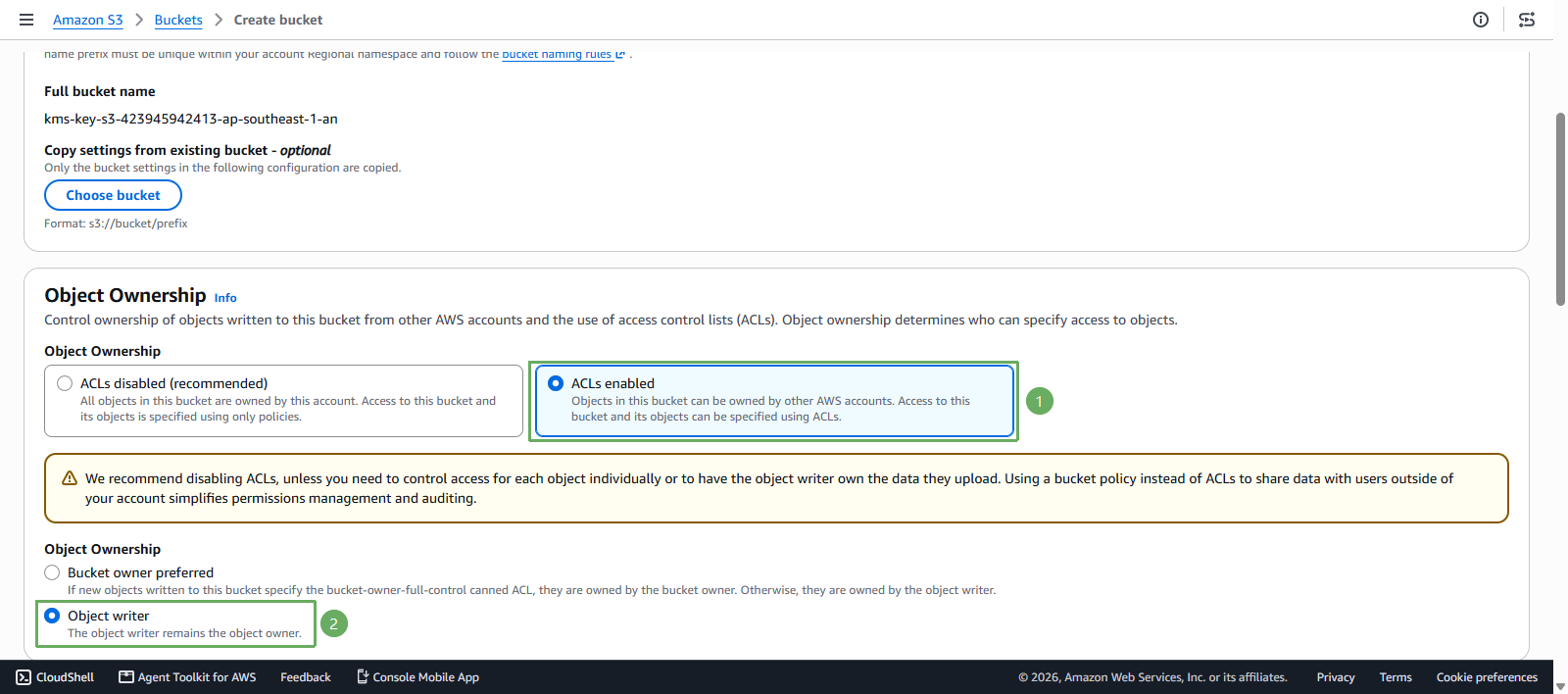
Next, scroll down to the Object Ownership section
- Select ACLs enabled
- Object ownership select Object writer
This lab enables ACLs because a later step uses Make public using ACL.
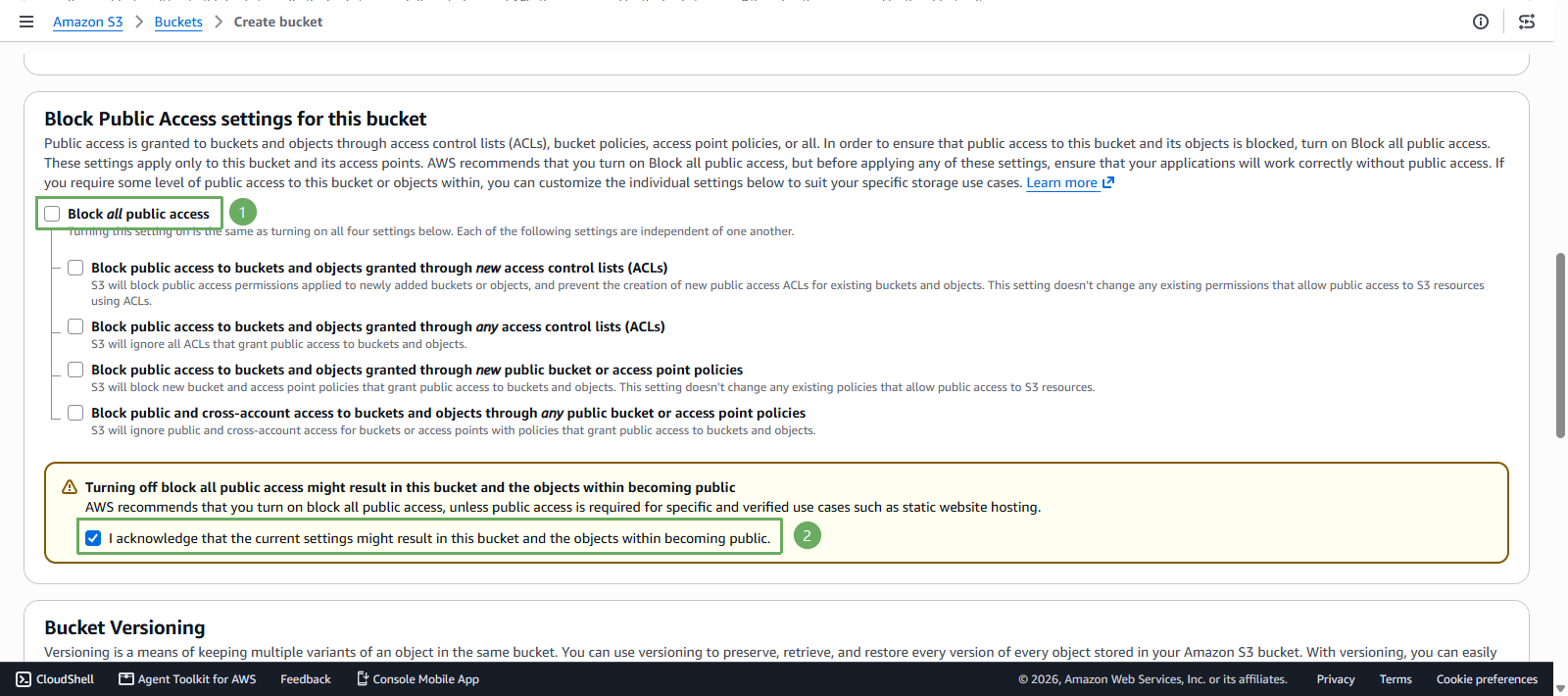
Next, scroll down to the Block Public Access settings for this bucket section
- Uncheck Block all public access
- Select I acknowledge that the current settings might result in this bucket and the objects within becoming public
This setting is used only for the demo in this workshop.
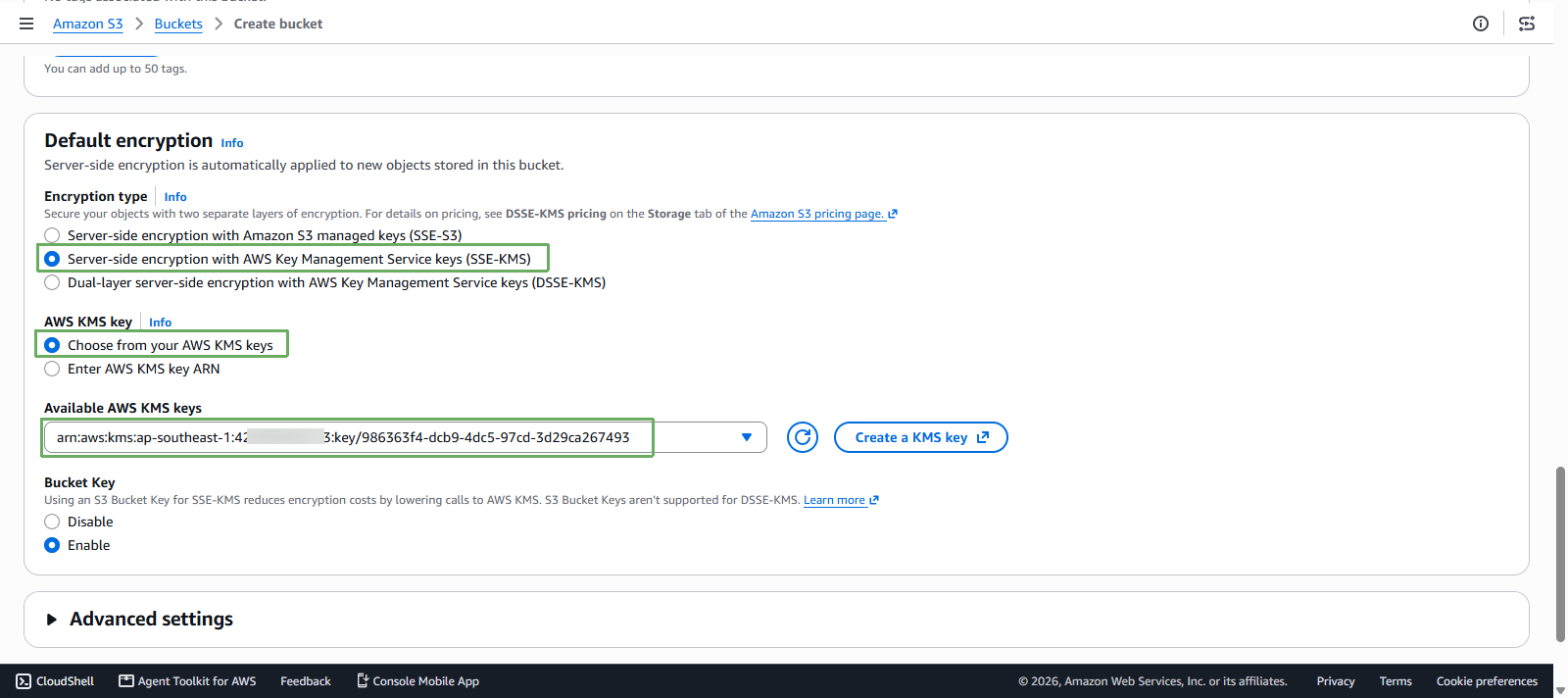
Next, scroll down to the Default encryption section
- Encryption type select Server-side encryption with AWS Key Management Service keys (SSE-KMS)
- AWS KMS Key select Choose from your AWS KMS keys
- Available AWS KMS keys select kms-key-encrypt-decrypt
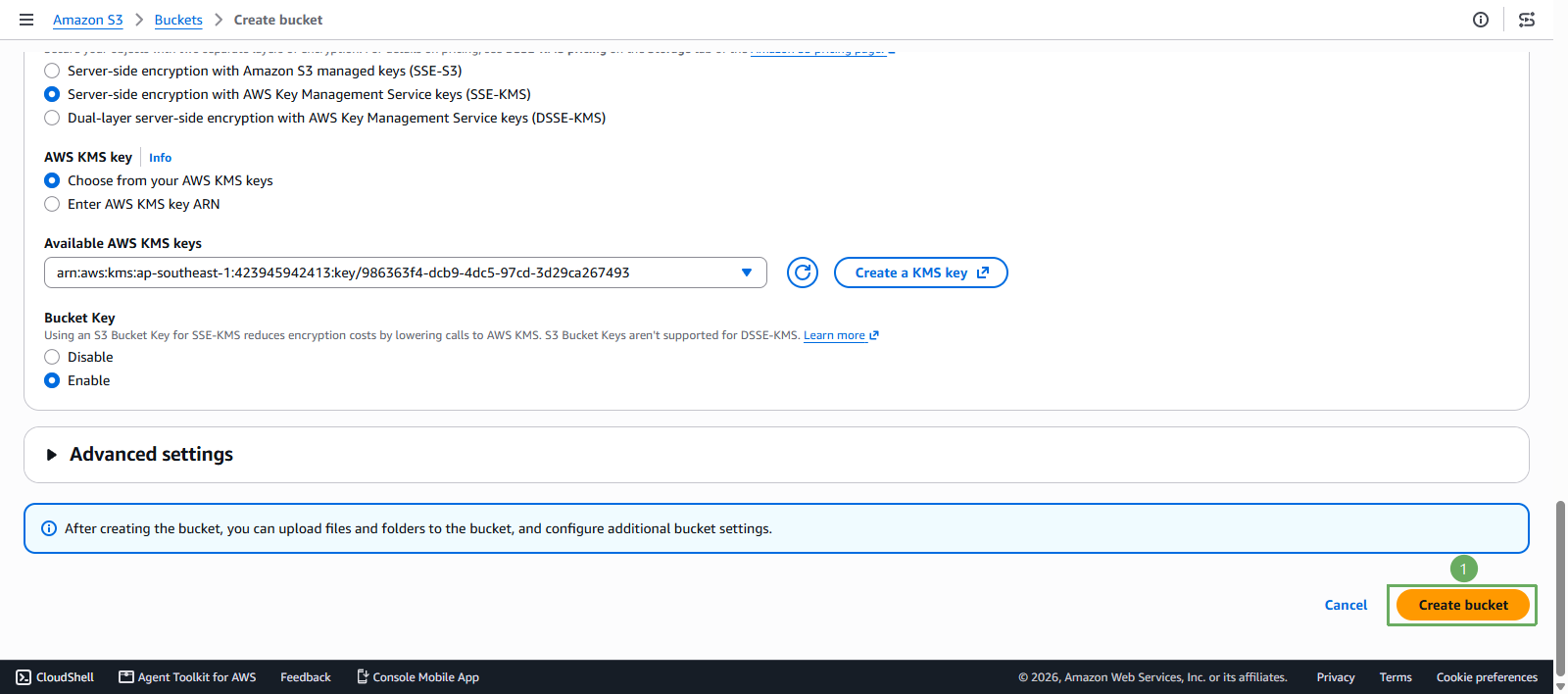
- Next, scroll down and press Create bucket
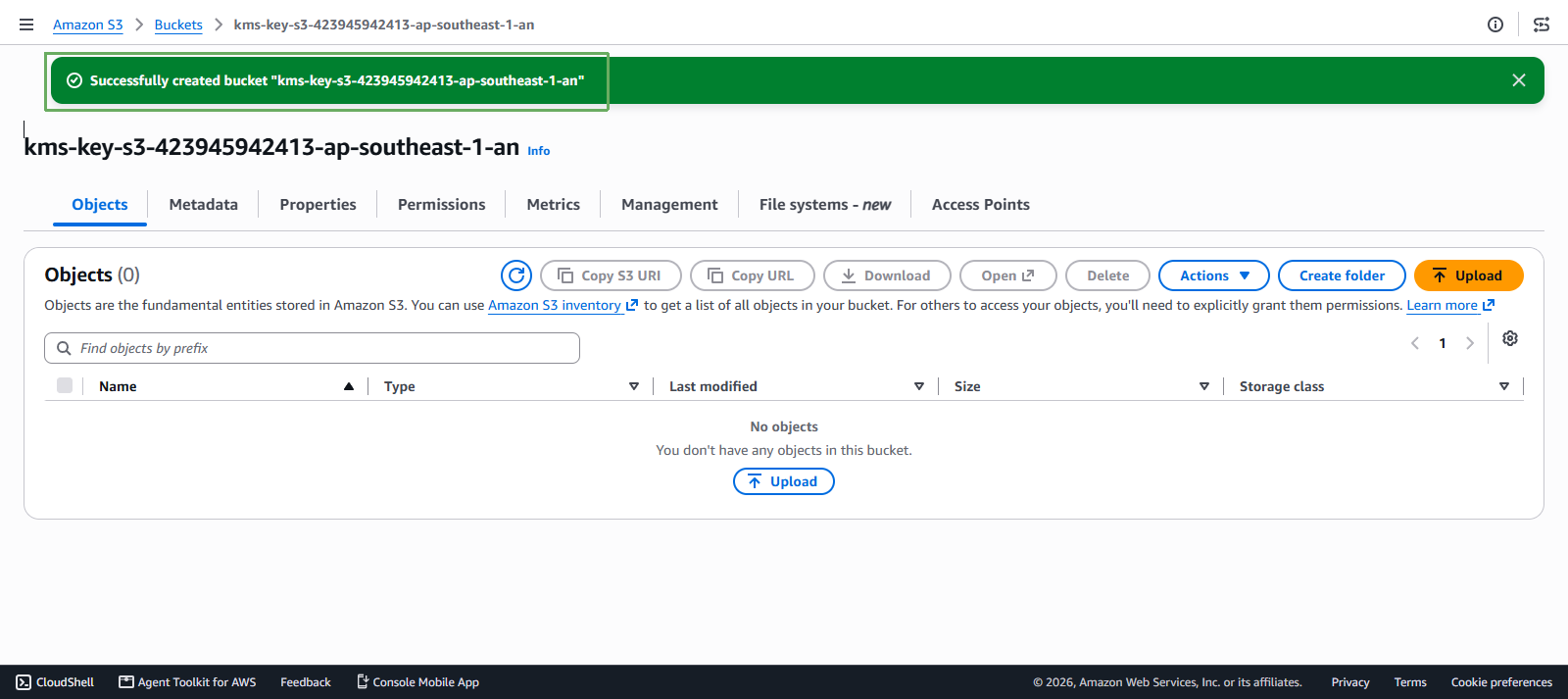
- Notification of successful creation