Create Policy and Role
Create Role
Access AWS Management Console
- Find IAM
- Select IAM
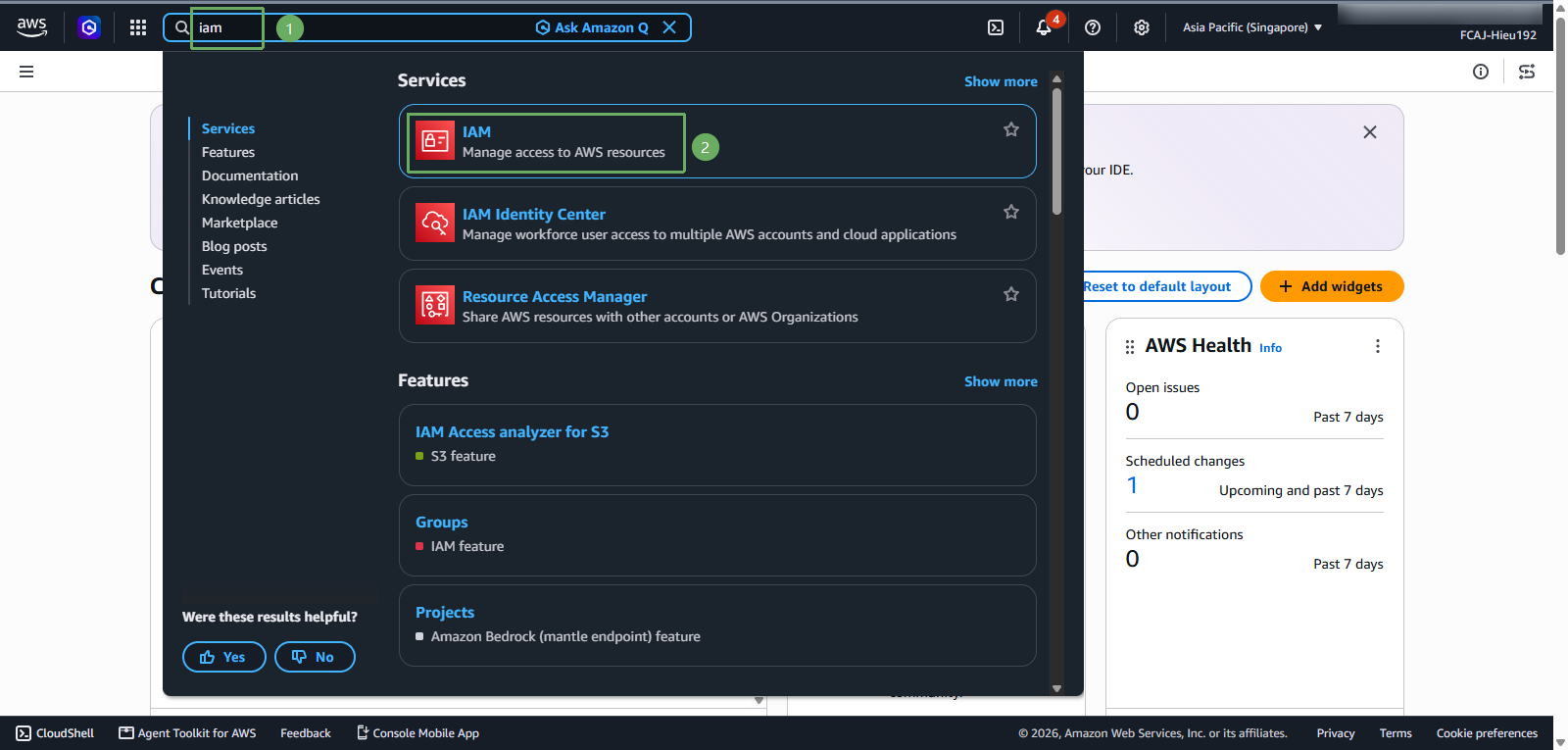
In the IAM interface
- Select Policies
- Select Create policy
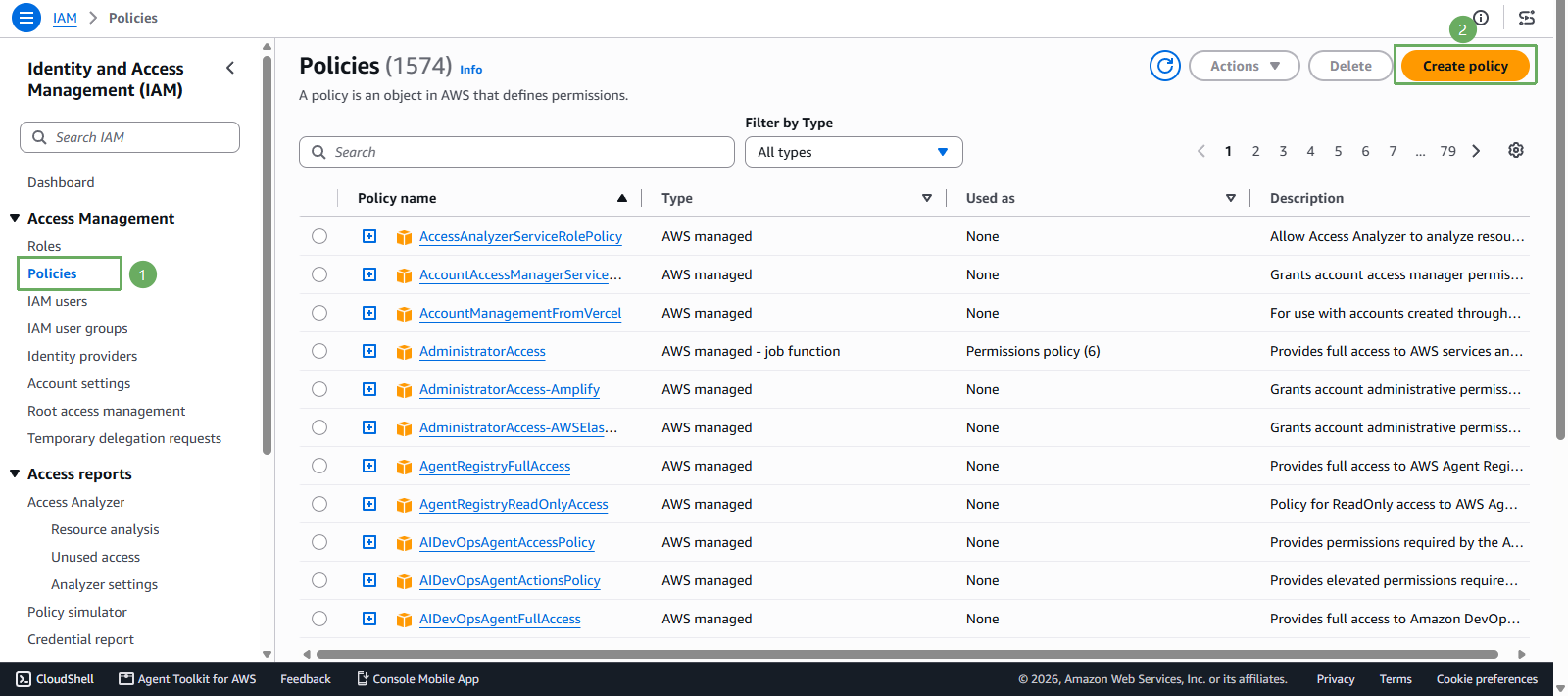
In the Specify permissions section
- Select JSON, delete the old code, and copy the new code below into it
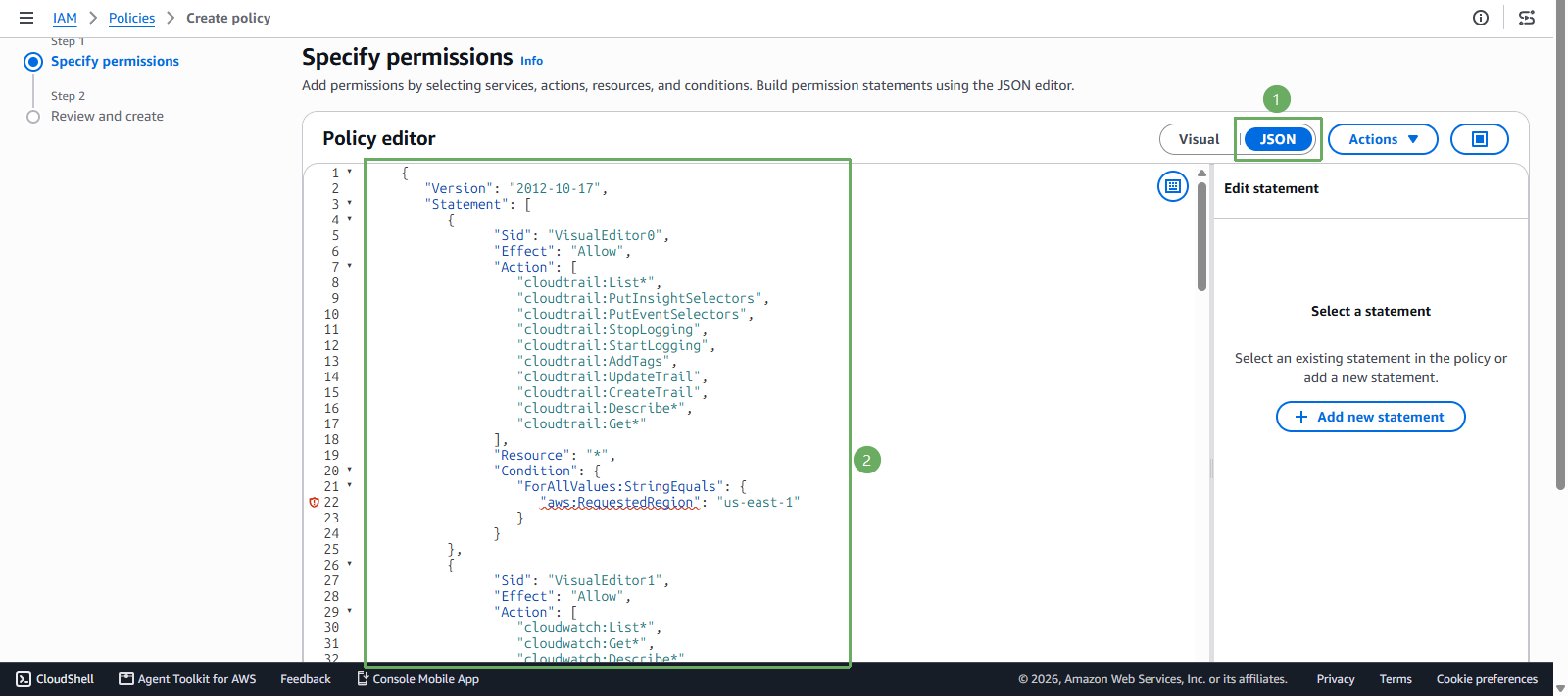
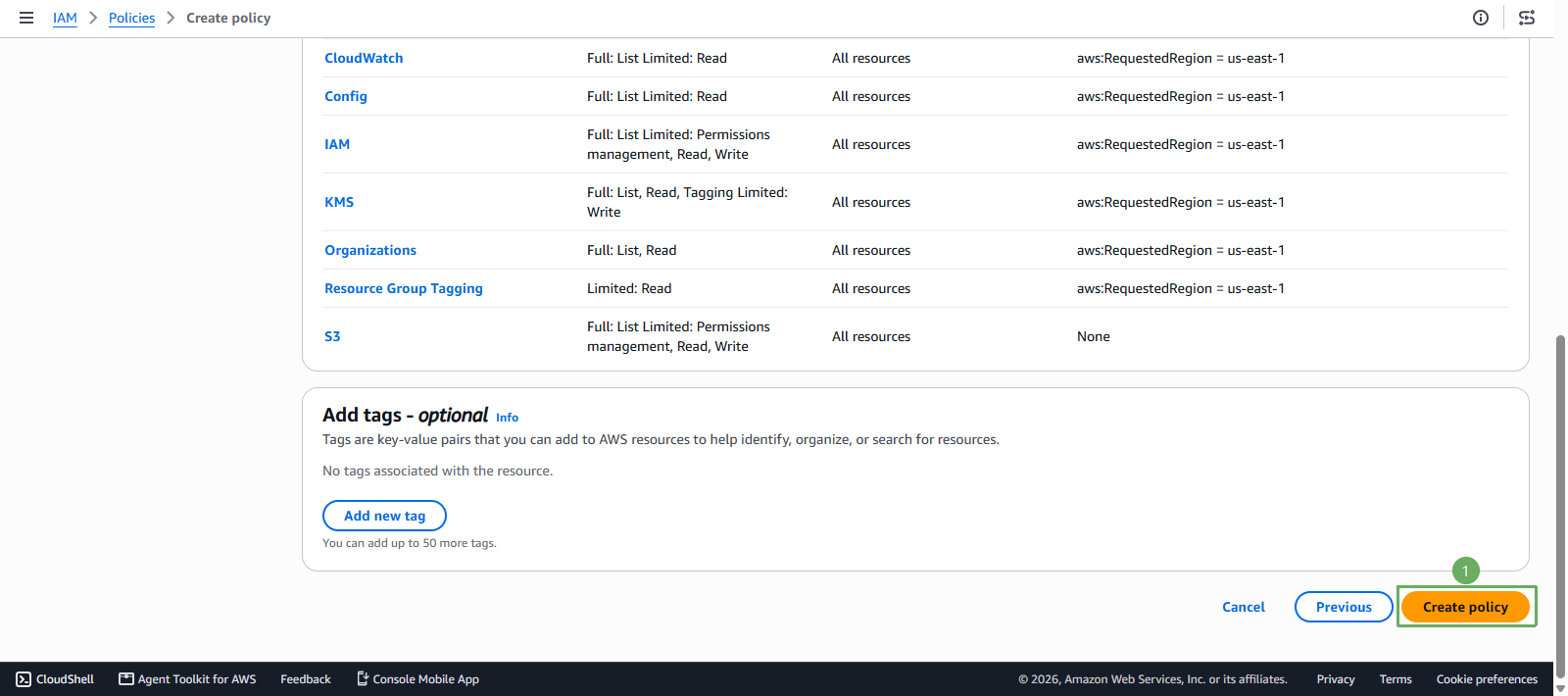
This policy grants permissions for each function used in this lab. You can customize the permissions in this policy. This code currently grants permissions for the US East (N. Virginia) Region, so this part is "aws:RequestedRegion": "us-east-1" (If you are using another Region, you should update each "aws:RequestedRegion" accordingly)
Important: the JSON below is a sample policy for this lab. If you use another AWS Region, update the Region values to match your lab environment.
     {
        "Version": "2012-10-17",
        "Statement": [
           {
                 "Sid": "VisualEditor0",
                 "Effect": "Allow",
                 "Action": [
                    "cloudtrail:List*",
                    "cloudtrail:PutInsightSelectors",
                    "cloudtrail:PutEventSelectors",
                    "cloudtrail:StopLogging",
                    "cloudtrail:StartLogging",
                    "cloudtrail:AddTags",
                    "cloudtrail:UpdateTrail",
                    "cloudtrail:CreateTrail",
                    "cloudtrail:Describe*",
                    "cloudtrail:Get*"
                 ],
                 "Resource": "*",
                 "Condition": {
                    "ForAllValues:StringEquals": {
                       "aws:RequestedRegion": "us-east-1"
                    }
                 }
           },
           {
                 "Sid": "VisualEditor1",
                 "Effect": "Allow",
                 "Action": [
                    "cloudwatch:List*",
                    "cloudwatch:Get*",
                    "cloudwatch:Describe*"
                 ],
                 "Resource": "*",
                 "Condition": {
                    "ForAllValues:StringEquals": {
                       "aws:RequestedRegion": "us-east-1"
                    }
                 }
           },
           {
                 "Sid": "VisualEditor2",
                 "Effect": "Allow",
                 "Action": [
                    "config:Get*",
                    "config:List*",
                    "config:Describe*"
                 ],
                 "Resource": "*",
                 "Condition": {
                    "StringEquals": {
                       "aws:RequestedRegion": "us-east-1"
                    }
                 }
           },
           {
                 "Sid": "VisualEditor3",
                 "Effect": "Allow",
                 "Action": [
                    "iam:Get*",
                    "iam:List*",
                    "iam:AttachRolePolicy"
                 ],
                 "Resource": "*",
                 "Condition": {
                    "StringEquals": {
                       "aws:RequestedRegion": "us-east-1"
                    }
                 }
           },
           {
                 "Sid": "VisualEditor4",
                 "Effect": "Allow",
                 "Action": [
                    "kms:EnableKeyRotation",
                    "kms:EnableKey",
                    "kms:Decrypt",
                    "kms:TagResource",
                    "kms:UntagResource",
                    "kms:List*",
                    "kms:Encrypt",
                    "kms:Get*",
                    "kms:CreateAlias",
                    "kms:Describe*",
                    "kms:CreateKey",
                    "kms:DisableKey"
                 ],
                 "Resource": "*",
                 "Condition": {
                    "StringEquals": {
                       "aws:RequestedRegion": "us-east-1"
                    }
                 }
           },
           {
                 "Sid": "VisualEditor5",
                 "Effect": "Allow",
                 "Action": [
                    "organizations:Describe*",
                    "organizations:List*"
                 ],
                 "Resource": "*",
                 "Condition": {
                    "StringEquals": {
                       "aws:RequestedRegion": "us-east-1"
                    }
                 }
           },
           {
                 "Sid": "VisualEditor6",
                 "Effect": "Allow",
                 "Action": [
                    "s3:PutAccountPublicAccessBlock",
                    "s3:PutBucketPublicAccessBlock",
                    "s3:PutBucketOwnershipControls",
                    "s3:Get*",
                    "s3:CreateBucket",
                    "s3:List*",
                    "s3:PutObject",
                    "s3:PutObjectVersionAcl",
                    "s3:PutBucketAcl",
                    "s3:PutBucketPolicy",
                    "s3:PutAccessPointPolicy",
                    "s3:PutBucketVersioning",
                    "s3:PutObjectAcl",
                    "iam:PassRole",
                    "iam:CreateServiceLinkedRole"
                 ],
                 "Resource": "*"
           },
           {
                 "Sid": "VisualEditor7",
                 "Effect": "Allow",
                 "Action": "tag:Get*",
                 "Resource": "*",
                 "Condition": {
                    "StringEquals": {
                       "aws:RequestedRegion": "us-east-1"
                    }
                 }
           },
           {
                 "Sid": "VisualEditor8",
                 "Effect": "Deny",
                 "Action": "s3:*",
                 "Resource": "*",
                 "Condition": {
                    "ForAllValues:StringNotEqualsIfExists": {
                       "aws:RequestedRegion": "us-east-1"
                    }
                 }
           }
        ]
     }
- After completing the step above, scroll to the bottom of the page and press Next
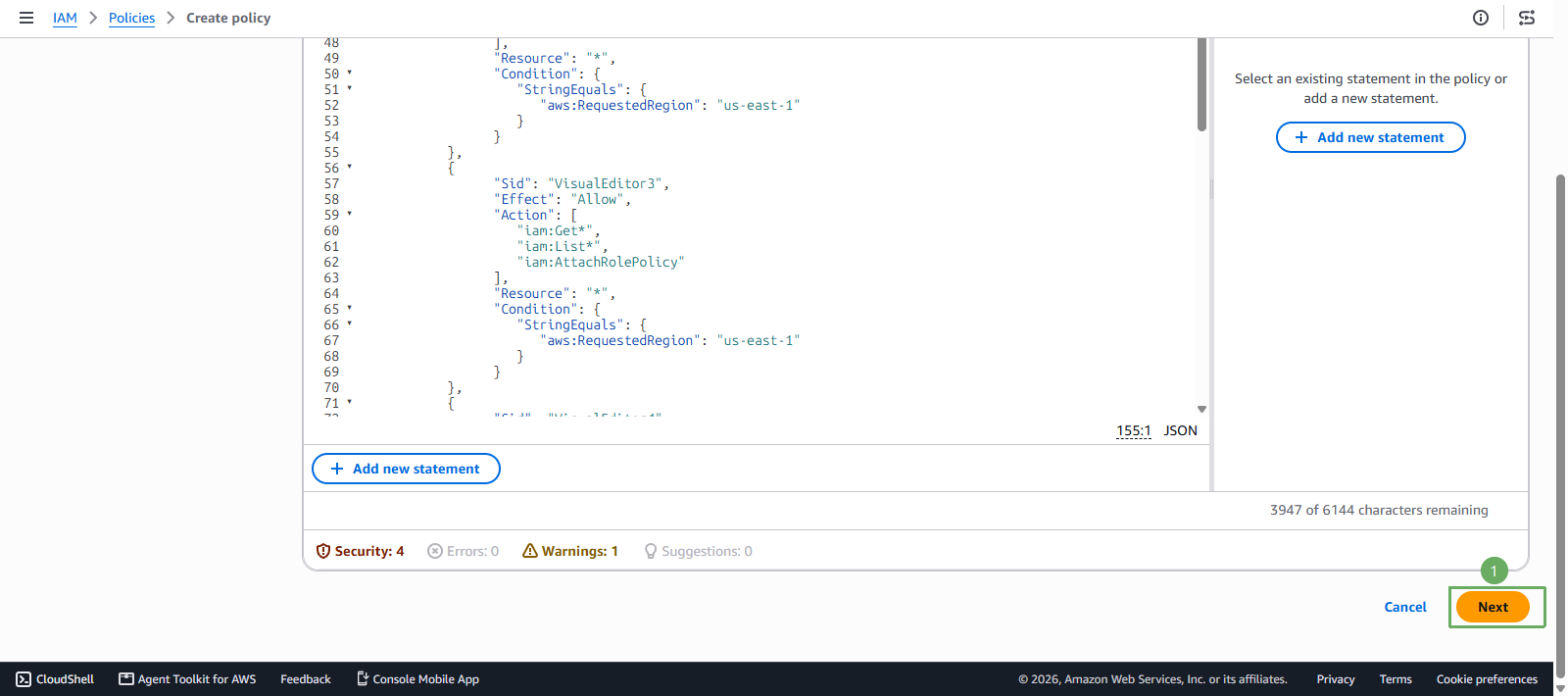
- In the Review and create section
You can choose a different name if you like!
- Policy name enter
kms-key-policy
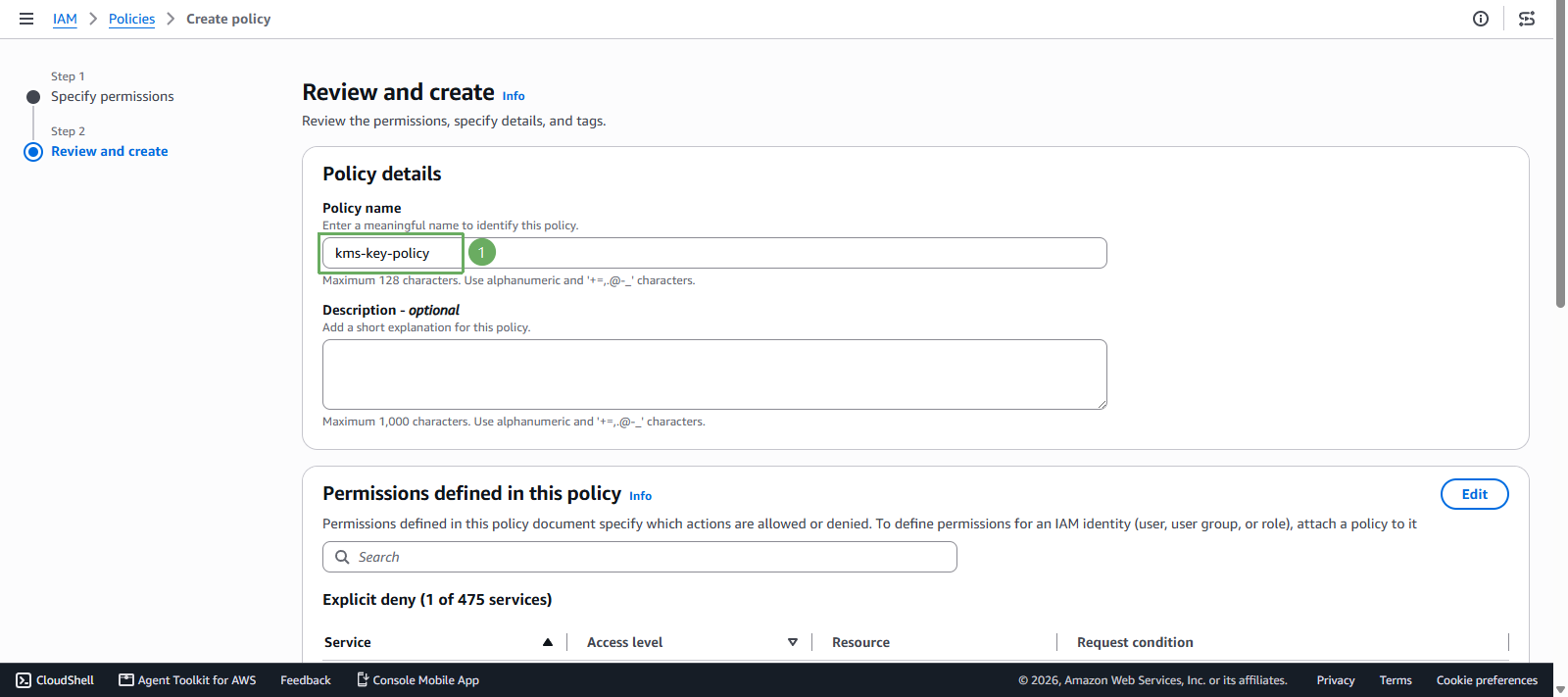
- After entering the Policy name, scroll to the bottom of the page and press Create policy
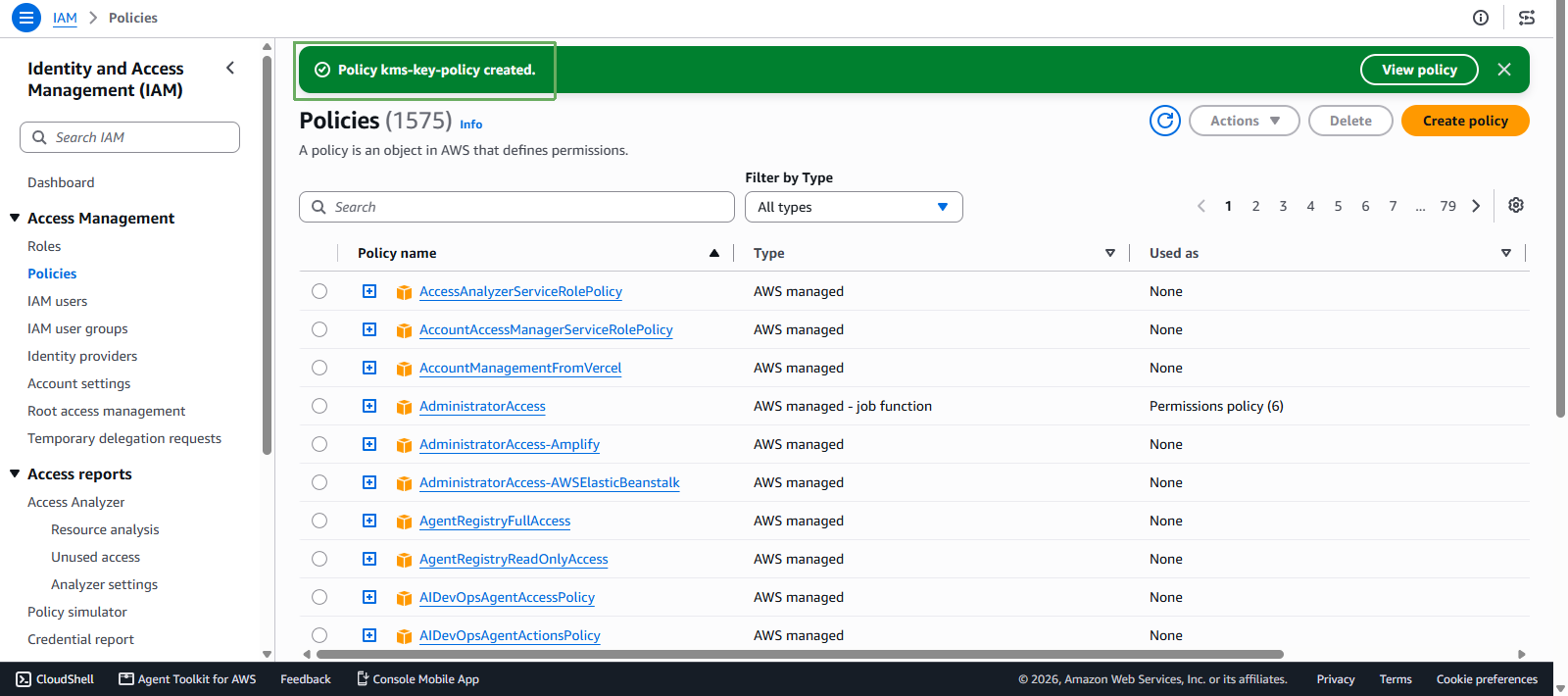
- Notification of successful Policy creation
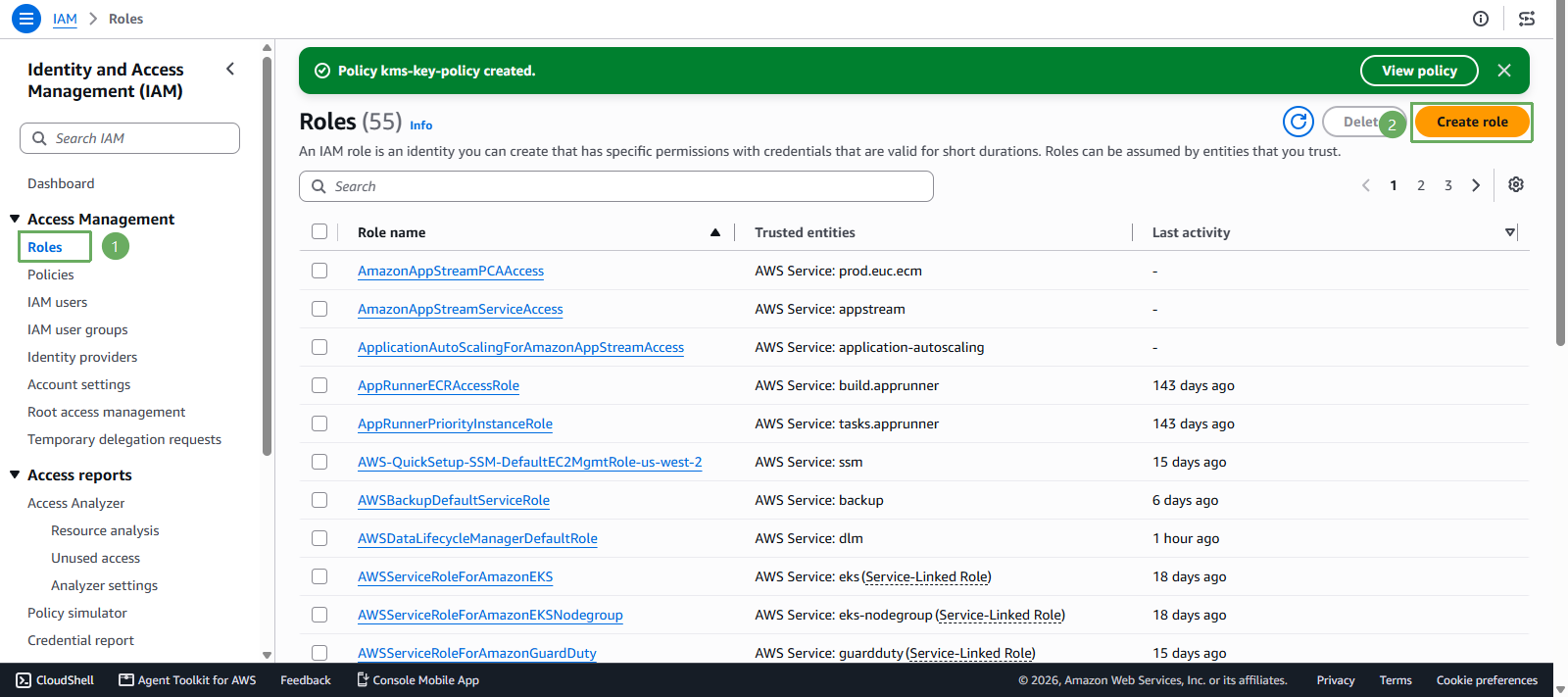
Next, we will create a Role
In the IAM interface
- Select Roles
- Select Create role
In the Select trusted entity section
- Select AWS service
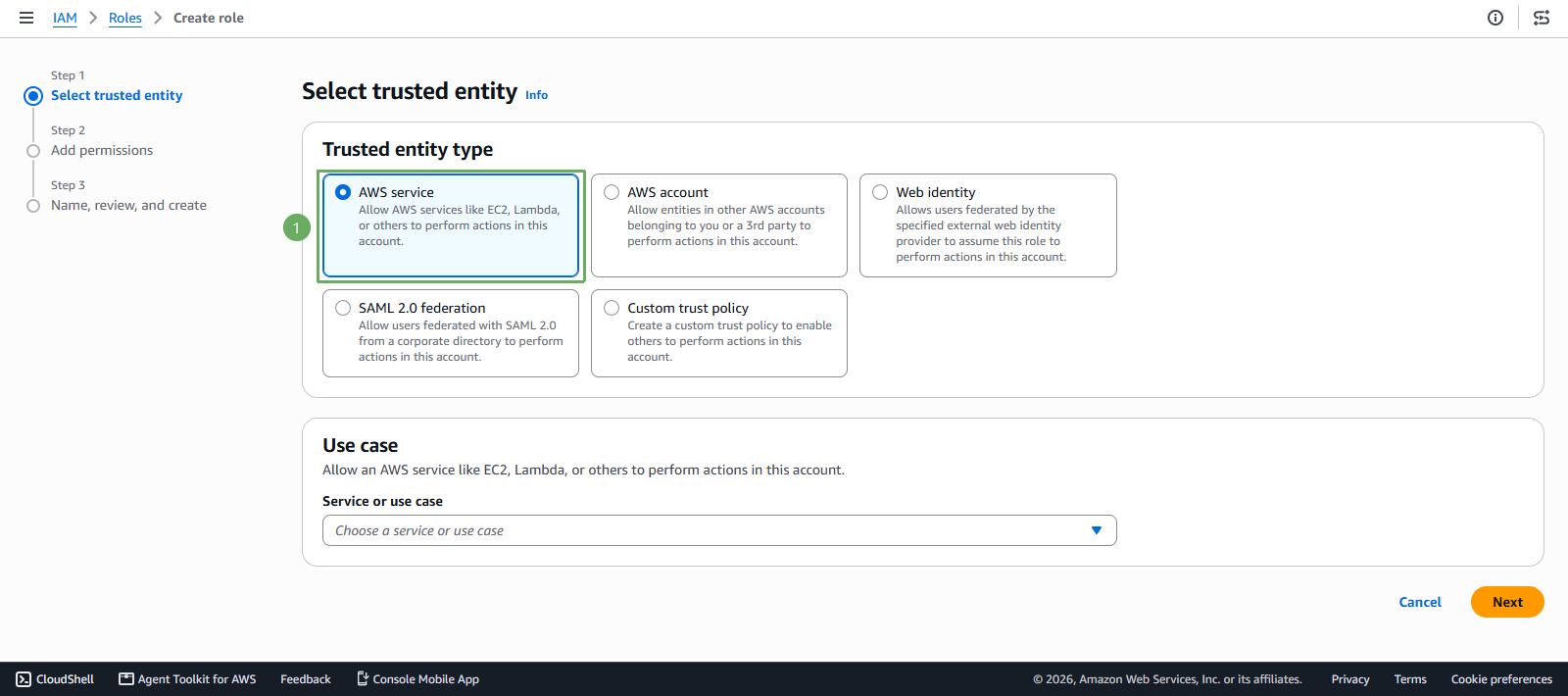
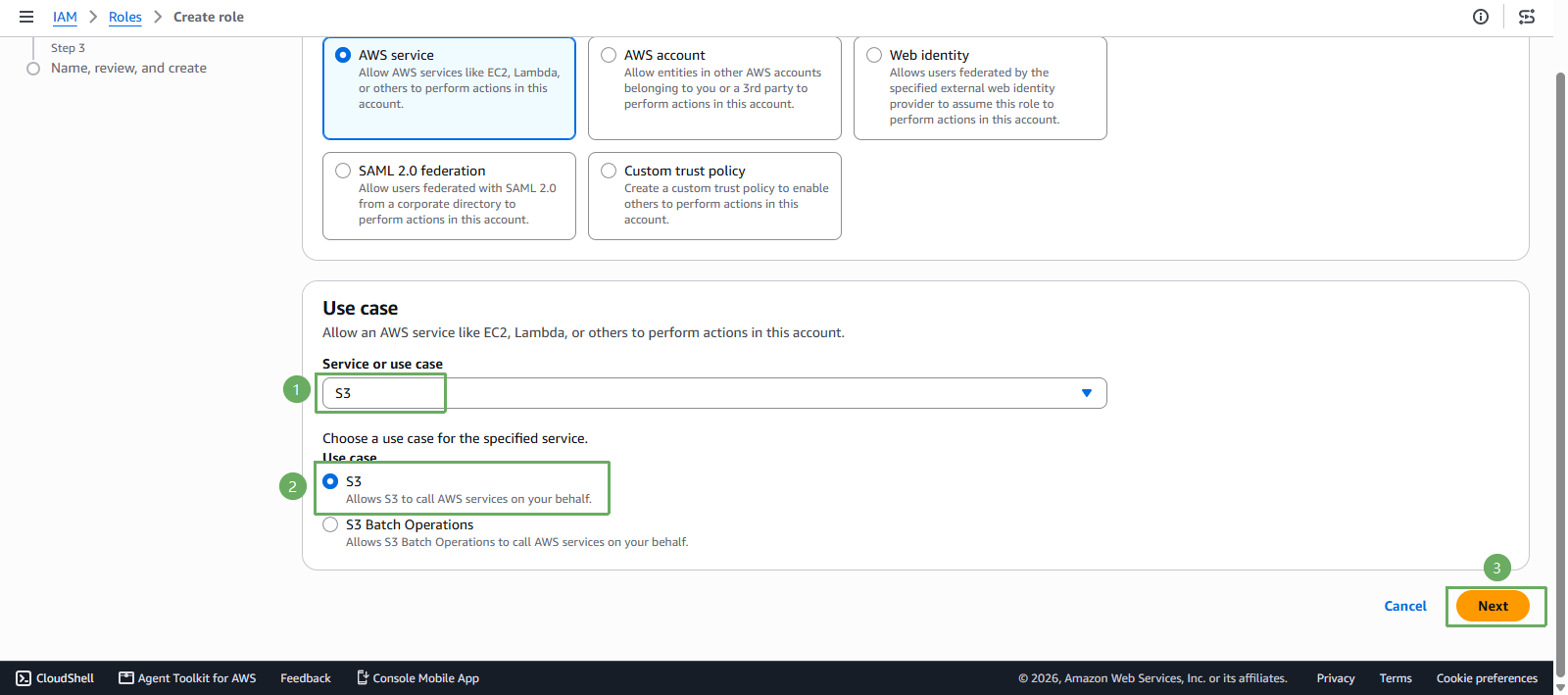
- Scroll down to the Use case section
- In Service or use case, select S3
- In Use case, select S3
- Press Next
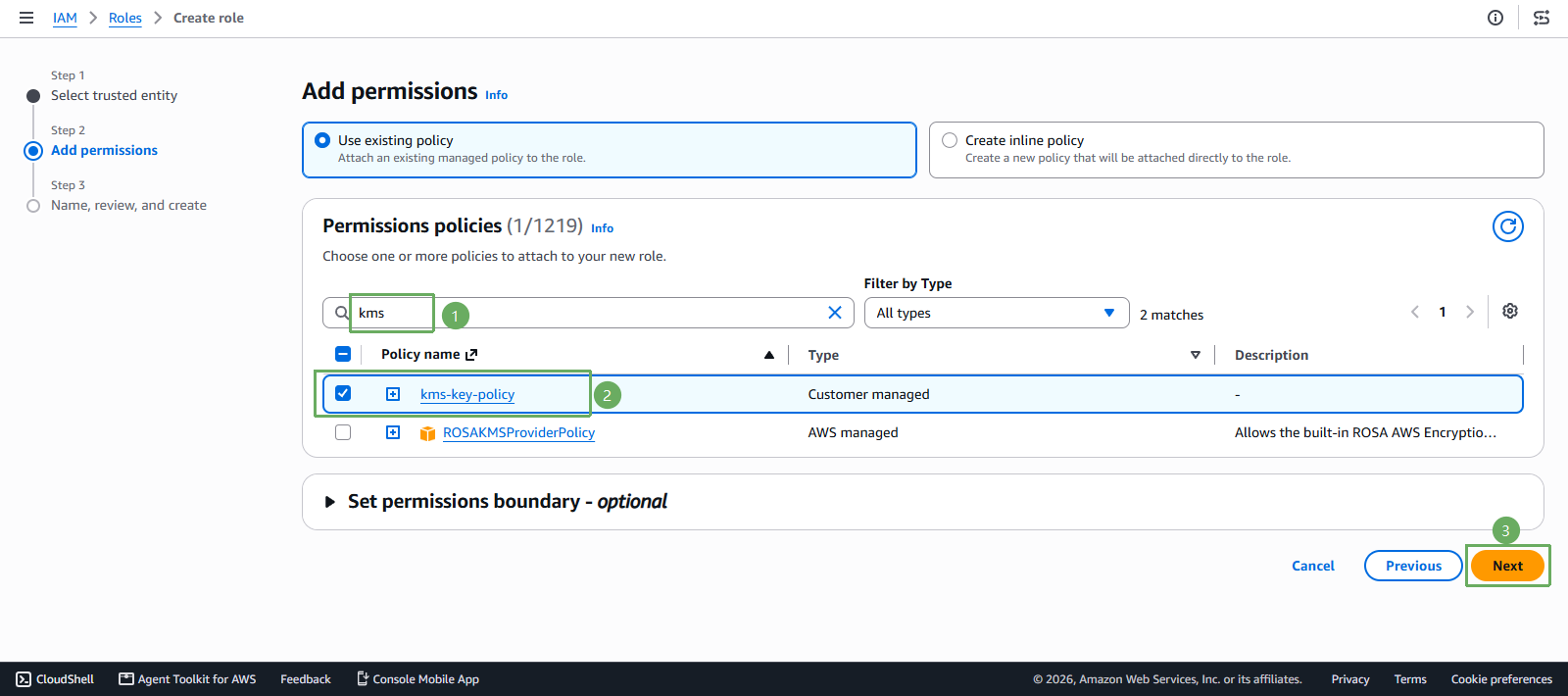
- In the Add permissions section
- Click the search bar and search for the kms policy you just created
- Select the policy you just created
- Press Next
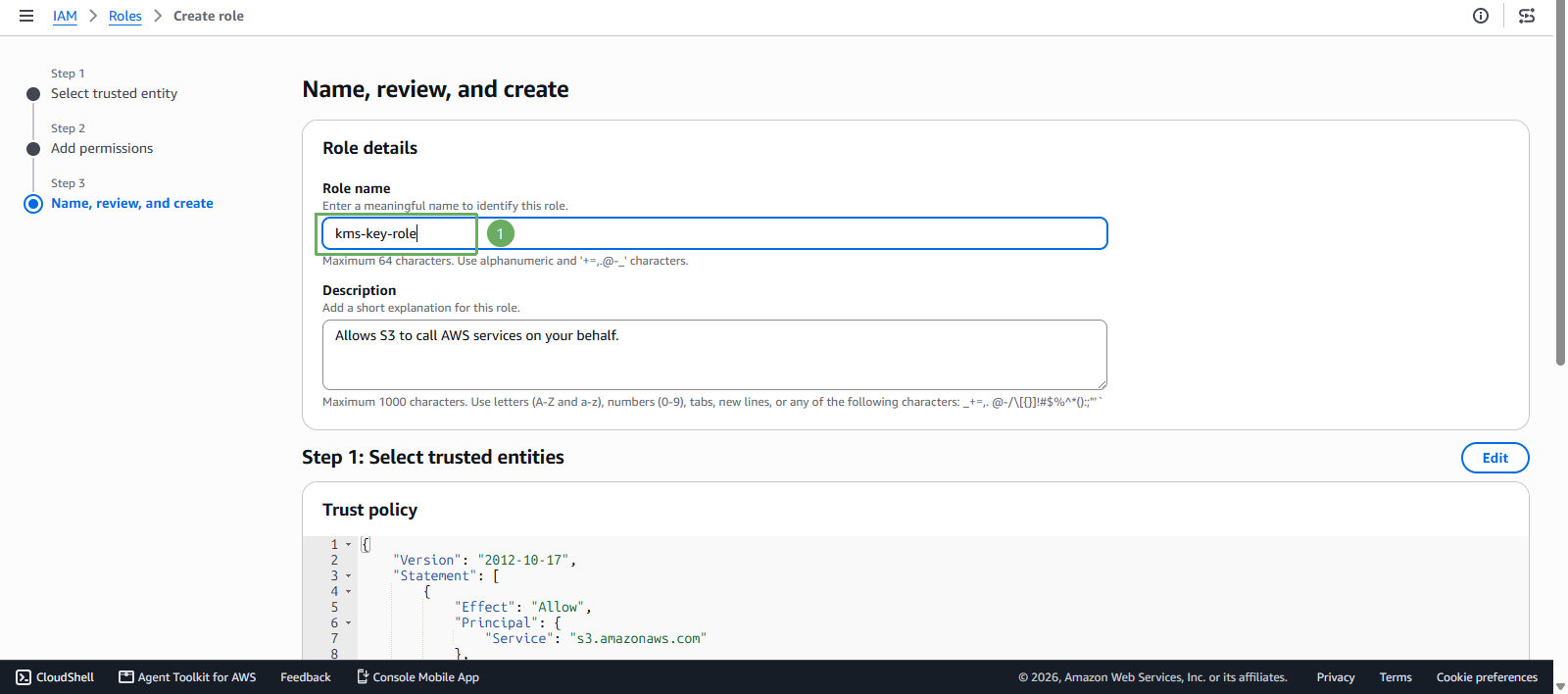
- In the Name, review, and create section
You can choose a different name if you like!
- Role name enter
kms-key-role
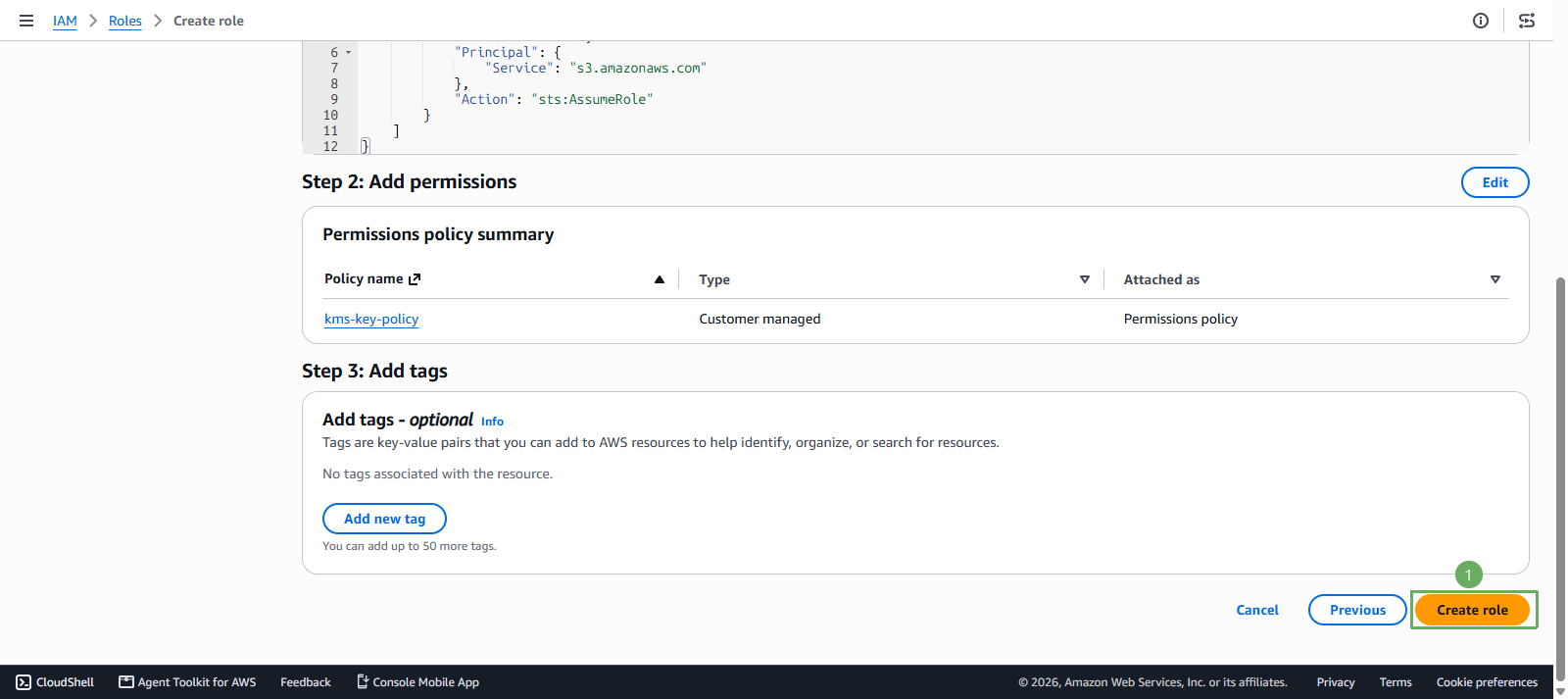
- Scroll down and press Create role
- Notification of successful role creation
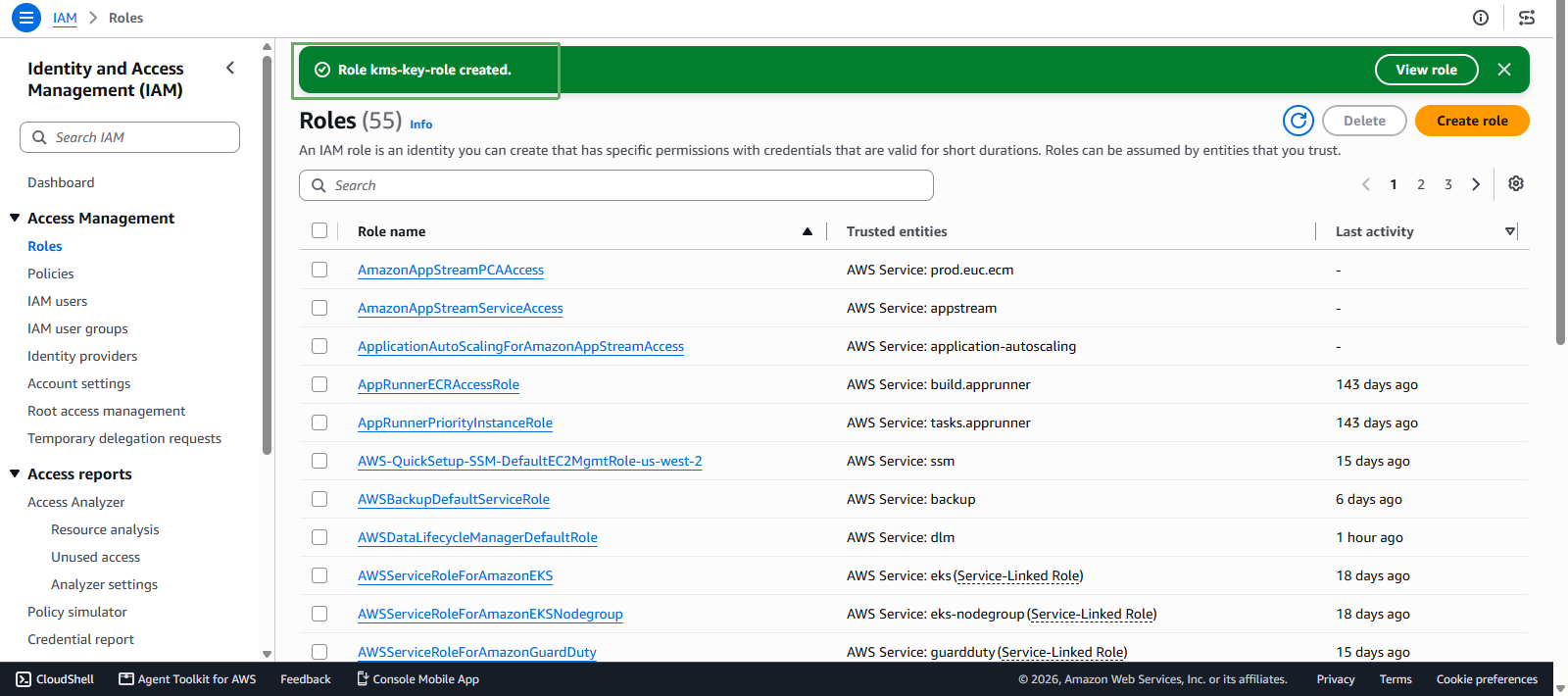
This role will be used later when you select Key administrators and Key users in AWS KMS.